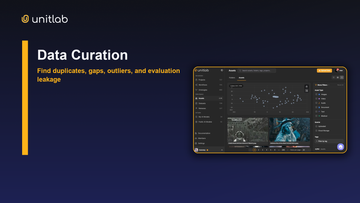
A computer-vision team has 480,000 approved retail images in an Amazon S3 bucket. The files already follow the company's retention, encryption, and access policies. Copying all of them into an annotation platform would create a second corpus to secure, reconcile, and eventually delete.
The better question is not “How do we upload everything?” It is “How do we give the annotation operation controlled access to exactly the objects it needs?”
Unitlab answers that question with cloud-storage connections. In the live platform, a workspace administrator can connect Amazon S3, Google Cloud Storage, Azure Blob Storage, MinIO, DigitalOcean Spaces, Cloudflare R2, Wasabi, Backblaze B2, or a custom S3-compatible endpoint. The connected source can then feed the same Data Space used for curation, datasets, annotation projects, and releases.
This guide follows the provider forms and cloud-folder flow in Unitlab and uses the retail-image team as a running example. Provider-side permissions, networking, and credential policy still belong to the organization that owns the storage account.
The practical goal: expose one approved storage boundary to Unitlab, confirm that only the intended assets are visible, and preserve their source identity as they move into annotation work.
What a Unitlab storage connection does
A connection records how Unitlab should reach an existing object store: provider, bucket or container, credentials, location details, and—where supported—an optional prefix. It is an access path, not a substitute for the provider's own identity and access policy.
That distinction matters. Choosing approved/annotation/ in a prefix field helps Unitlab address the intended path, but the cloud identity should also be restricted at the provider. If the credentials can read the whole bucket, a mistyped or later-edited prefix may create a wider boundary than the project owner expected.
For the retail example, the team first creates a dedicated source path:
s3://retail-vision-production/approved/annotation/spring-catalog/
An upstream process places only approved images in that prefix. A dedicated service identity can list and read that path, but not sibling prefixes containing raw captures or customer exports. The connection will be named prod-retail-spring-catalog so an administrator can understand its purpose without opening it.
Before opening Unitlab
Prepare four decisions first:
| Decision | Retail example | Why it matters |
|---|---|---|
| Storage boundary | approved/annotation/spring-catalog/ |
Prevents unrelated objects from entering the workspace |
| Service identity | Dedicated annotation-reader identity | Avoids dependence on a person's account |
| Required access | List and read the approved path | Keeps the initial connection narrowly scoped |
| Connection owner | Data-platform administrator | Makes rotation, incident response, and removal accountable |
Do not place secrets in the connection name, bucket name, support ticket, project instructions, or screenshot. Keep the access key, account key, application key, or service-account JSON in the approved secret-management workflow until the administrator is ready to enter it.
Step 1: Open the provider selector
In Unitlab, open Settings, select Cloud storage, and choose Add cloud storage. The first screen asks which provider you want to connect.
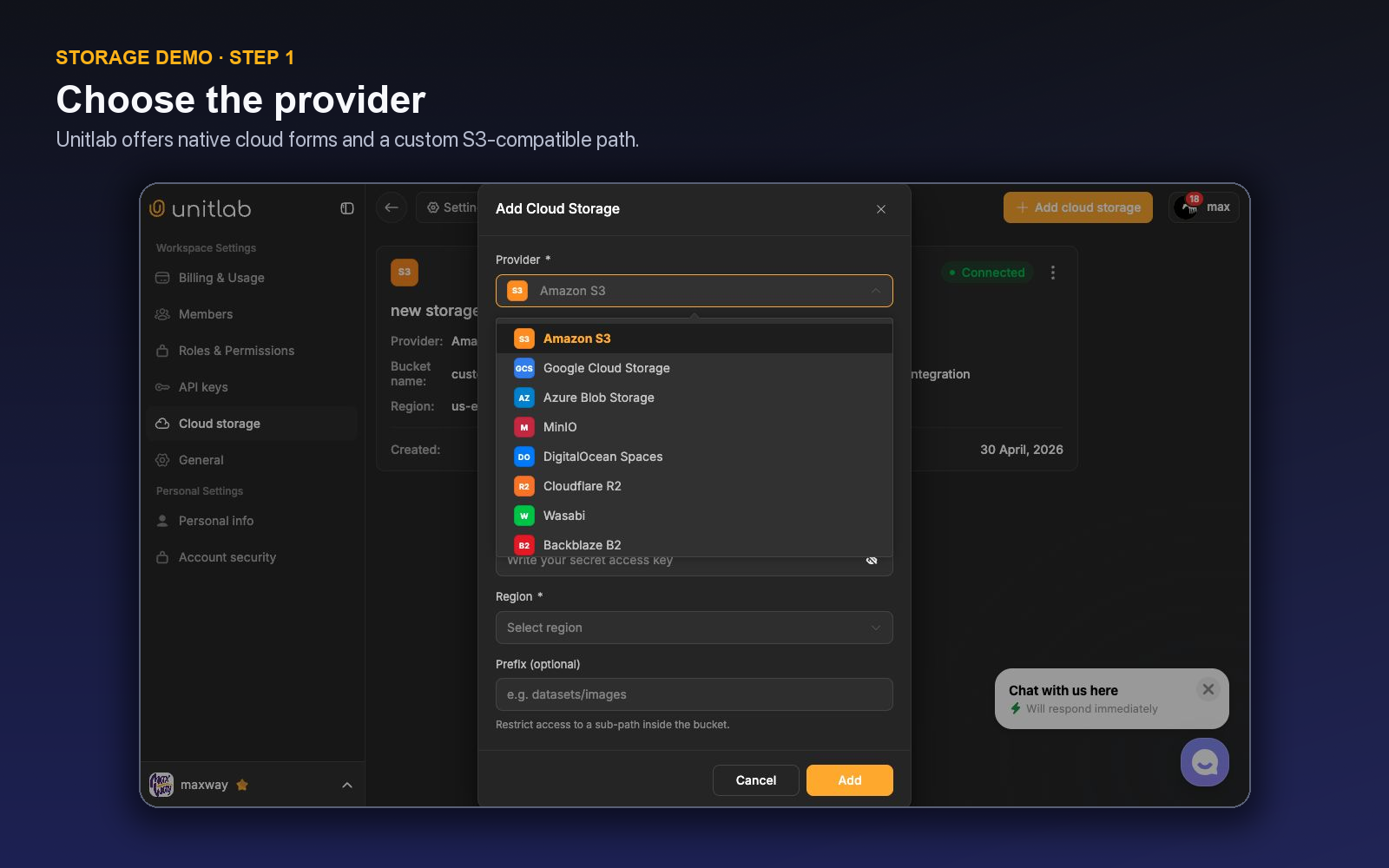
The live selector currently includes:
- Amazon S3
- Google Cloud Storage
- Azure Blob Storage
- MinIO
- DigitalOcean Spaces
- Cloudflare R2
- Wasabi
- Backblaze B2
- S3-Compatible (Custom)
This is the first point where architecture—not branding—should drive the decision. Use the native Amazon, Google, or Azure path when the source already lives there. Use a named S3-compatible option for the corresponding service. Use the custom option when your object store exposes an S3 API and requires an explicit endpoint.
Step 2: Enter the fields for your provider
The form changes after a provider is selected. The following table uses the provider-specific fields presented by Unitlab, not a generic cloud-storage checklist.
| Provider | Fields shown by Unitlab |
|---|---|
| Amazon S3 | Display name, bucket name, access key ID, secret access key, region, optional prefix |
| Google Cloud Storage | Display name, bucket name, service-account key JSON, optional prefix |
| Azure Blob Storage | Display name, container name, storage account name, account key, optional prefix |
| MinIO | Display name, bucket name, access key ID, secret access key, endpoint URL, region, optional prefix |
| DigitalOcean Spaces | Display name, space name, access key, secret, region, optional prefix |
| Cloudflare R2 | Display name, bucket name, access key, secret, account ID, optional prefix |
| Wasabi | Display name, bucket name, access key, secret, region, optional prefix |
| Backblaze B2 | Display name, bucket name, key ID, application key, region, optional prefix |
| S3-Compatible (Custom) | Display name, bucket name, access key ID, secret access key, endpoint URL, region, optional prefix |
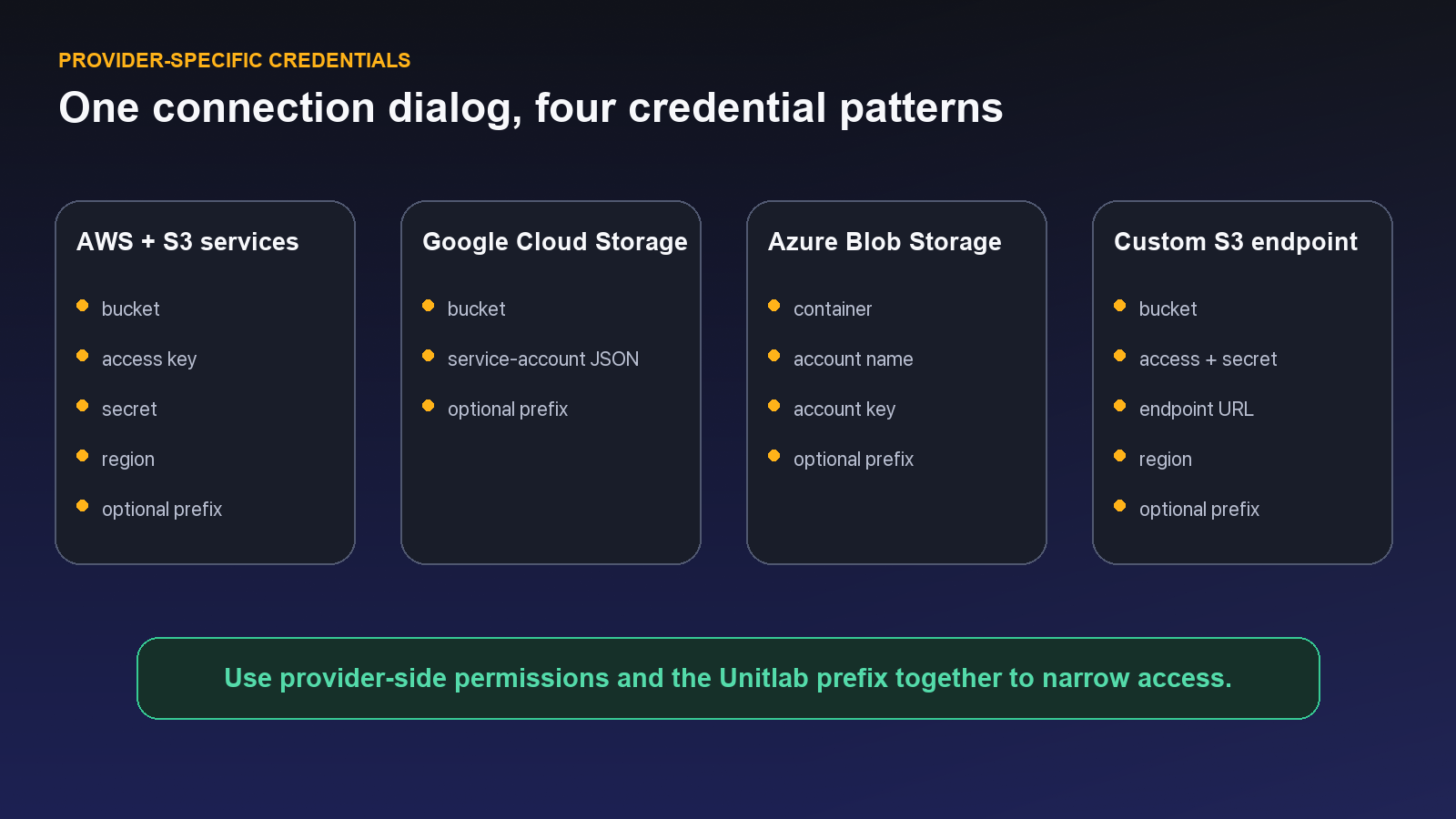
The labels look familiar, but each value has operational meaning:
- Display name is the human-readable identity shown in Unitlab. Include environment and purpose.
- Bucket or container identifies the object namespace; it is not a folder path.
- Credentials authenticate the dedicated service identity.
- Region, account ID, or endpoint URL tells Unitlab where to send requests.
- Prefix narrows the source to a sub-path inside the bucket or container.
Amazon S3 walkthrough
Choose Amazon S3 for a bucket hosted in AWS. Unitlab asks for the bucket, access-key pair, region, and optional prefix.
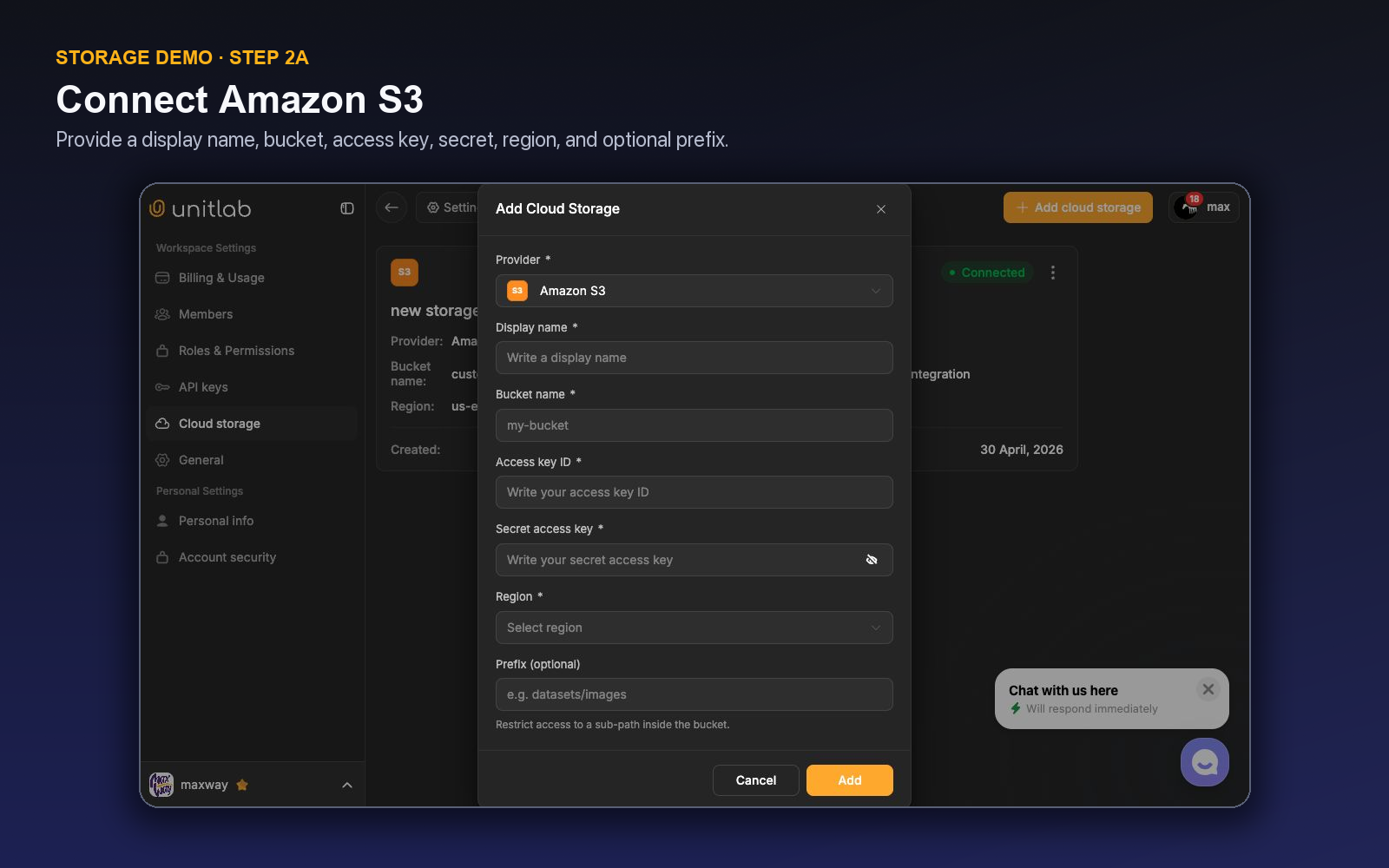
For the retail example, the administrator would enter:
| Field | Example value |
|---|---|
| Display name | prod-retail-spring-catalog |
| Bucket name | retail-vision-production |
| Access key ID | Value issued to the dedicated service identity |
| Secret access key | Corresponding secret, entered only in the protected form |
| Region | The bucket's actual AWS region |
| Prefix | approved/annotation/spring-catalog/ |
The prefix should be relative to the bucket, not a full s3:// URL. Match the source's capitalization and separators exactly. A missing or incorrect region can produce an authentication-looking failure even when the access key itself is valid.
Click Add only after the provider policy and the Unitlab prefix describe the same intended boundary. After a successful connection, the Cloud storage page should show a connection card. The live action menu on an existing connection offers Edit and Remove, which gives administrators a place to correct configuration or disconnect the source.
Google Cloud Storage: use a service-account key
Choose Google Cloud Storage for a GCS bucket. This form replaces the access-key pair and region with a service-account key in JSON format.
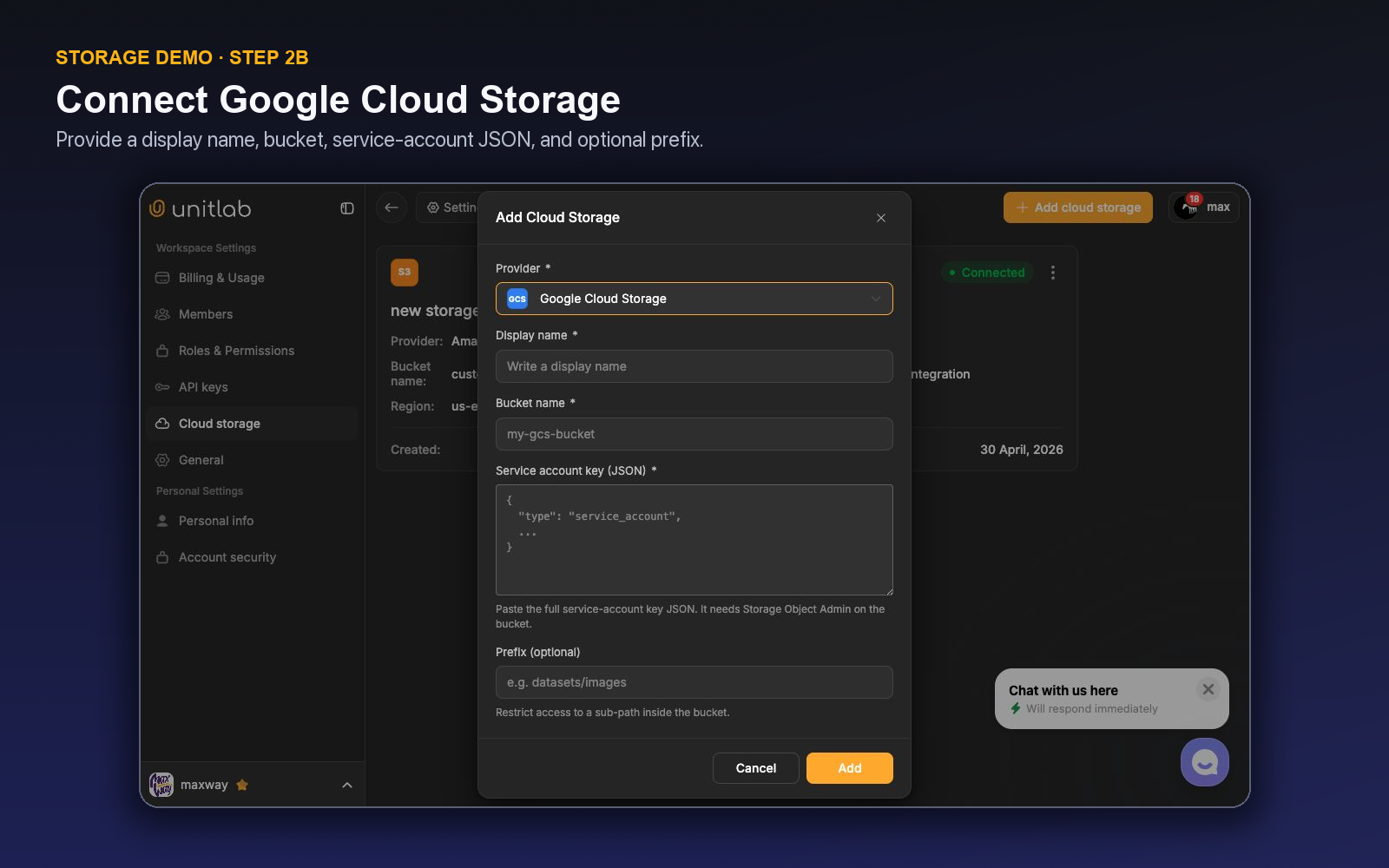
The live interface states that the service account needs Storage Object Admin on the bucket. That is what the current form requests; your cloud-security team should still review whether the role and bucket boundary fit the organization's policy and the intended read/write behavior.
Paste the complete JSON credential into the designated field—never into a project description or annotation instruction. Use the optional prefix to point the connection at the approved sub-path. Before production use, test both the actions that should succeed and a sibling path that should remain inaccessible.
Azure Blob Storage: identify the container and account
Choose Azure Blob Storage for an Azure container. Unitlab asks for the container name, storage account name, account key, and optional prefix.
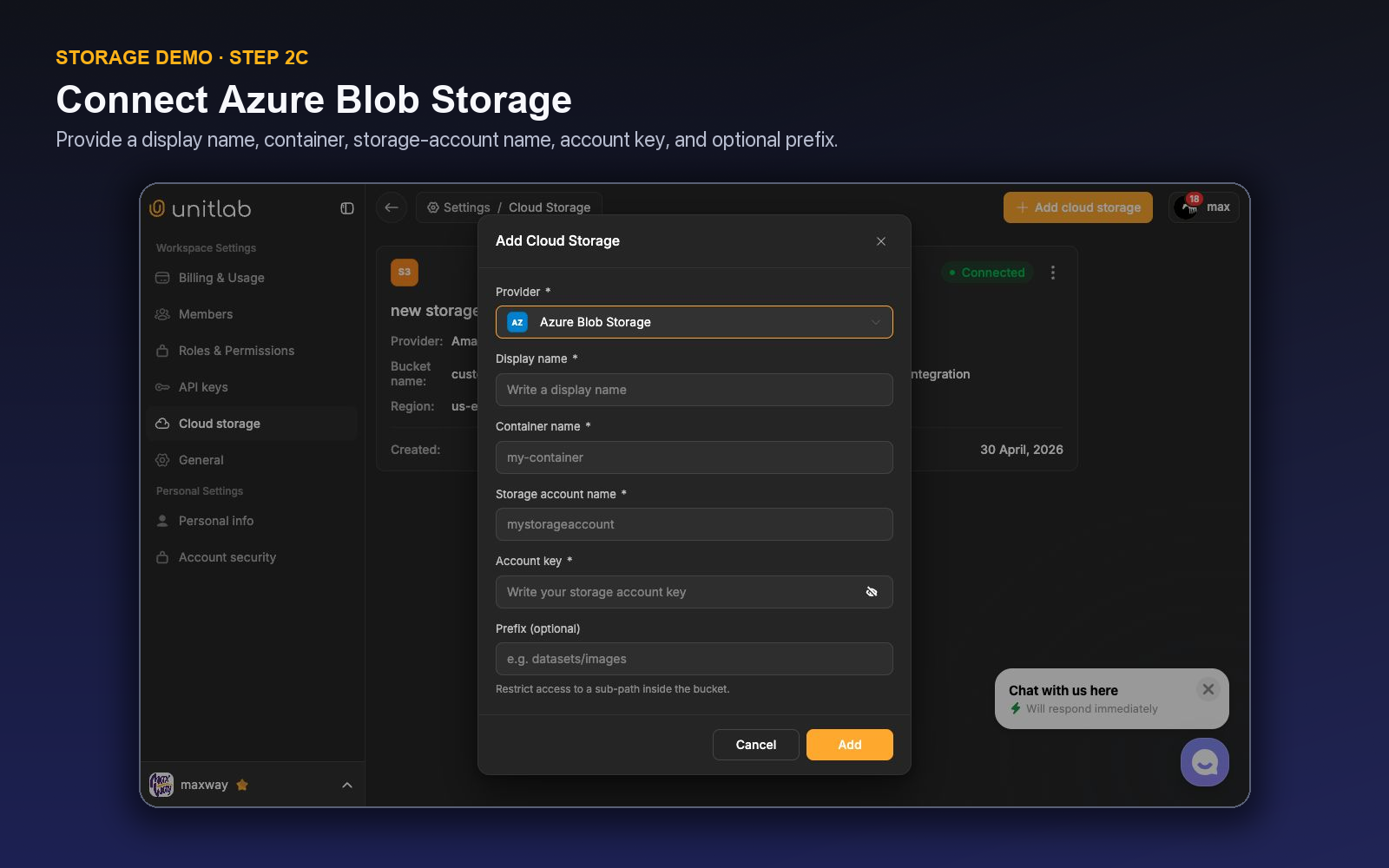
Do not paste a full portal URL into the container field. Enter the container name and storage account name separately, then supply the corresponding account key. If the container holds multiple programs, use the prefix to expose only the approved virtual directory.
An account key can be powerful. Treat it as a production secret, define a rotation owner, and verify the blast radius before using it. The fact that the form accepts the key does not prove that the resulting access boundary satisfies your security policy.
MinIO, R2, and other S3-compatible storage
S3-compatible services use the same broad request model but differ in endpoints, regions, account identifiers, and credential terminology. Unitlab exposes those differences instead of forcing every provider into one ambiguous form.
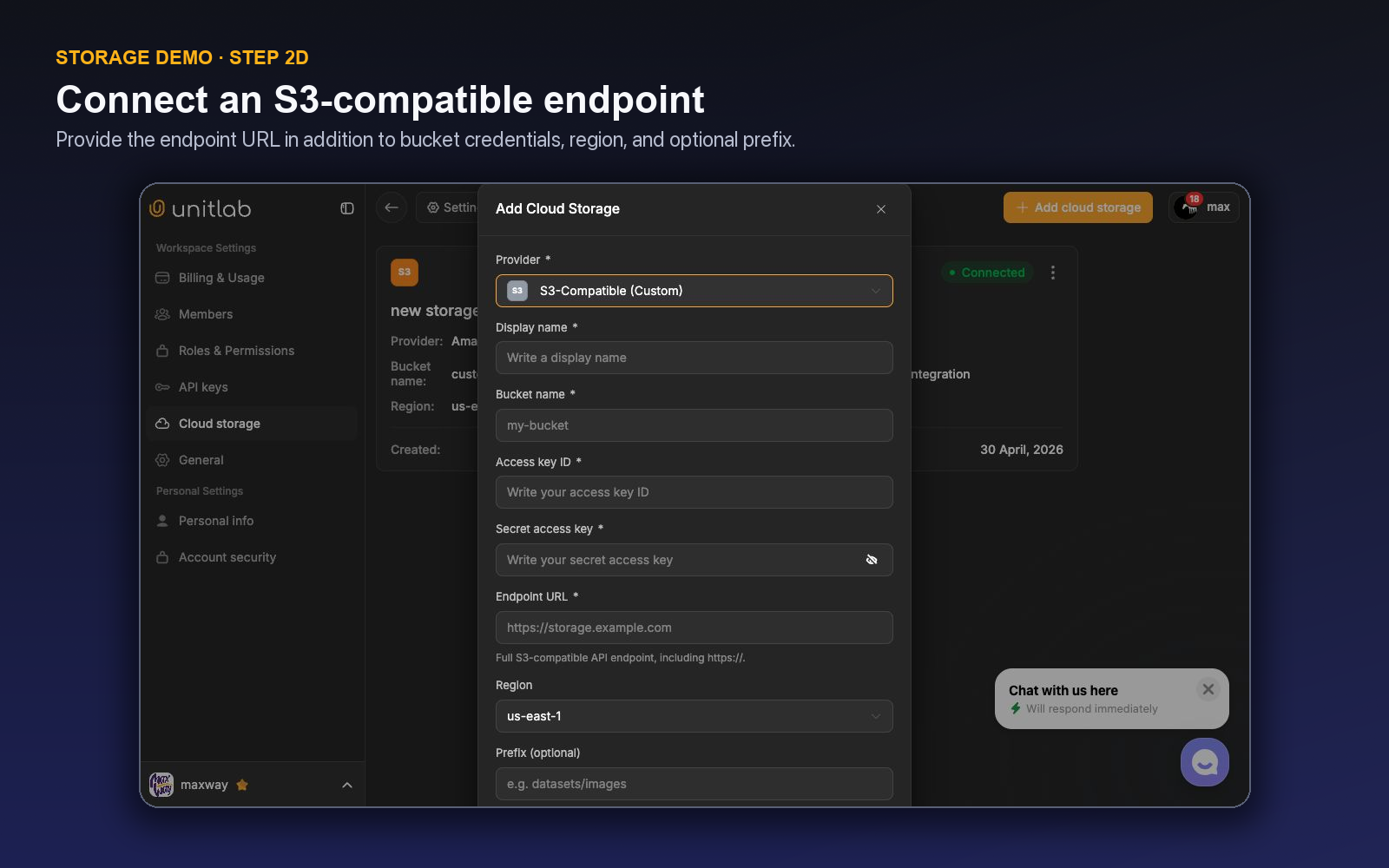
Use the custom S3-compatible form when the endpoint is not represented by a named provider. It includes Endpoint URL and defaults the region field to us-east-1; replace that value if your service expects another region. For a private MinIO deployment, verify that the Unitlab deployment can resolve and reach the endpoint and that its TLS certificate is trusted.
The named forms make a few provider-specific adjustments:
- Cloudflare R2 asks for an Account ID and derives the endpoint from it.
- DigitalOcean asks for a Space name and region.
- Backblaze B2 uses Key ID and Application key terminology.
- Wasabi uses bucket, key pair, and region.
- MinIO and the custom option expose an Endpoint URL.
“S3-compatible” does not guarantee identical behavior. Validate endpoint addressing, signing, pagination, object metadata, large files, and failure responses against the service you actually operate.
Step 3: Create and validate the cloud folder in Data Space
A saved connection is only the first success condition. In Assets, choose New Folder ▾ → Add Cloud Folder, select the integration, choose the approved bucket prefix and display name, and open the new cloud-backed root folder. Unitlab registers the first bucket level on first access; immediate files appear as assets and child prefixes appear as child cloud folders. Use Sync to refresh the current prefix.
The folder is a read-only organizational mirror of customer storage. Unitlab keeps the object reference and a preview where needed rather than copying the source corpus into Unitlab storage. Drag-move is disabled for mirrored content. Sync refreshes the Data Assets prefix; it does not update an already attached project or silently change a published dataset version.
The retail team validates the source with a small, non-sensitive pilot batch before exposing the full approved prefix.
- Place a representative set of images in a temporary approved prefix.
- Confirm that Unitlab shows only those objects—not a neighboring directory.
- Open several assets and verify type, dimensions, names, and expected previews.
- In Assets, use the Source filter to distinguish cloud-storage assets from uploaded assets.
- Attach a small selection to a dataset and confirm that authorized project members can use it.
- Add one new source object, run Sync, and confirm that the current cloud folder refreshes.
- Revoke or disable the test credential and verify that the failure is visible and recoverable.
Cloud-sourced content appears alongside uploaded assets in Data Space, with folders, search, tags, type filters, dates, sizes, dimensions, More Filters, and dataset attachment. A project receives a stable source only after the selected folder or dataset is published as a version and attached through the normal project flow.
Avoid overwriting an object at the same key during this test. If training lineage matters, use immutable source keys or provider-side object versions so an annotation can be traced to the bytes an annotator actually saw.
Troubleshoot by symptom
| Symptom | Check first |
|---|---|
| Authentication or signature error | Key pair or JSON integrity, service identity status, clock, and region |
| Bucket or container not found | Exact bucket/container name, account/project, region, and endpoint |
| Connection saves but no assets appear | Prefix spelling, source objects under that prefix, listing permission, supported file types |
| Too many objects are visible | Provider-side policy and Unitlab prefix; stop before attaching data to projects |
| Custom endpoint cannot connect | DNS, network route, port, TLS certificate, endpoint URL, path-style requirements |
| Some large assets fail | Object size, request timeout, multipart behavior, provider limits, network stability |
| Assets become stale after source changes | Run folder Sync; verify the prefix and whether immutable object keys are required |
Do not solve a scope error by granting broader permissions. A connection that works only with full-bucket administration is a signal to revisit the identity policy, endpoint configuration, or expected operations.
Keep connection administration separate
The live Unitlab role editor includes cloud-storage administration among the workspace permissions. Give connection management to a small accountable group; annotators and reviewers normally need the resulting assets, not the ability to replace credentials or remove sources.
Record the connection owner, provider, bucket/container, approved prefix, credential owner, rotation date, affected datasets, and removal procedure. When a project closes, check for dependent datasets and releases before removing the connection, then revoke the provider credentials under the organization's retention policy.
From connected source to training release
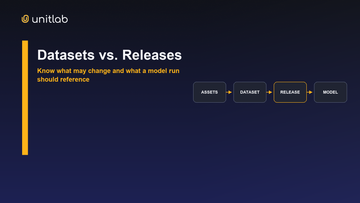
Cloud storage is the beginning of the data path, not the final deliverable. Once the retail images are visible, the team can use Data Space to inspect and filter the corpus, create a working dataset, attach it to an annotation project, review the work, and create a versioned release for downstream model development.
That sequence preserves useful distinctions:
- the object store remains the source boundary;
- the dataset is the working selection;
- the project contains annotation operations;
- the release is the stable handoff used by a model run.
The result is not merely fewer uploads. It is a traceable route from an approved source path to a reviewed training-data version.
Validate the connection as a data operator, not only as an administrator
A successful credential check proves that Unitlab can reach the provider. It does not prove that the intended data is visible, correctly scoped, or safe to use. After creating the connection, open the cloud folder in Data Space and verify a representative prefix containing several supported files, a nested path, a deliberately excluded path, and one file that should fail or remain invisible under the chosen permissions.
Check the displayed hierarchy and metadata. Confirm that bucket or container, prefix, object names, and resource types correspond to the source. If the provider is S3-compatible, validate the custom endpoint and region behavior with actual listing and read operations; compatibility labels alone do not guarantee identical addressing, TLS, or permission semantics.
Import or reference a small pilot into Assets. Watch processing state and inspect both successful and failed resources. A readable object can still fail downstream because the media is unsupported, corrupted, encrypted, or missing a companion file. Separate connection errors from data-processing errors so credentials are not repeatedly changed to solve a media problem.
Use least privilege. The integration should read only the required bucket, container, or prefix unless the workflow explicitly needs writes. Keep secrets out of project instructions and screenshots. When credentials rotate, update the connection under an owned process and rerun the pilot. Connection administration should remain with the workspace roles responsible for high-impact settings, while annotators work with the resulting Assets and datasets.
Finally, trace one object into a versioned handoff: connected cloud source, processed Asset, curated dataset version, annotated project item, and Release. Record the source scope and known exclusions in the release notes. That lineage is what allows a model team to reproduce the input later without receiving the storage credential itself.
Diagnose the layer that actually failed
When data does not appear, test in order. First verify provider identity and endpoint: the intended account, project, region, bucket or container, prefix, and compatible-service URL. Next verify authentication and least-privilege access to list and read the pilot objects. Then check whether the connected folder exposes the expected hierarchy in Data Space. Only after source access works should the team diagnose Asset processing and media compatibility.
Keep one known-good small file in the pilot prefix. If that object lists and processes while a production file fails, the connection is probably healthy and the resource needs media-level investigation. If nothing lists, inspect connection scope or permissions. If objects list but none process, inspect format, encryption, companion-file requirements, or processing state.
For rotation, rehearse replacing credentials without changing the dataset's semantic source. Confirm that the connection resumes, the known-good object remains accessible, and no broader prefix became visible. Record the owner and rotation date outside annotation instructions. This avoids solving an operational access problem by distributing long-lived secrets to project users.
The troubleshooting goal is isolation. Storage identity, authorization, listing, media processing, grouping, annotation, and release are separate layers; testing them in sequence prevents a change at one layer from obscuring a failure at another.
For each provider, keep a concise connection record without the secret itself: provider type, account or project, bucket or container, region, endpoint if compatible storage is used, allowed prefix, responsible owner, and last validation date. This record supports rotation and incident response without exposing credentials to annotation teams.
Test deletion and source mutation policy as well. Decide what Unitlab should do when an upstream object is renamed, replaced, or removed after it has been used in a dataset version. Historical releases should not silently change meaning because cloud storage remained mutable.
Monitor both access and processing health. A credential can remain valid while new uploads use an unsupported codec or broken naming convention. Separating those signals lets the storage owner and data operator respond to the right problem.
For S3-compatible services such as R2 or MinIO, repeat the pilot after endpoint, certificate, region, or addressing changes. Provider compatibility is an interface expectation; the validated connection record is the operational truth for the configured environment.
A connection change-control checklist
Before a new connection or credential change, record the provider, account or project, bucket or container, region, endpoint, prefix, owner, and intended Unitlab workspace. Confirm provider-side least-privilege permissions and a known-good pilot object. Keep the secret only in the connection flow or approved secret process.
After saving, verify source listing in Data Space, read access to the pilot prefix, nested hierarchy, expected exclusions, and processing of representative media. Test an intentionally inaccessible path to prove the scope is narrow. For custom S3 services, test TLS, endpoint addressing, and the configured region instead of assuming AWS behavior.
Trace the pilot into Assets and inspect successful and failed processing separately. Then create a small dataset version and confirm the source identity remains visible. This proves the connection supports the actual data path, not only credential validation.
For rotation, replace credentials under the named owner, rerun the same pilot, compare visibility, and monitor processing. Revoke the old secret only after the new path works. For endpoint or prefix changes, treat the update as a source-scope change and review which Assets and releases may be affected.
For incident response, isolate provider identity, authorization, listing, processing, grouping, annotation, and release. Record which layer failed and the recovery time. Do not broaden permissions as a generic troubleshooting step.
Finally, document the source boundary in the Release without exposing credentials. Consumers need the approved origin, scope, and limitations; annotators need accessible Assets; only administrators responsible for integrations need the connection secret.
Connect a safe pilot
Prepare ten representative, non-sensitive objects in a dedicated bucket or prefix. Then open Unitlab's Cloud storage settings, select the provider, enter the exact fields shown above, and validate both allowed and denied scope before connecting production data.
The most successful connection is not the broadest one. It is the smallest, clearest boundary that lets the annotation team do its work.
Explore related Unitlab capabilities: AI training-data annotation.
Continue in the Unitlab documentation: Cloud storage providers.