Note: This is a simplified, quick version of our project creation docs. For full information, refer to this page:

Workspace Management Docs | Unitlab AI
A workspace is essentially a top-level repository in Unitlab AI that hosts data annotation projects. One workspace can hold many (unlimited, theoretically) projects. Each workspace has its own members, settings, API keys, and pricing plans. Keep in mind that each subscription you buy is only for the workspace. You can buy different pricing subscriptions depending on your needs.
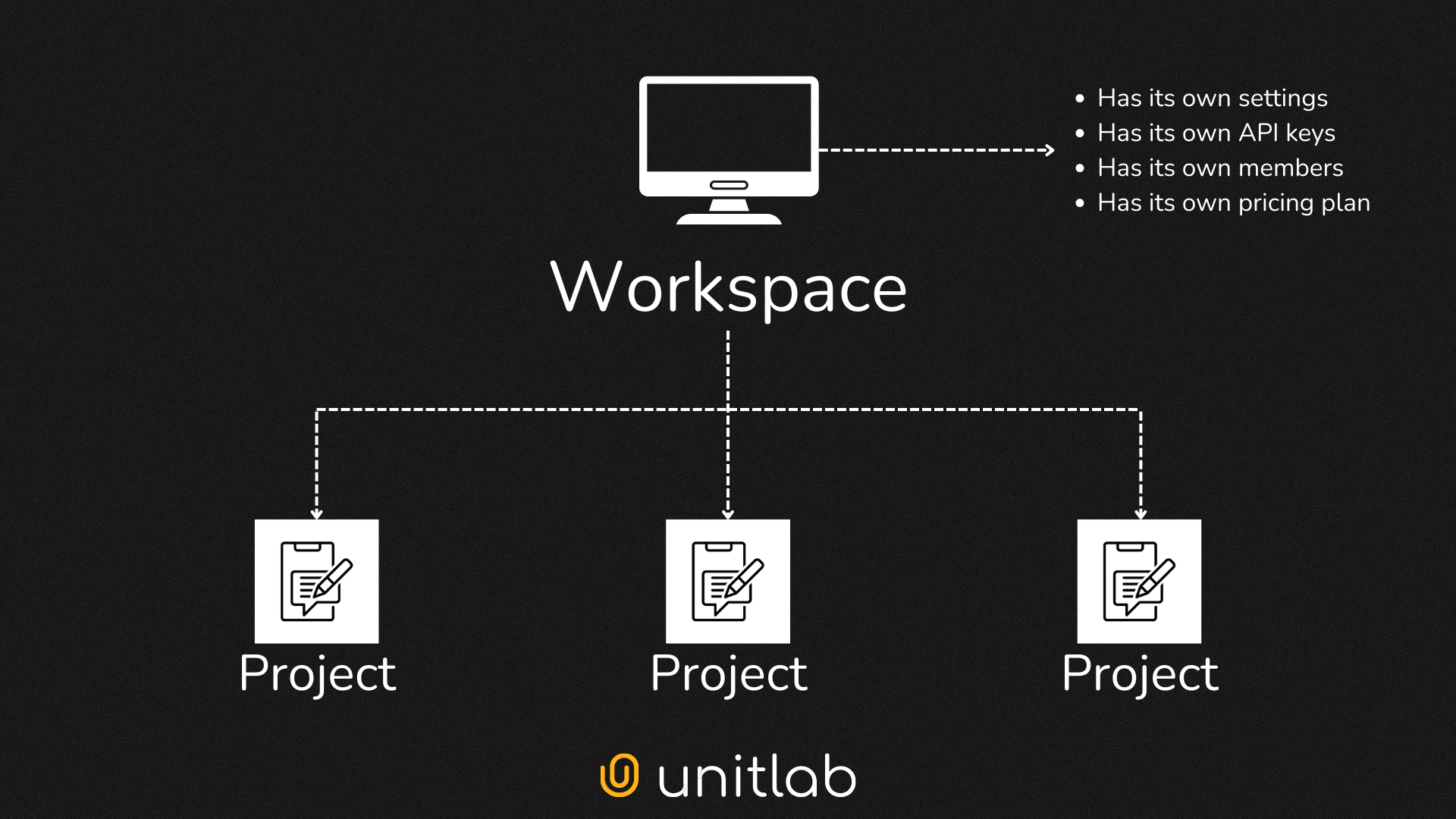
Regardless of your pricing plan, you can create an unlimited number of workspace instances on our data annotation platform. However, if you upgrade to a paid plan, you upgrade only one workspace.
When you create your account for the first time, you are automatically assigned a workspace. Depending on the size and nature of your projects, you may need additional instances of workspace: one for image annotation, another for medical images, and so on. By default, these instances come at a Free plan.
Unitlab AI provides a comprehensive data platform that simplifies the setup, invites team members, and manages access with role-based permissions. In this post, we’ll walk through the key steps of workspace management to help you get the most out of your projects.
Creating a Workspace
In Unitlab AI, each project belongs to a workspace. As soon as you register a an account on our platform, a workspace is automatically established for you. You can get started by creating projects in your current workspace and annotating your data.
 Hojiakbar Barotov
Project Creation | Unitlab AI
You can create an unlimited number of workspace instances to meet your project needs. Each workspace is independent, with its own team members and pricing, and you are assigned as the owner. A well-organized workspace ensures that your data annotation tasks and team collaboration run smoothly.
Setting Up a Workspace
When you first set up a workspace instance on Unitlab AI, it defaults to a free plan, which you can upgrade later.
Setting up a workspace in our data labeling platform is intuitive and easy:
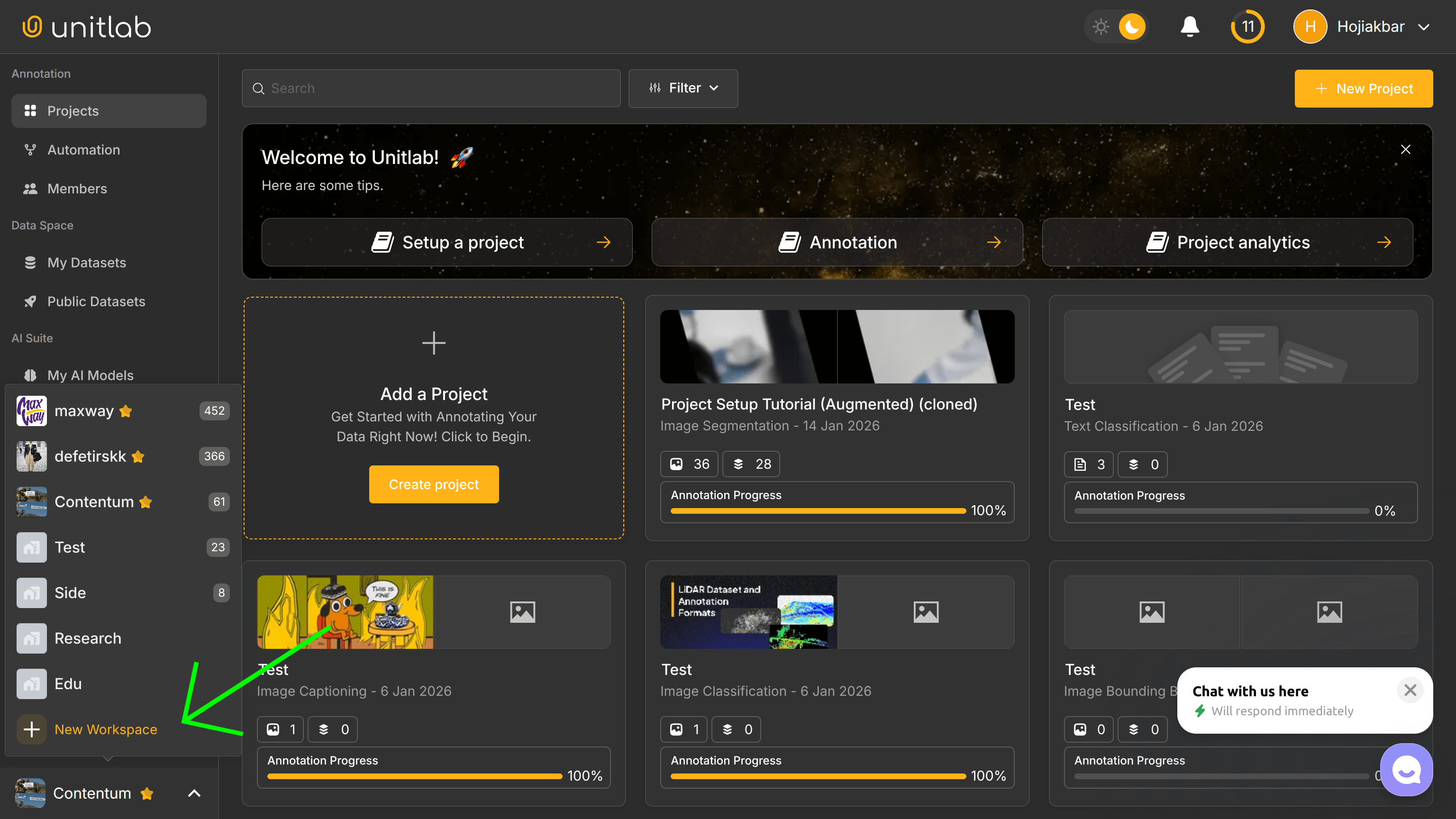
- Click "New Workspace" on the dashboard:
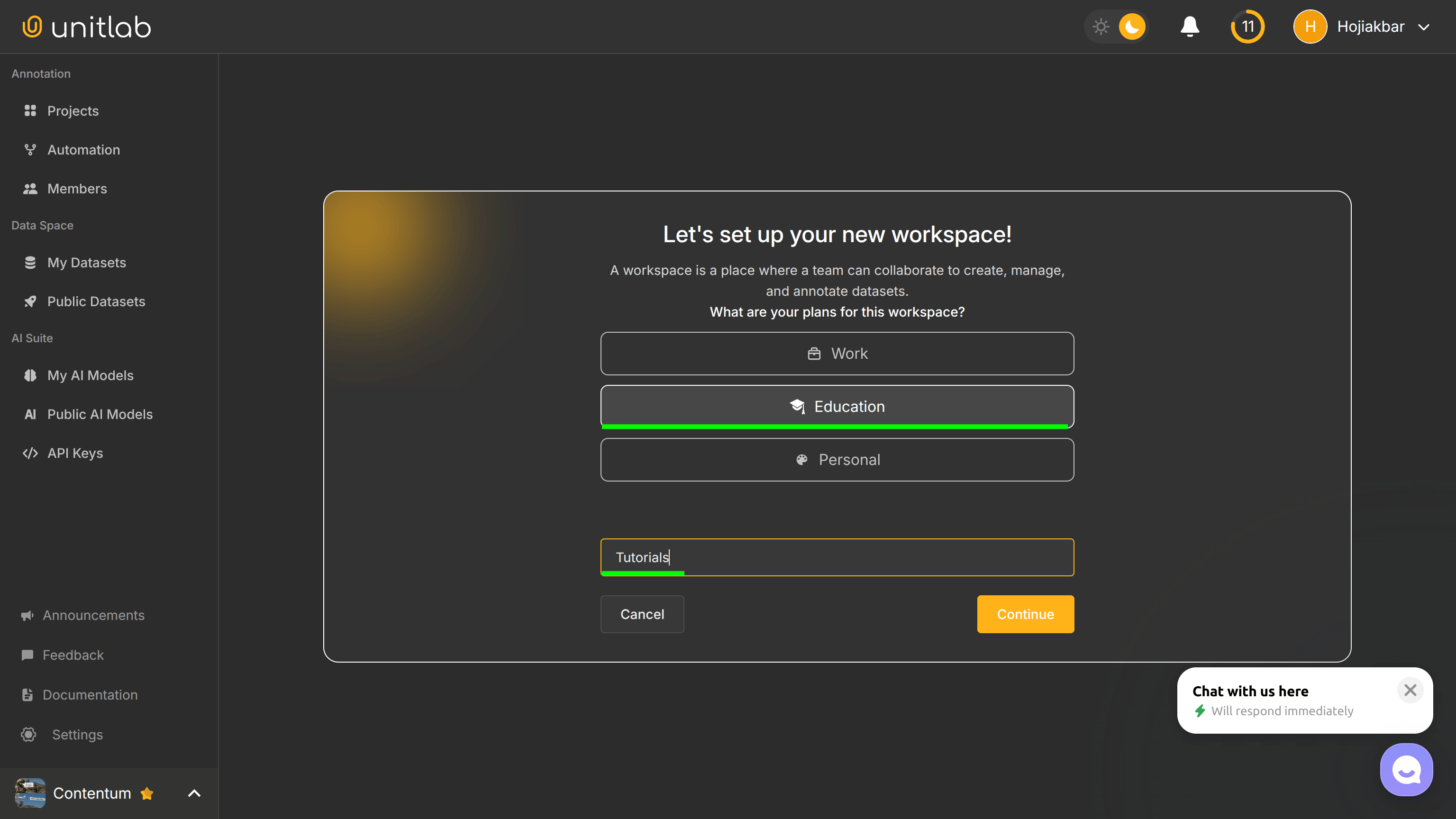
- Name Your Workspace: Select the purpose of your workspace and choose a meaningful name (like your organization or project name) since it becomes the workspace ID:
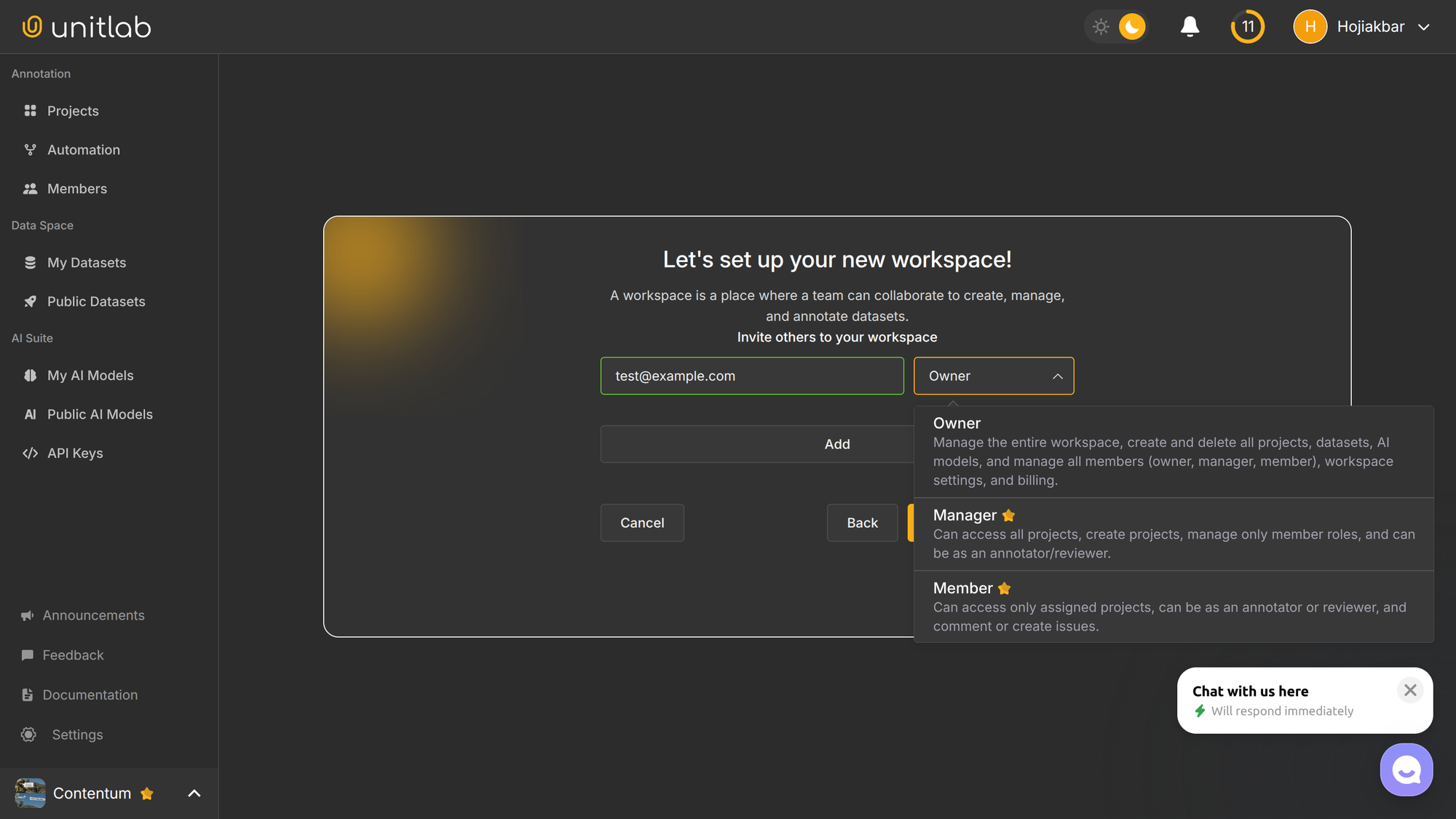
- Invite members: To skip sending invitations for now, click Skip. Don't worry, you can invite your team members later. If you have already entered your members' emails, simply select Continue. Under the free plan, your workspace can have up to 3 members, all as Owners. We will discuss different roles available later in the tutorial.
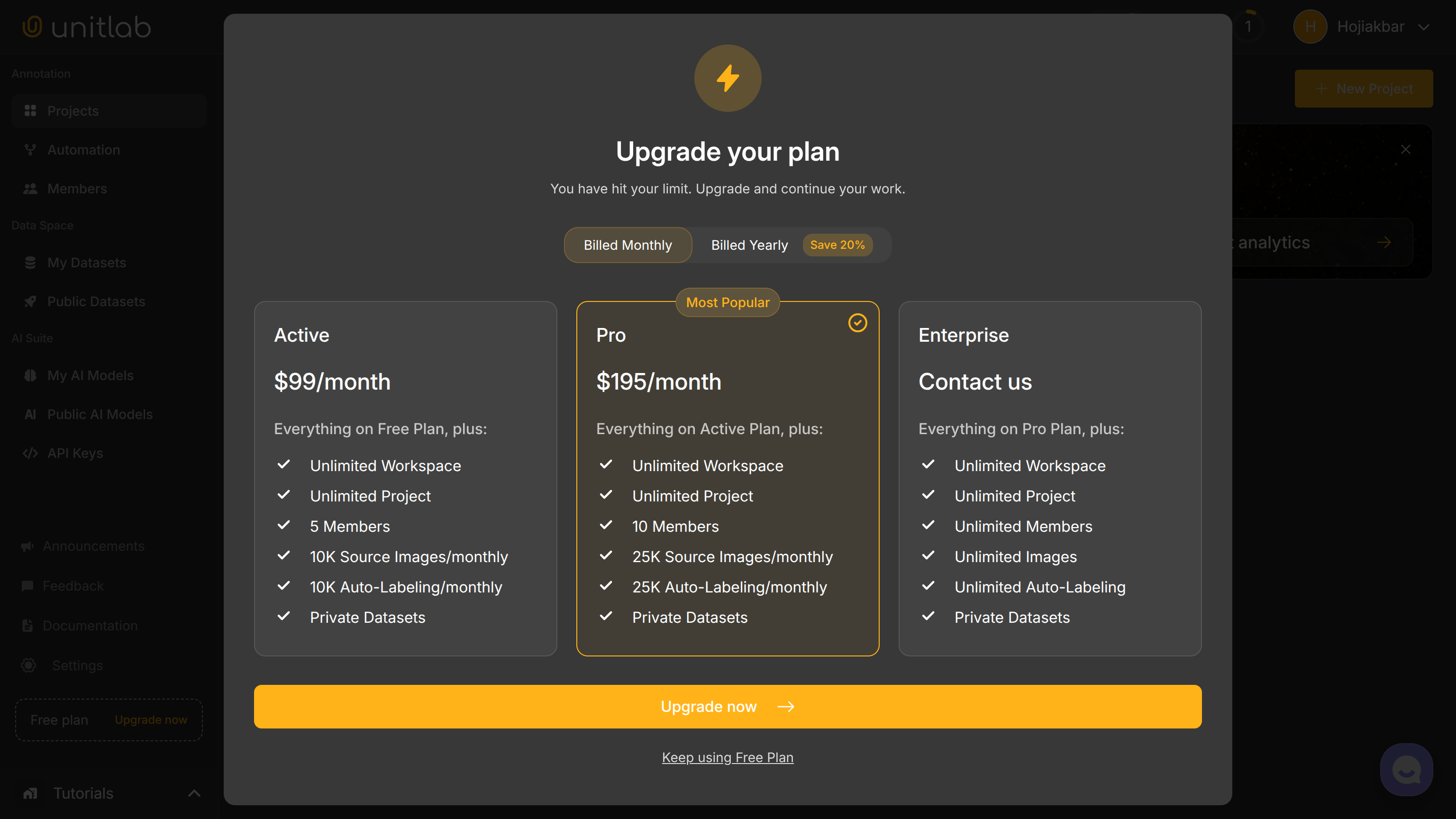
- Select a Plan: Choose a pricing plan based on your AI and computer vision project needs. Higher-tier plans unlock more features and additional member slots.
Once your workspace is set up, you can start working on your data annotation tasks.
Managing a Workspace
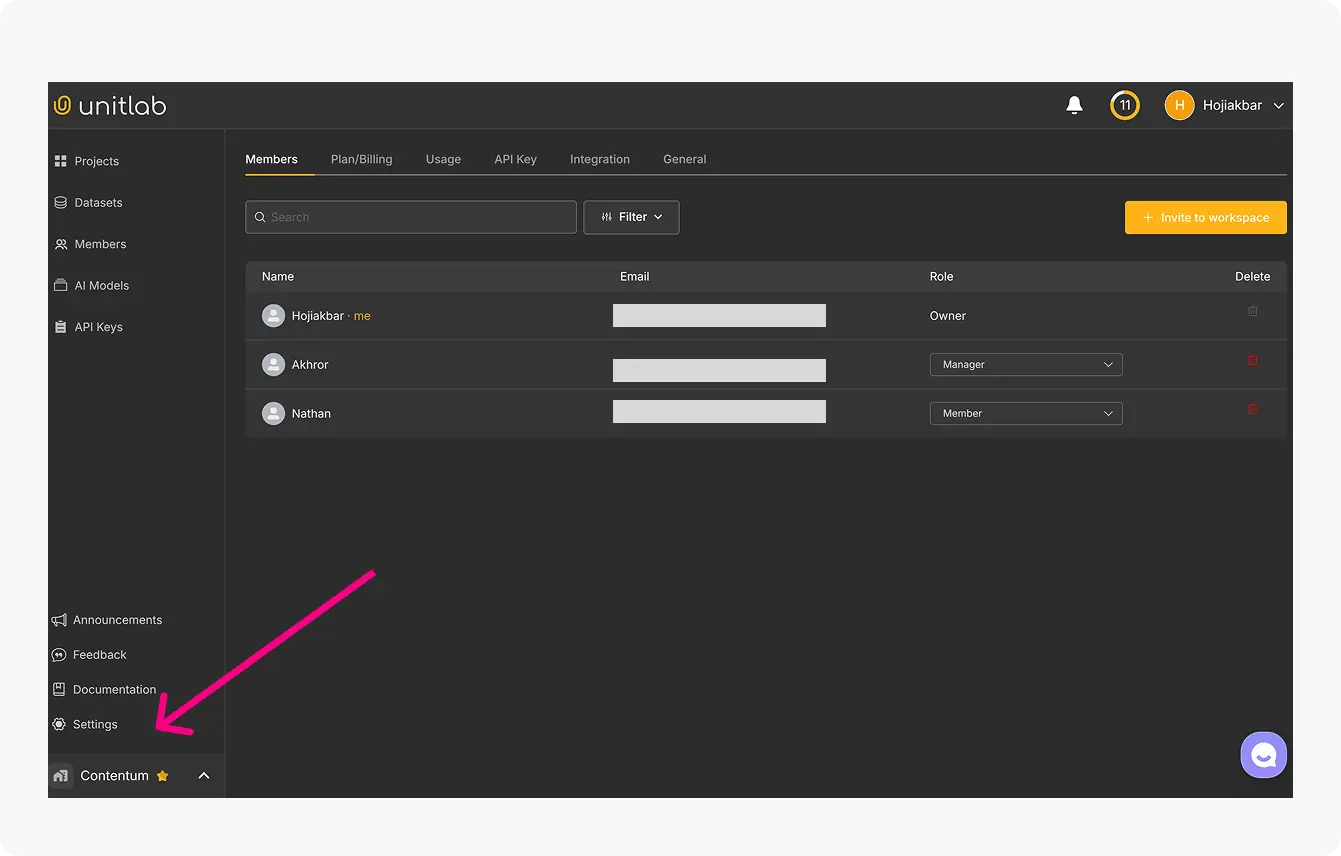
To manage a workspace, click the Settings icon on the bottom left of your screen:
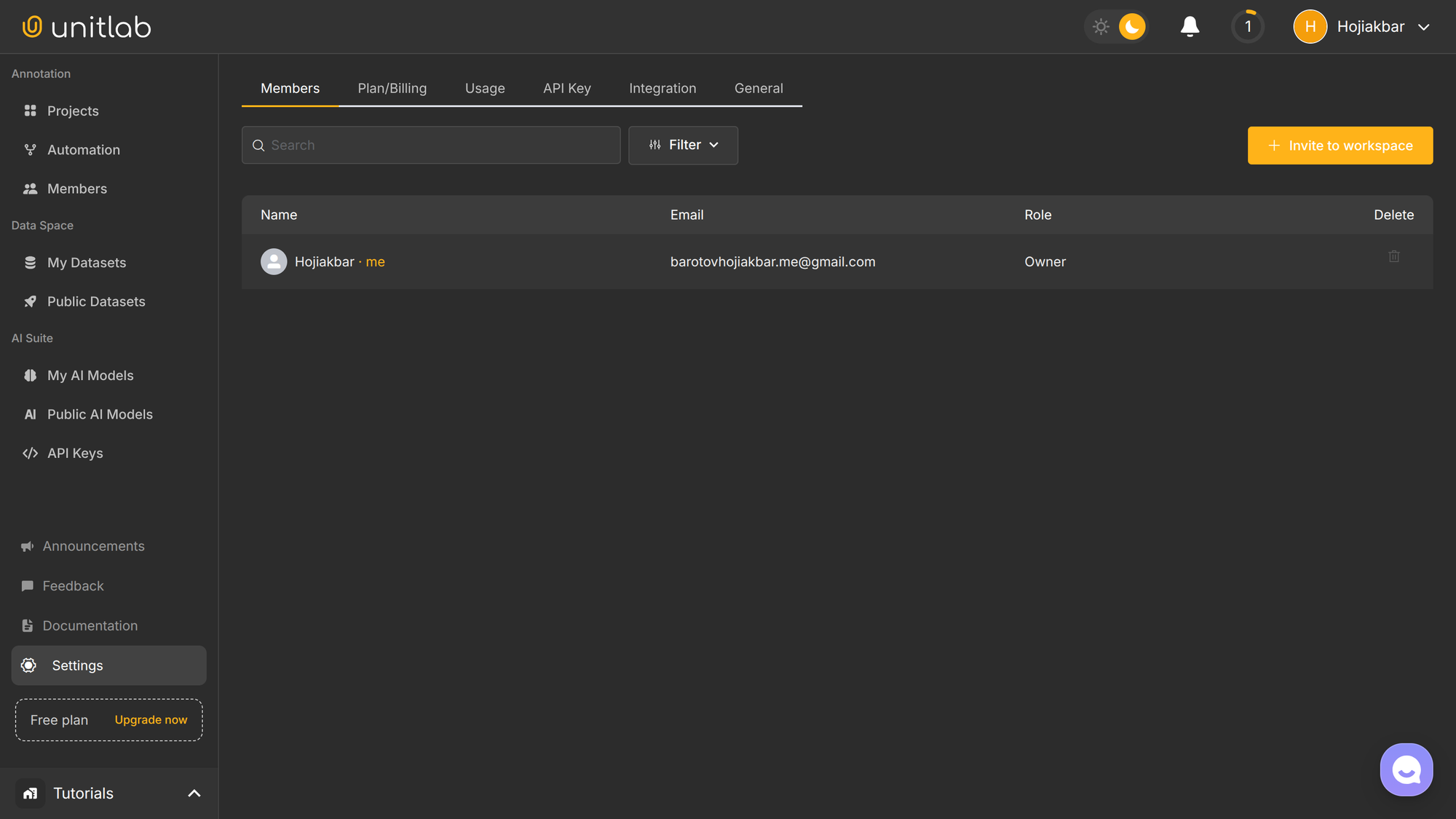
You can adjust the following settings:
- Members: Invite or remove members, or update roles (in paid plans).
- Plan & Billing: Track your subscription, billing dates, and make changes if needed.
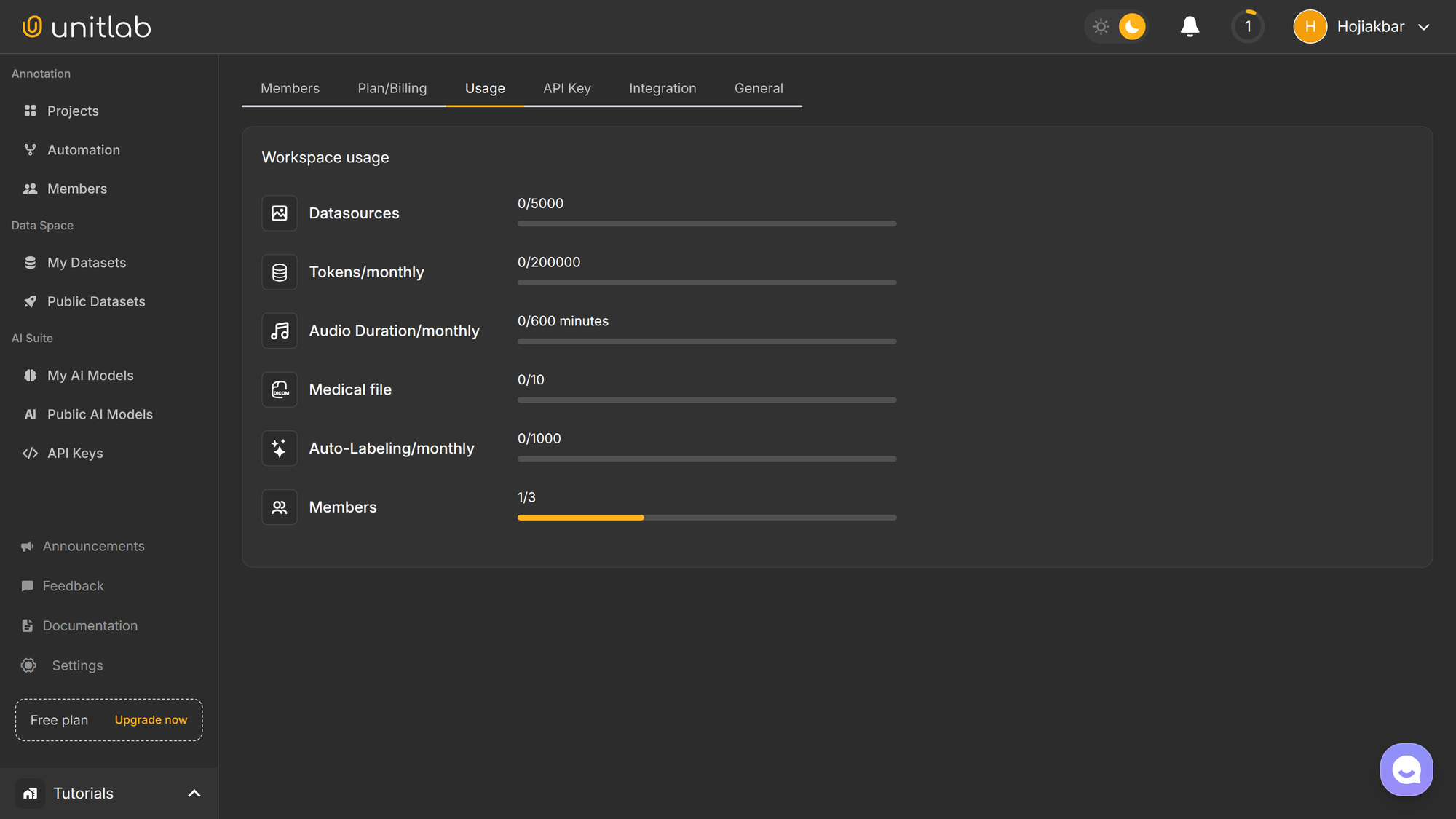
- Usage: Monitor your data usage to avoid exceeding workspace limits.
- API Keys: Generate API keys to use Unitlab’s CLI or SDK for automation.
- Integration: Integrate OpenAI to use generative AI within our platform.
- General: Update the workspace name or avatar if necessary.
Managing Invitations
While you have ownership of your own workspaces, you also have the option to become a member or manager in workspaces created by others in Unitlab AI. Similarly, your team members can have their own workspaces, and you can invite them as a member or a manager to your (paid plan)workspace. You can invite members while setting up the workspace or anytime later.
This decoupled mechanism of workspace instances ensures that with one Unitlab AI account, you can effectively work at multiple instances of workspace at different roles (owner, manager, and member).
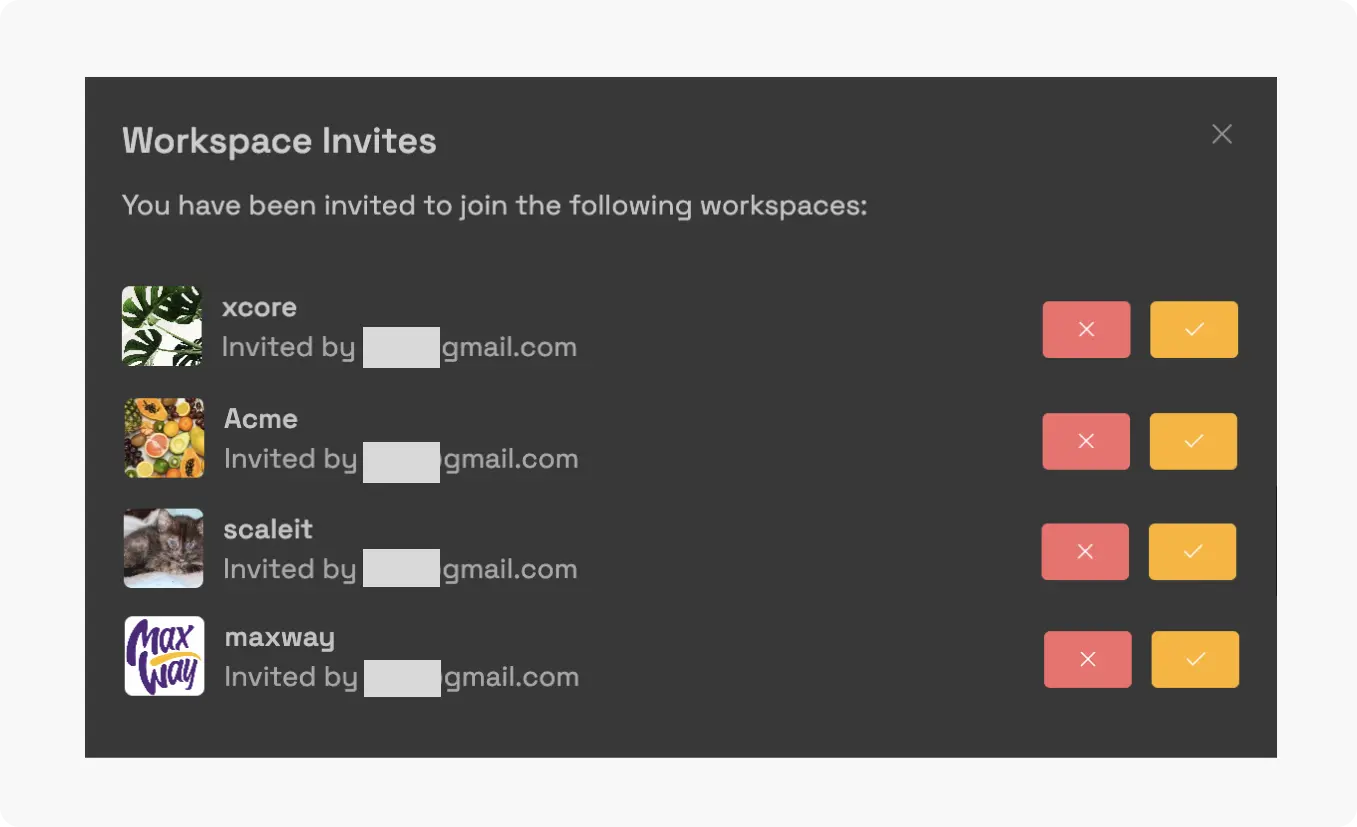
Registered members are notified both by email and Unitlab notifications, whereas emails are sent for new members to register and join the workspace. By accepting the invitation, they can become a member of the workspace and can be assigned to projects as a data annotator or reviewer.
For registered users:
For new users:
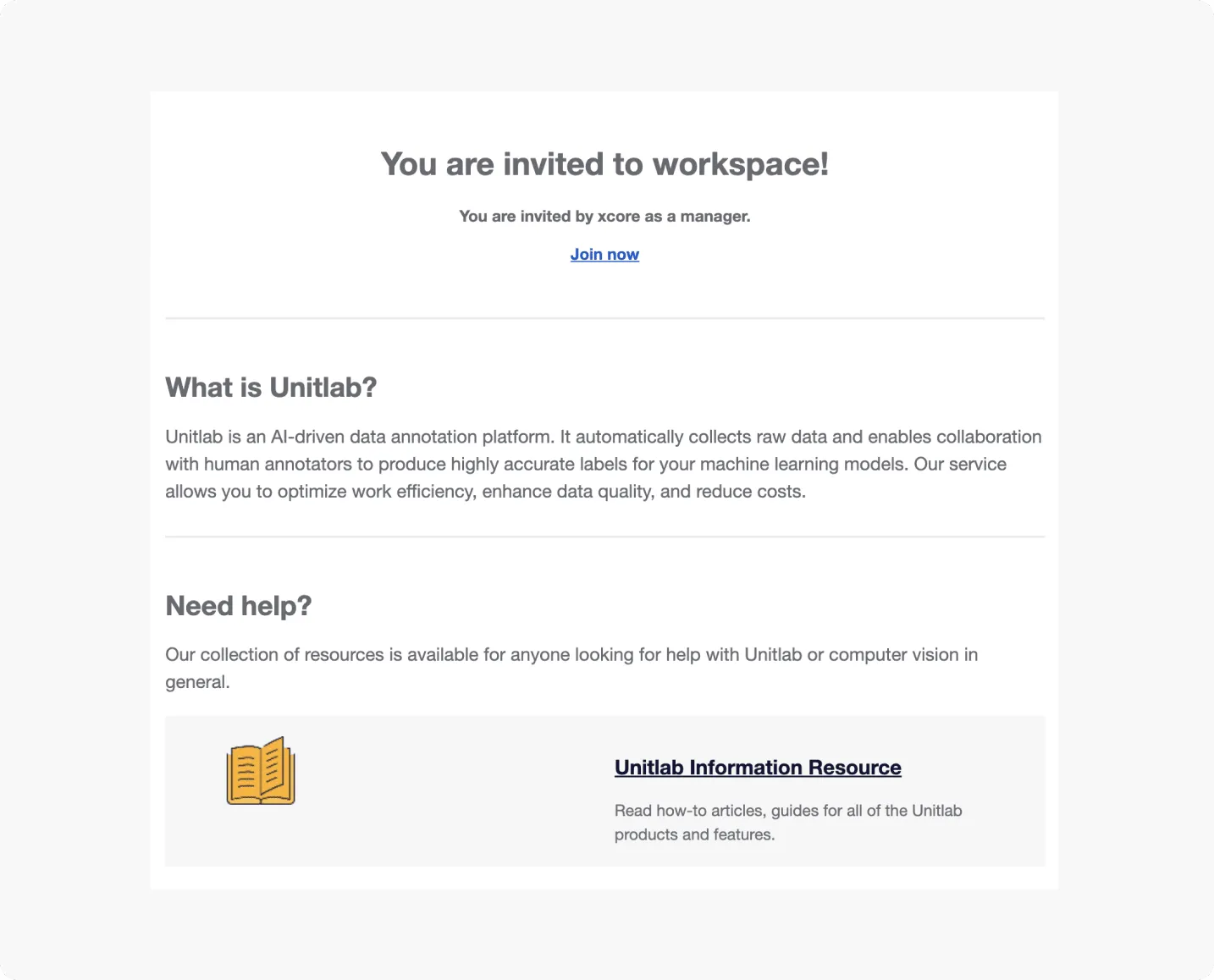
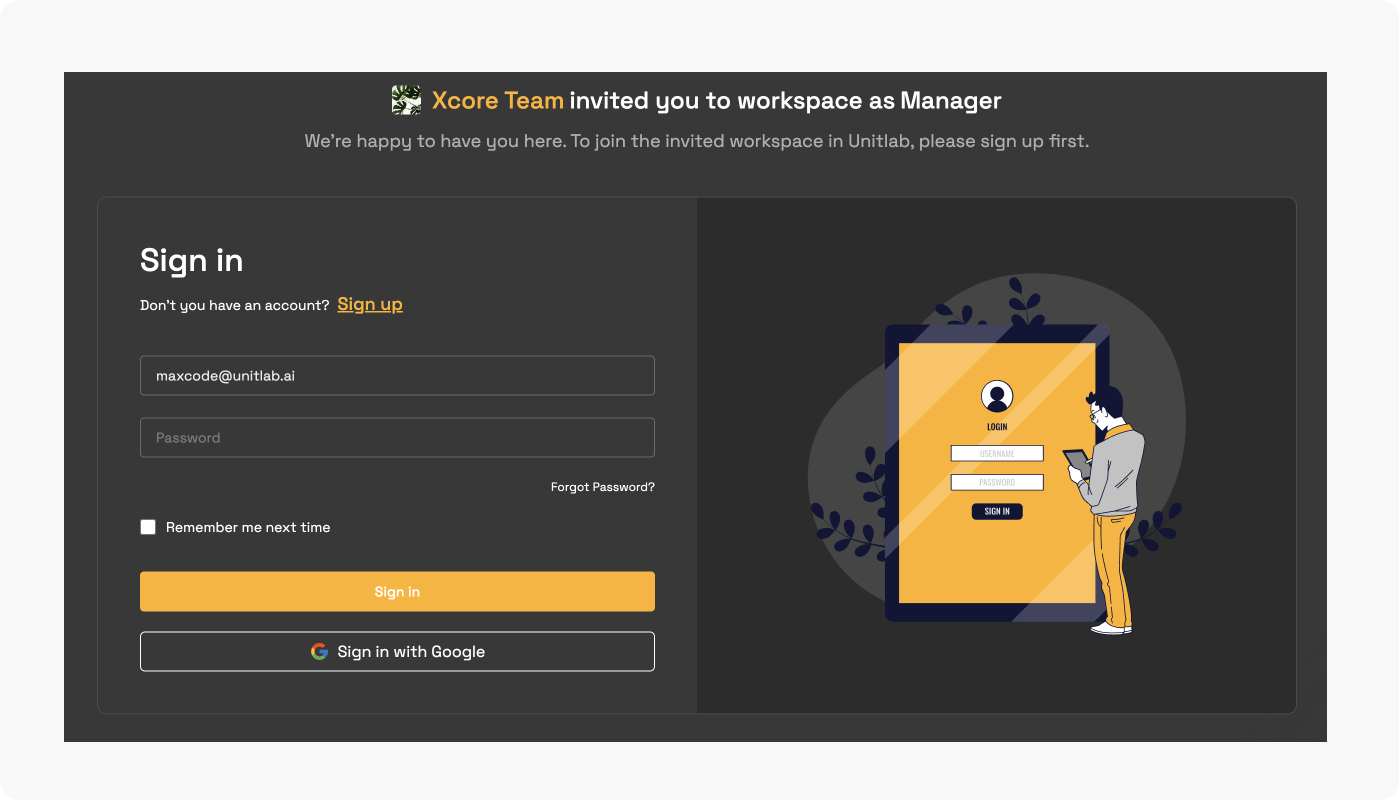
By clicking Join now, they can sign in and start working on the project.
Inviting Members
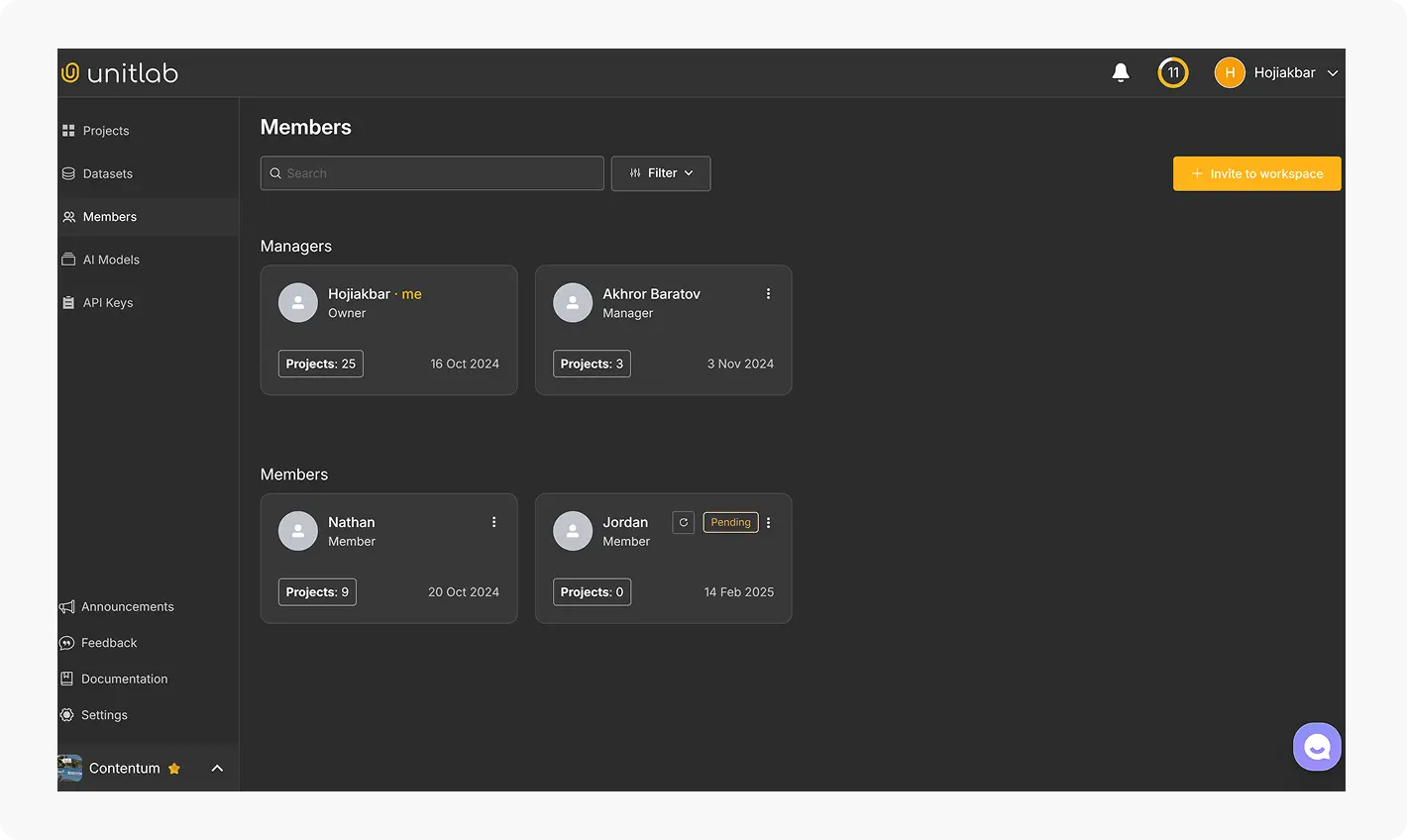
Inviting the right people for the right roles ensures efficient progress across data annotation projects. Clear role assignments help the team stay focused on their tasks, whether annotating data or reviewing project outputs. If you are under the Free plan, you can invite others only as Owners. In paid plans, other users can be invited as:
- Managers: Handle administrative tasks and member management (can contribute as well).
- Members: Work on project tasks, such as data labeling and reviews.
Members receive invitations via email and can join your workspace immediately. If they don’t already have a Unitlab account, they’ll be prompted to create one during sign-up. Their statuses are visible in the dashboard. If users do not join their status change from pending to rejected.
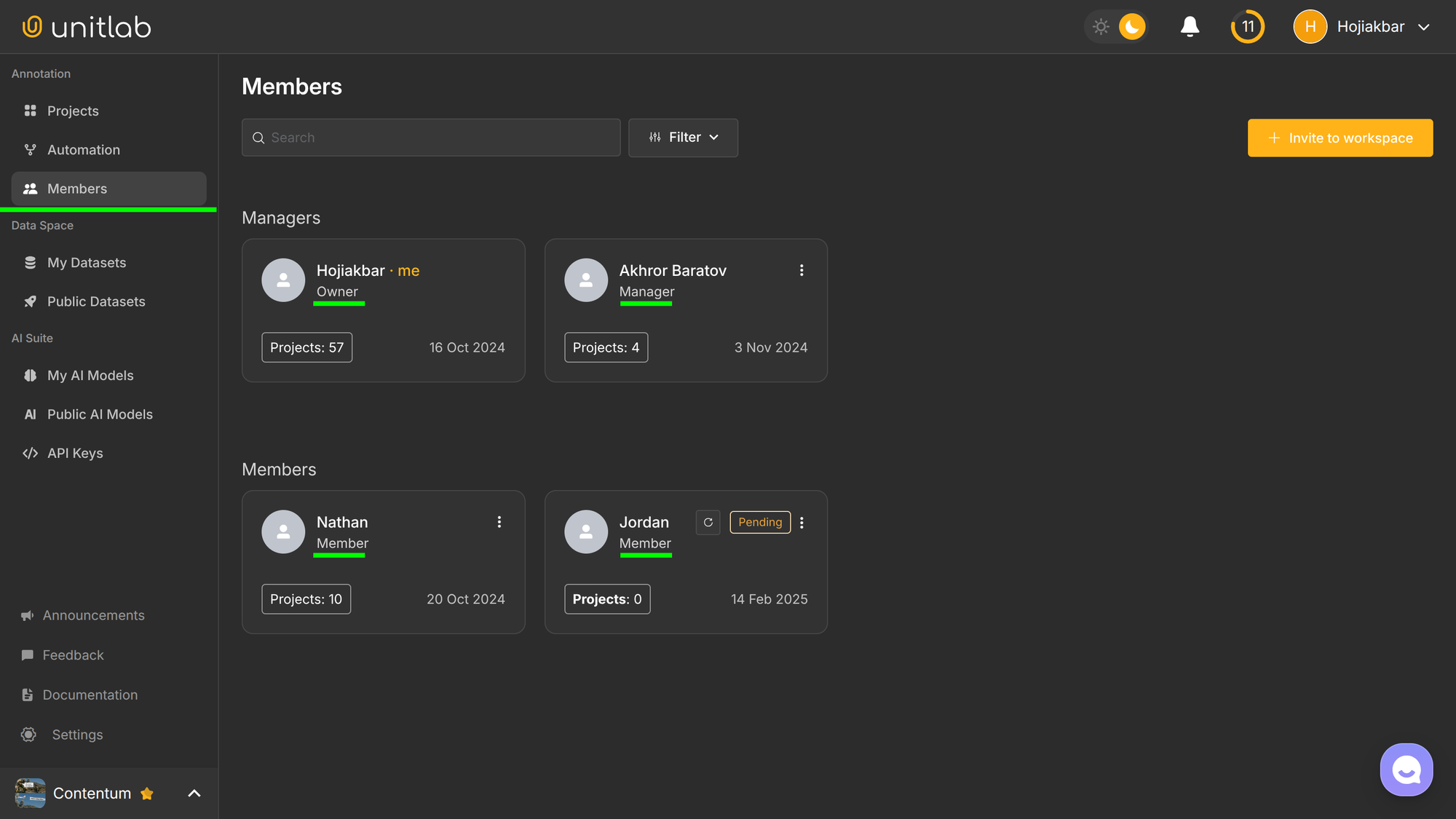
To invite someone to your workspace in Unitlab AI, go to the Members pane on the left, click on the upper right corner, + Invite to workspace, enter the email address of the person you want to invite, along with their assigned role. In the free plan workspace, you cannot choose the Manager and Member roles for new members.
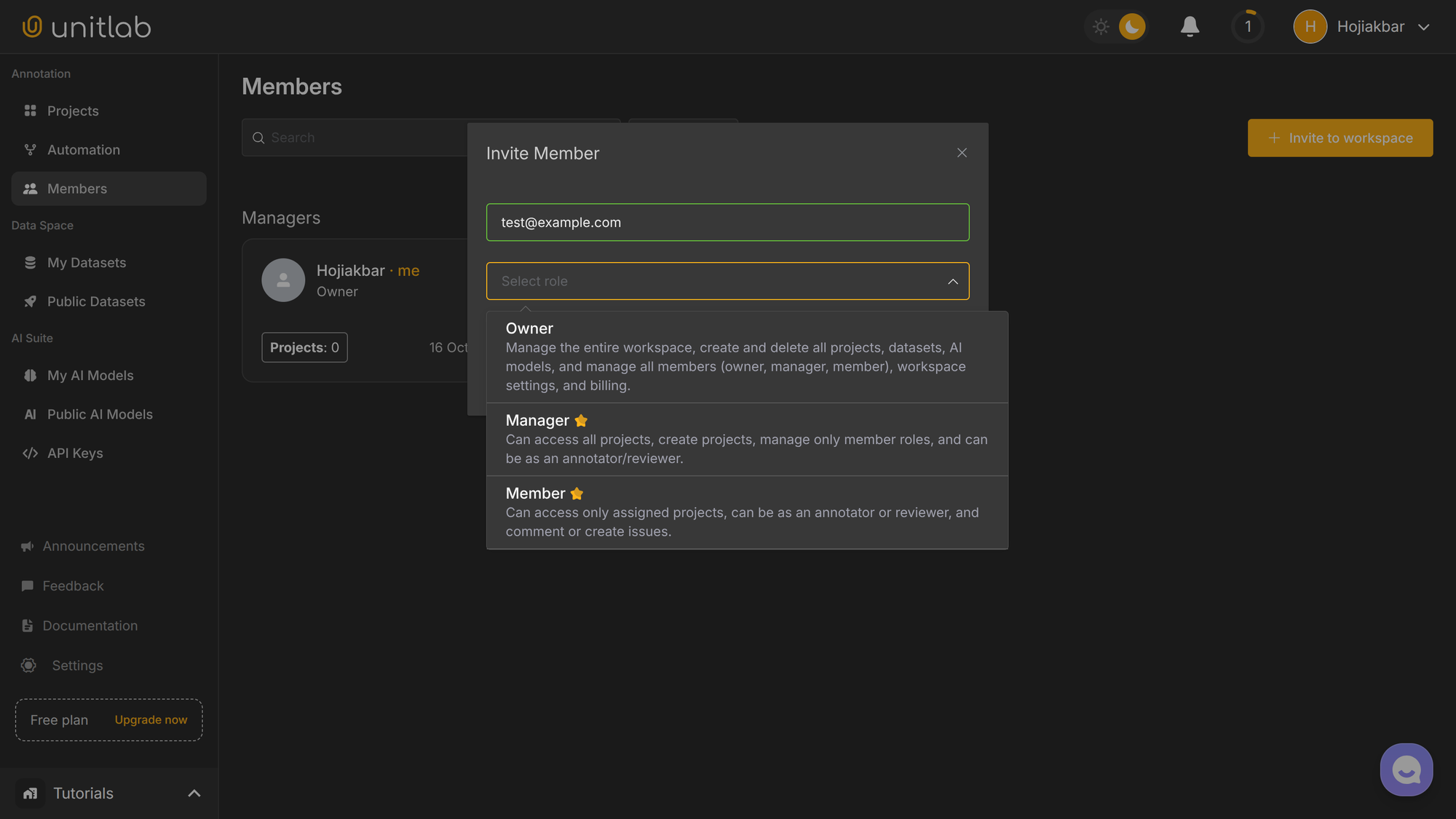
Inviting collaborators early ensures that your data annotation work stays on track across your data labeling projects.
Start collaborating on Unitlab AI today!
Role-Based Access
Role-based access control keeps your workspace secure by restricting members' permissions based on their assigned roles. This follows the law of least privilege; members should be given as little permission as possible to do their job.
This law, along with clear roles, minimizes bottlenecks and enhances collaboration during data labeling. There are three main roles within workspace at Unitlab AI:
- Owner: Full access, including billing and workspace management.
- Manager: Manages members and projects but cannot make billing changes.
- Member: Focuses on project tasks: annotation and review. Can only access assigned projects.
The owner has full access to the project and highest privileges. Managers have access to all projects and all project data irrespective of their assignments.
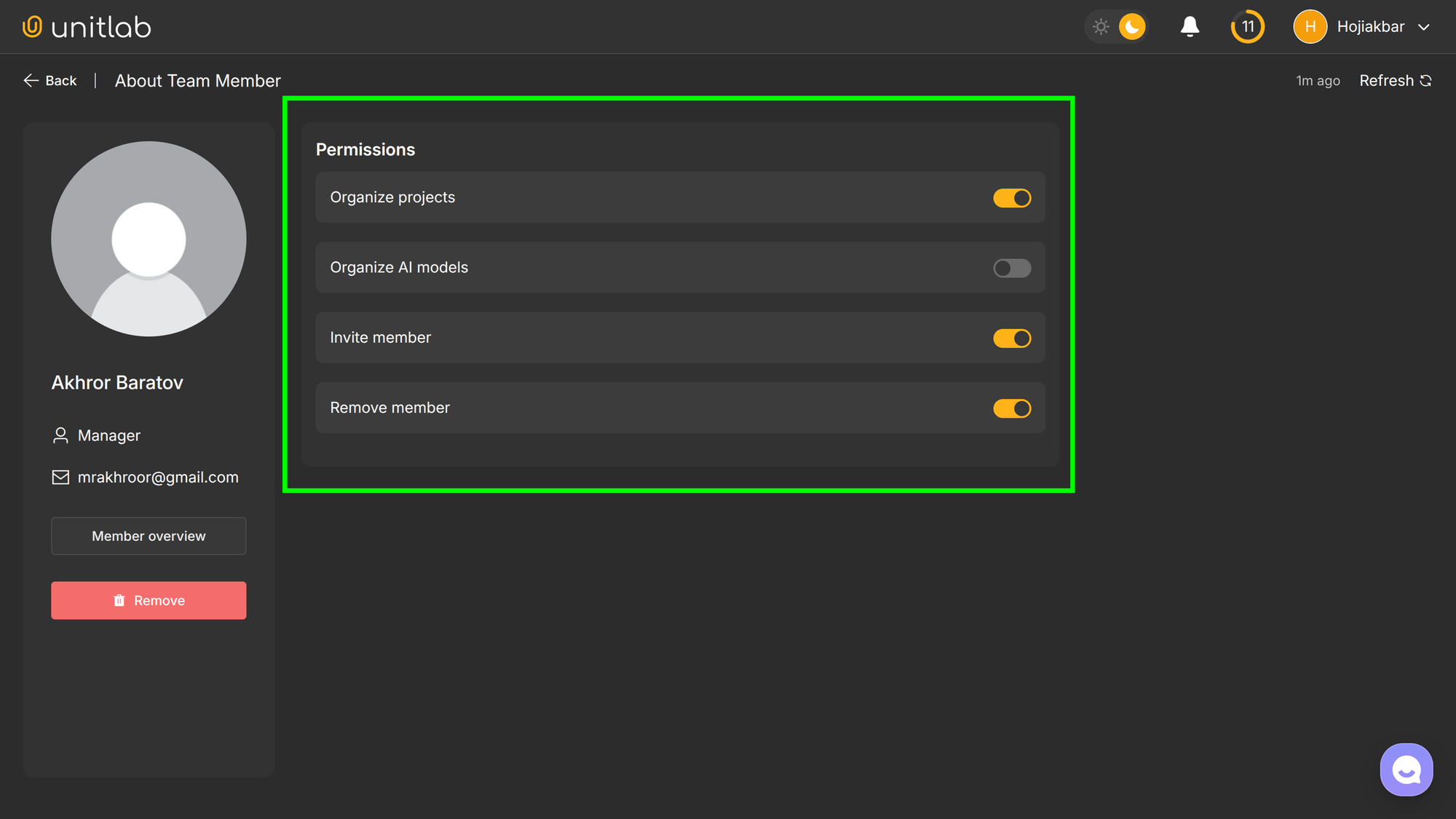
You can manage each manager's permissions in their profile page:
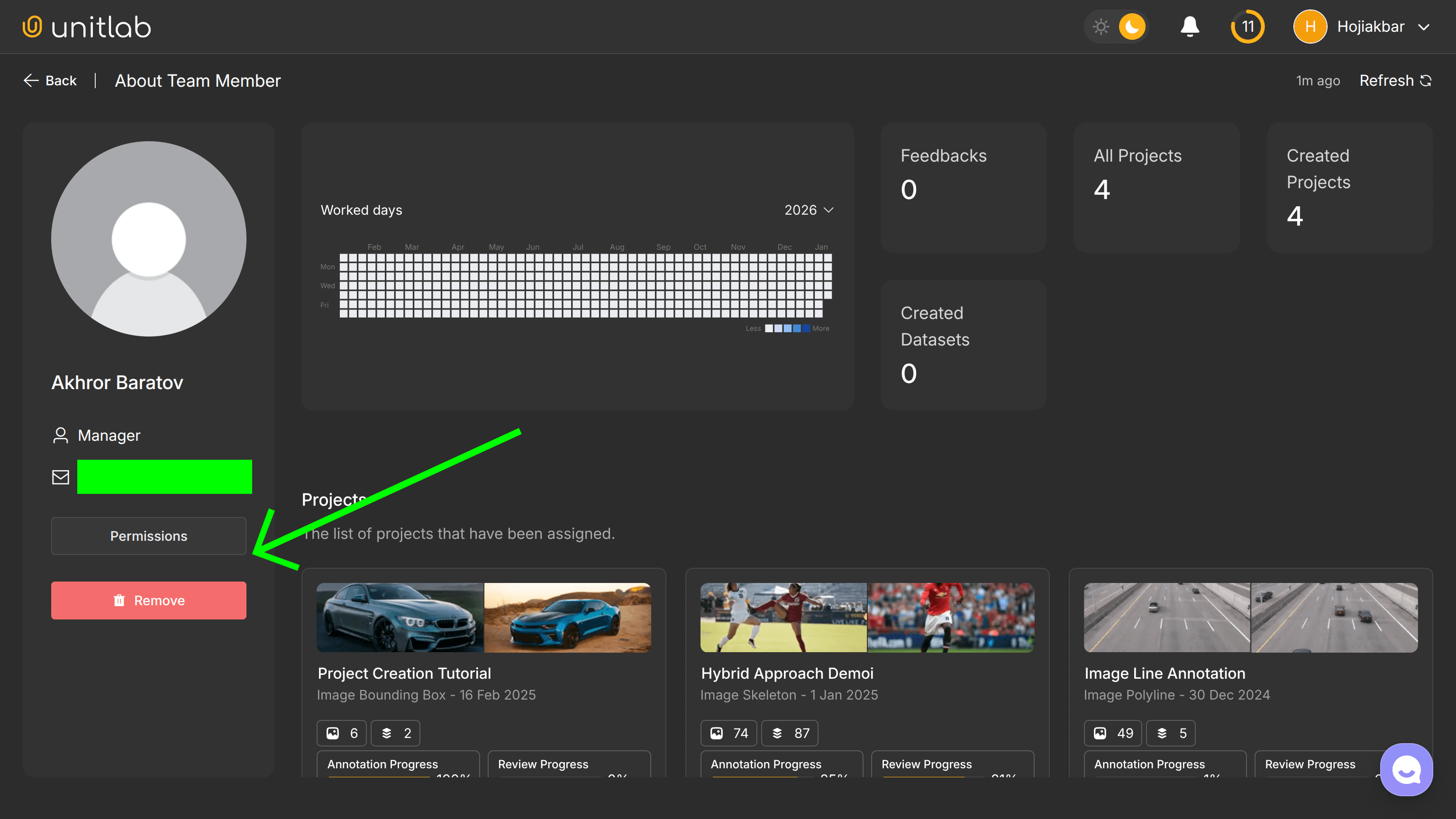
You assign proper permissions to managers depending on the project:
Role-Based Collaboration
Unitlab AI provides full role-based collaboration within its Pro plan to support full QA processes and implement the human-in-the-loop approach in data labeling.
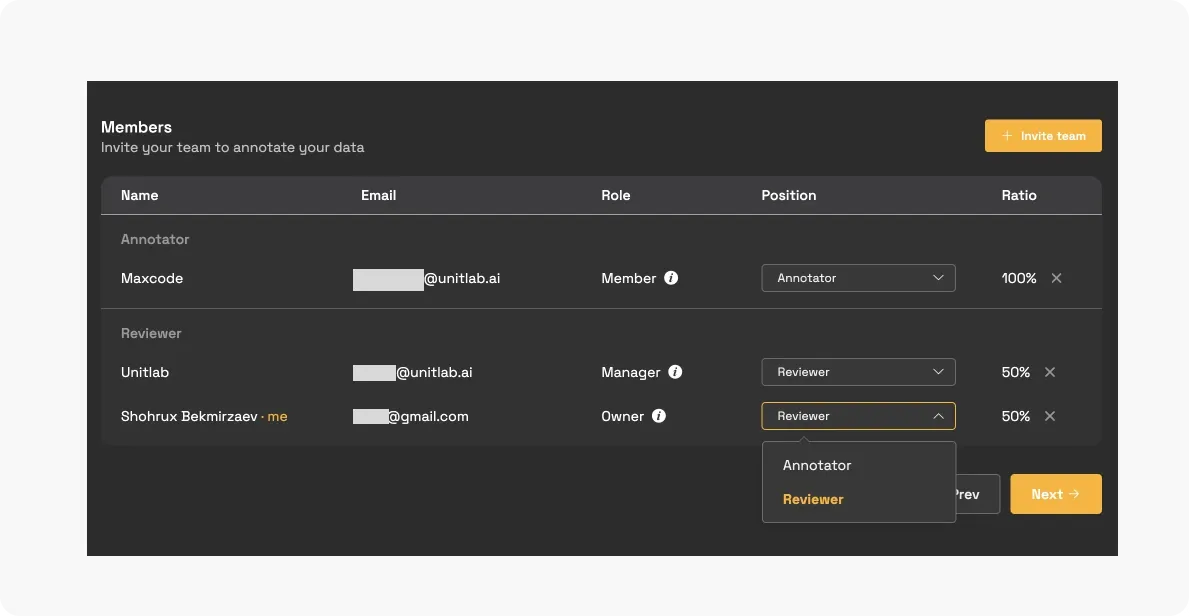
Within projects, members can be assigned specific positions:
- Annotators: Label data within a project.
- Reviewers: Manage and review annotations.
The annotator is a data annotator who labels source images in projects for ML models, while the reviewer is a specialist who checks labeled data to ensure consistency and high quality.
When creating a project in the workspace, you're required to assign members' position in the project as annotator or reviewer. This feature is not supported in the free plan.
When members visit their project page, they can see a list of projects assigned to them. They can access only the data specifically assigned to them within each project as follows:
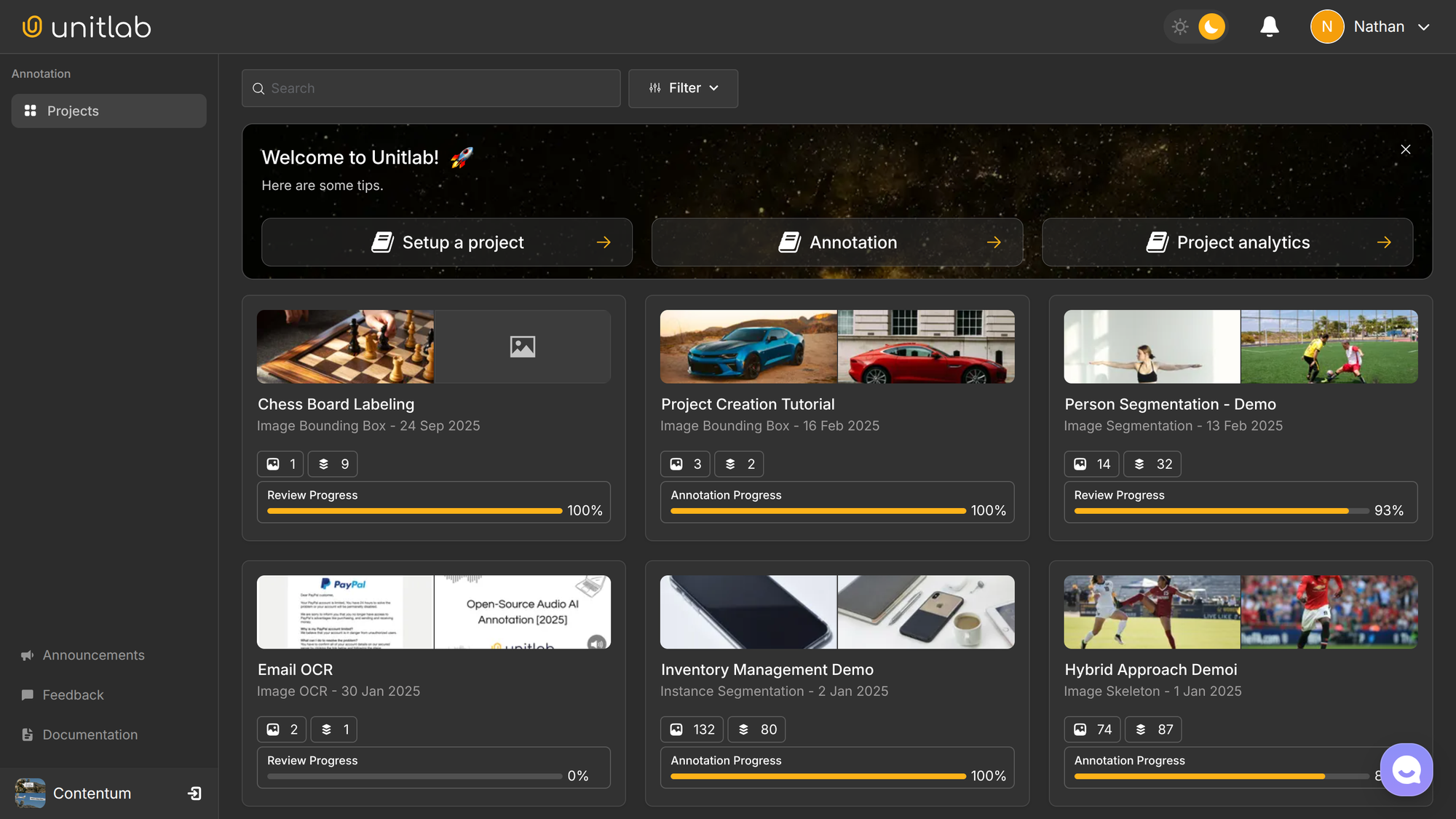
To restrict a member from a workspace, you can remove them directly from the Members page. If you need to restrict a member's access to a specific project, you can update their permissions in the project settings.
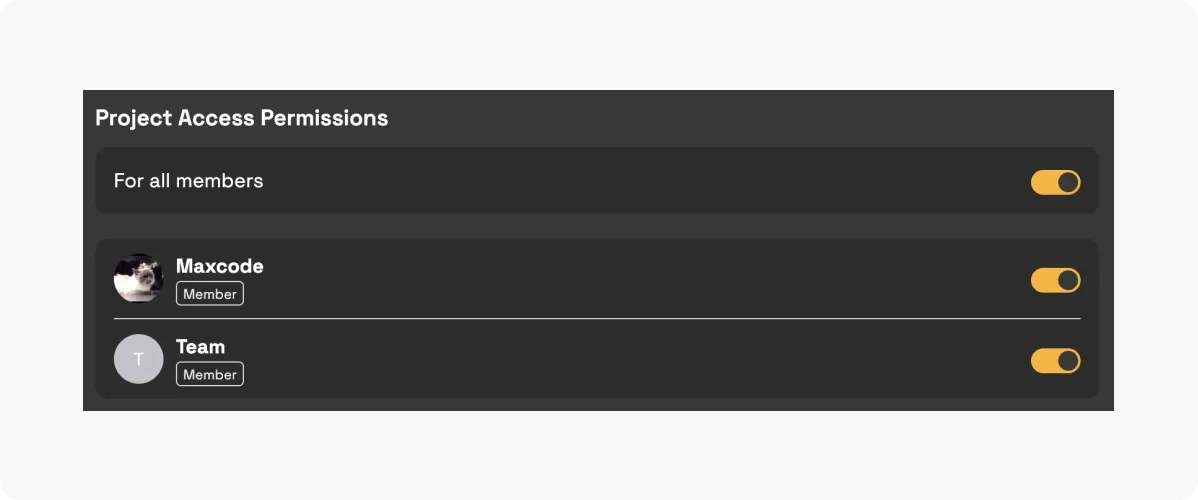
With this approach, Unitlab Ai ensures that your workspace stays secure and efficient, with everyone aligned on their responsibilities.
With Unitlab Annotate you can also create datasets and release them to be used for your purposes. Check out this post.
 Hojiakbar Barotov
Dataset Management | Unitlab Annotate
Conclusion
Unitlab makes workspace management simple and effective for AI, computer vision, and data annotation projects. Its tools for creating workspaces, inviting members, and managing role-based access allow you to focus on building high-quality datasets for machine learning.
Ready to streamline your projects? Get started with Unitlab AI today!
![Dataset Management at Unitlab AI [2026]](/content/images/size/w360/2026/01/Dataset-Management.png)
![Feature-based Comparison: Unitlab AI vs. Roboflow Annotate [2026]](/content/images/size/w360/2026/01/Roboflow.png)