Note: This is a simplified, quick version of our project creation docs. For full information, refer to this page:

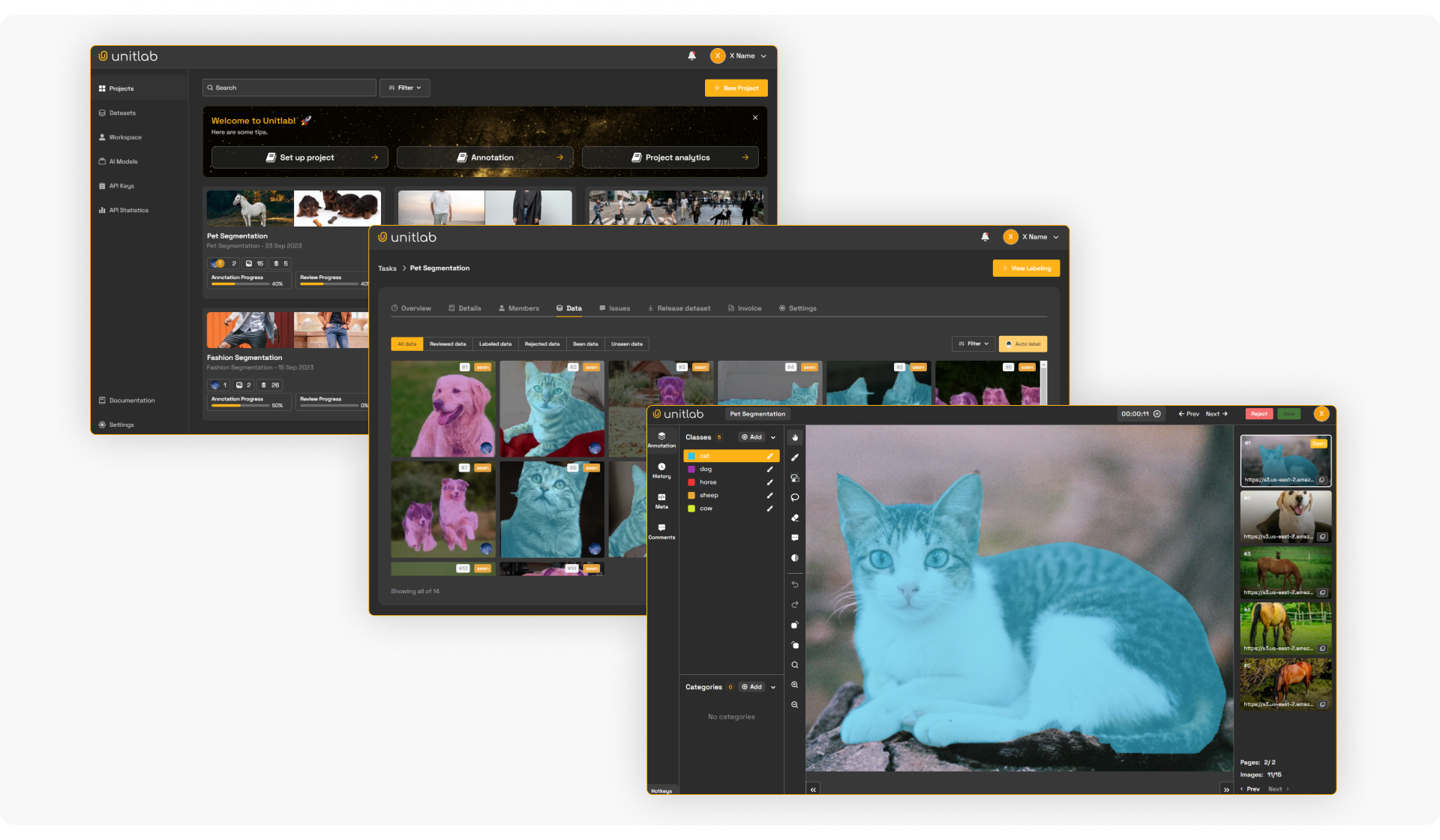
Setup a Project | Unitlab Documentation
Unitlab Annotate is an AI-driven collaborative data annotation platform, offering on-premises solutions and integrated labeling services. It offers 100% automated and accurate data annotation, dataset curation, and model validation.
The final product ML engineers and data scientists care about is your AI/ML dataset. Unitlab AI centralizes dataset management by handling data ingestion, storage, and maintenance. It ensures ML datasets remain consistent and accessible, ensuring reproducibility.
Datasets are created through projects and vice verca in Unitlab Annotate. First, you can clone a dataset into your project and work on that dataset. This approach makes it easy to iterate on your datasets: adding, editing, and annotating data become natural.
Second, you annotate source data on our platform and build a labeled dataset. The platform allows comprehensive dataset management features, meaning you can release different versions of your annotated data as a dataset. This fits the iterative nature of ML development.
 Hojiakbar Barotov
Dataset Management at Unitlab
As you can imagine, projects are the entry point for creating datasets. Let’s walk through how to set up a project on Unitlab Annotate.
Setting up an account
Unitlab AI offers multiple standard, transparent pricing models depending on your needs: Free, Active, Pro, and Enterprise. The free plan is ideal for hobbyists, students, and individual users. If you are starting a real-life data annotation project, you will be best served by different tiers of paid plans.
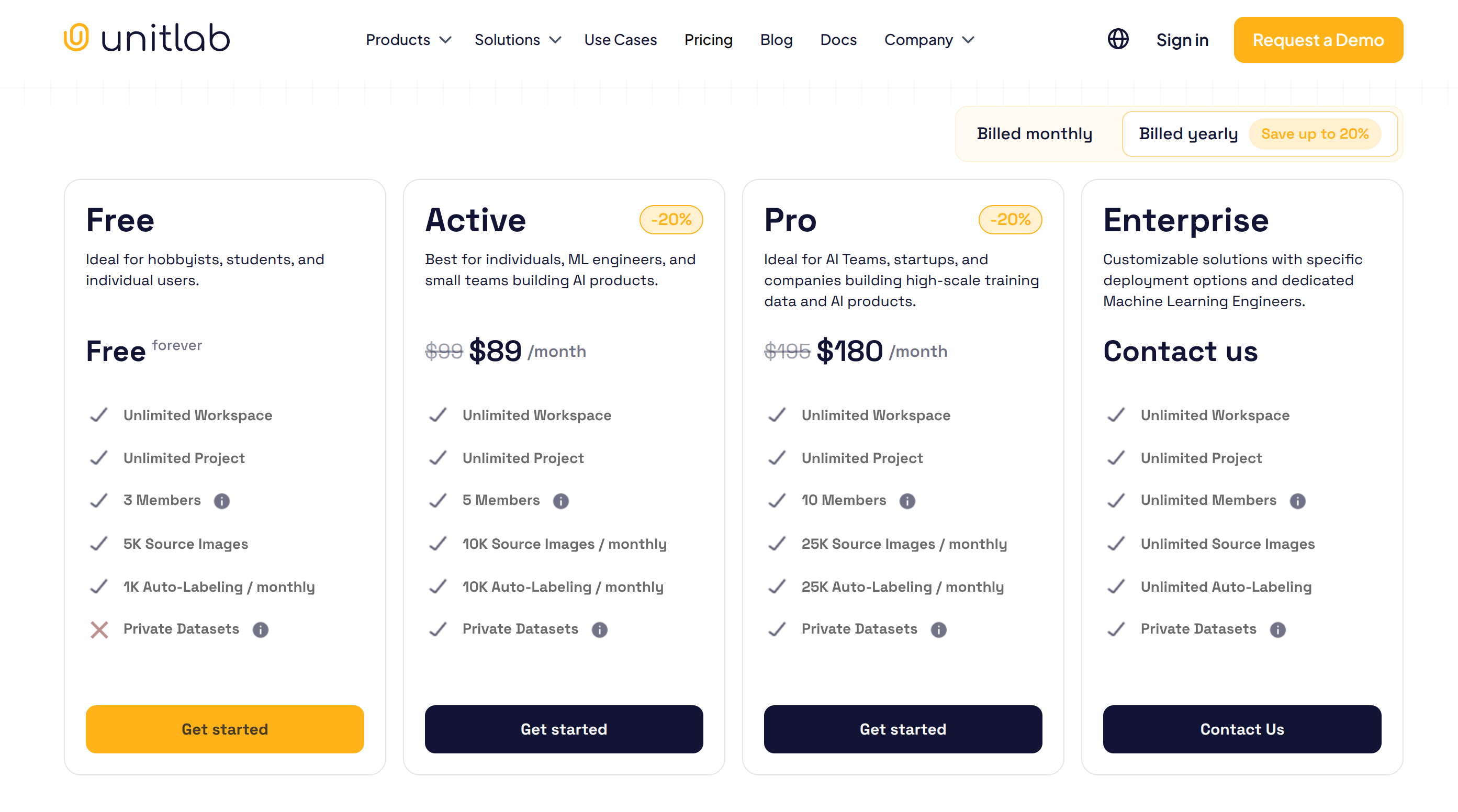
For this tutorial, we’ll use the Free plan to illustrate project configuration on our platform. You can get started under five minutes by creating a free account here.
Project Setup
After registration, in the projects dashboard, Create a new project, which consists of 3 short steps. First, click on the Add a Project panel:
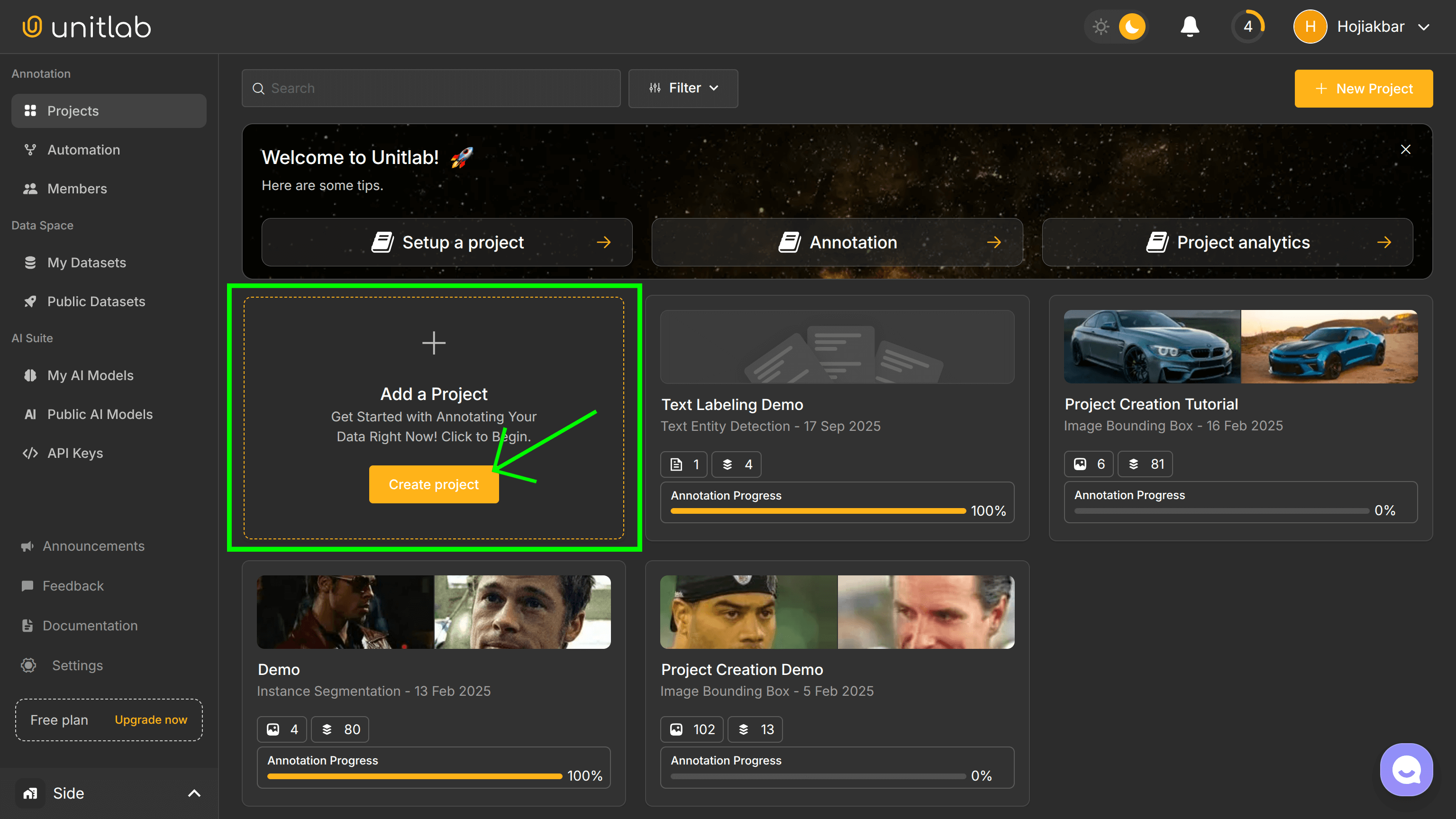
1. Project details
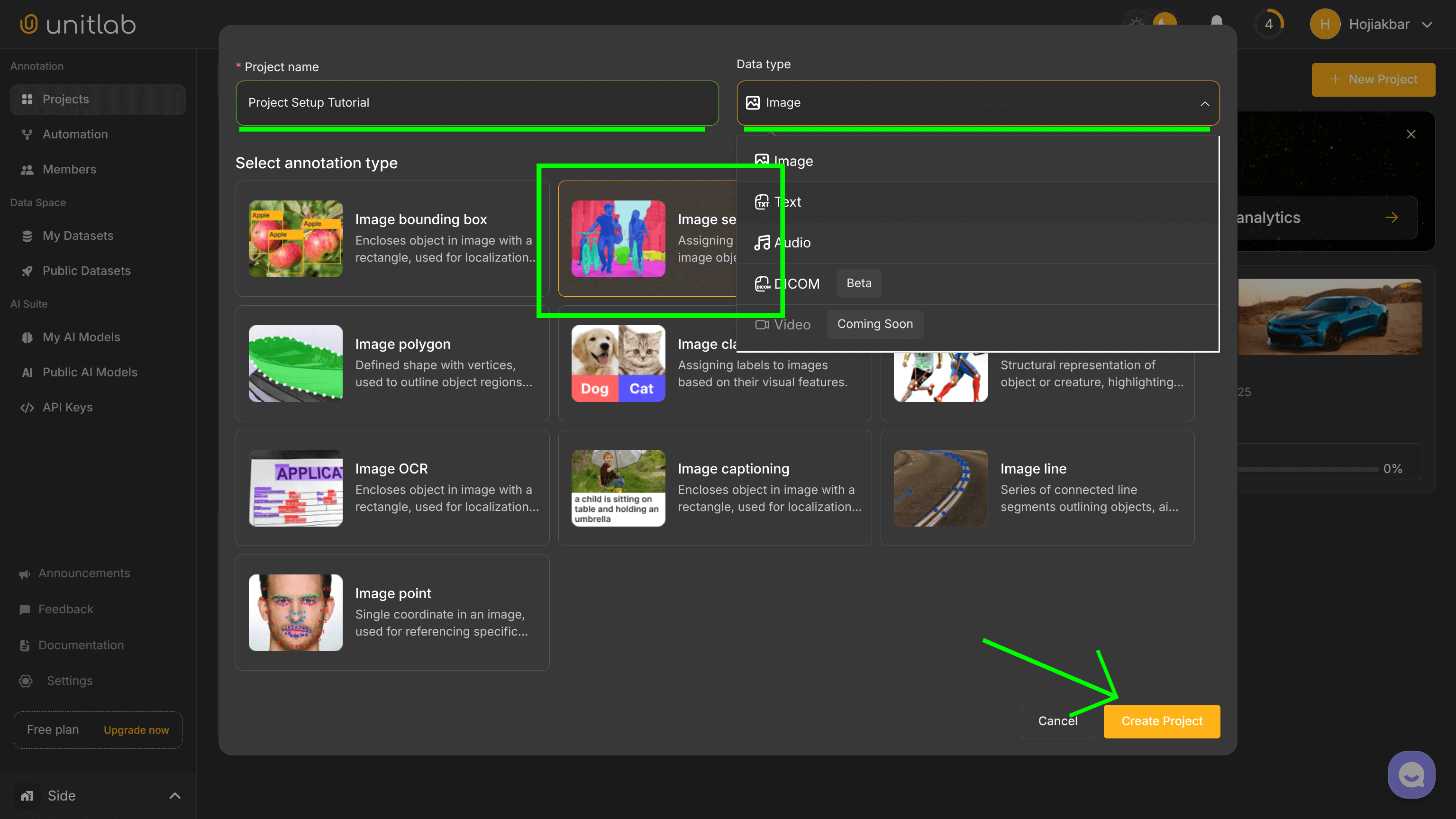
You can annotate different types of data (image, text, audio, medical imaging, video) on our platform. For this tutorial, we will illustrate project configuration with image annotation.
We provide a meaningful name for our project (Project Setup Tutorial) and select Image for our data type. Because our data type is Image, the platform automatically suggests annotation types. We choose Image Semantic Segmentation for our project. This is crucial as tools in adjust according to the image labeling type dynamically.
If you need a quick refresher on different image annotation types, you can refer to this blog post:
 Hojiakbar Barotov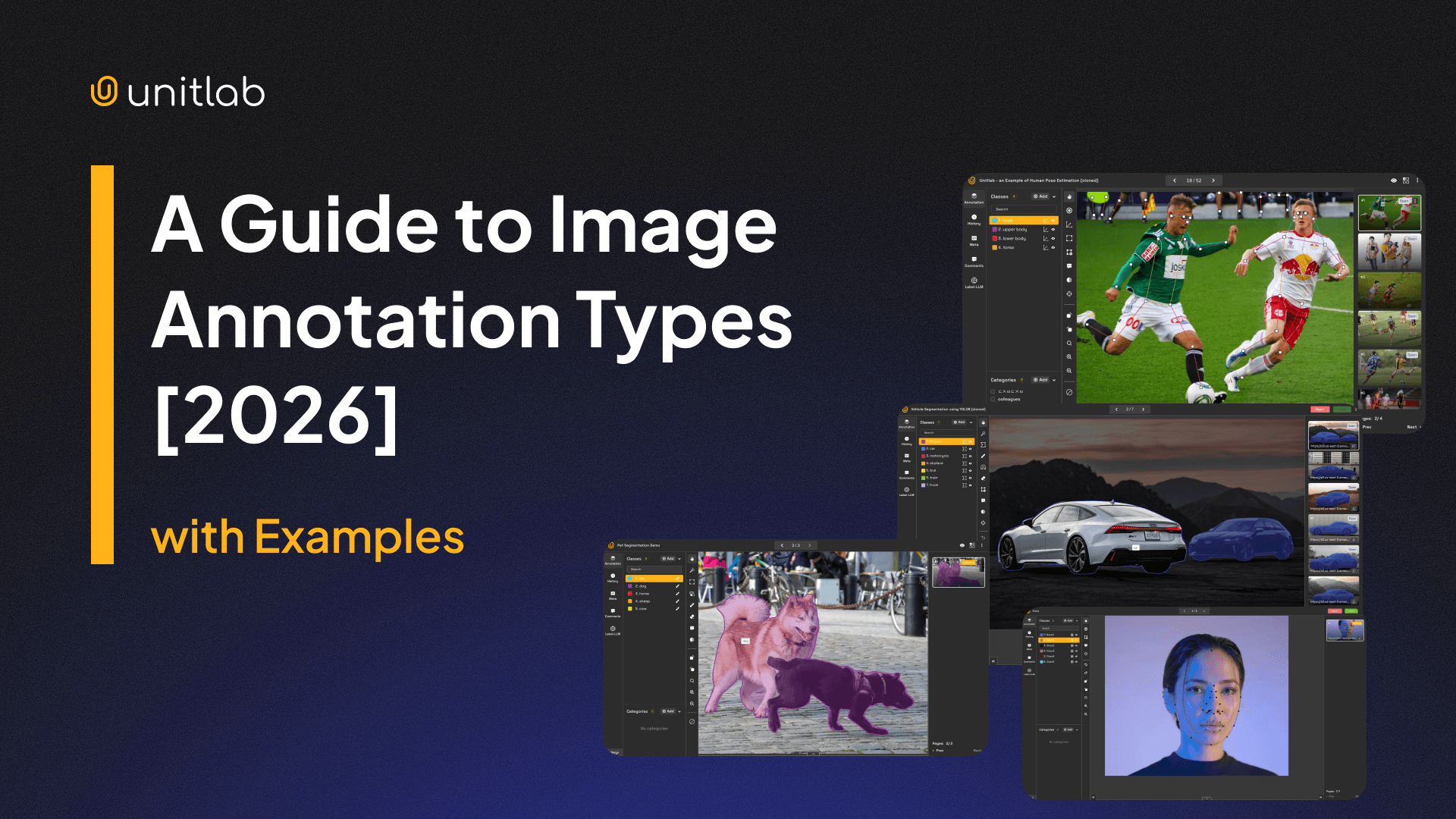
Image Annotation Types | Unitlab Annotate
By clicking the Create Project button, your project is created. Now, we can start uploading data to it.
2. Upload data
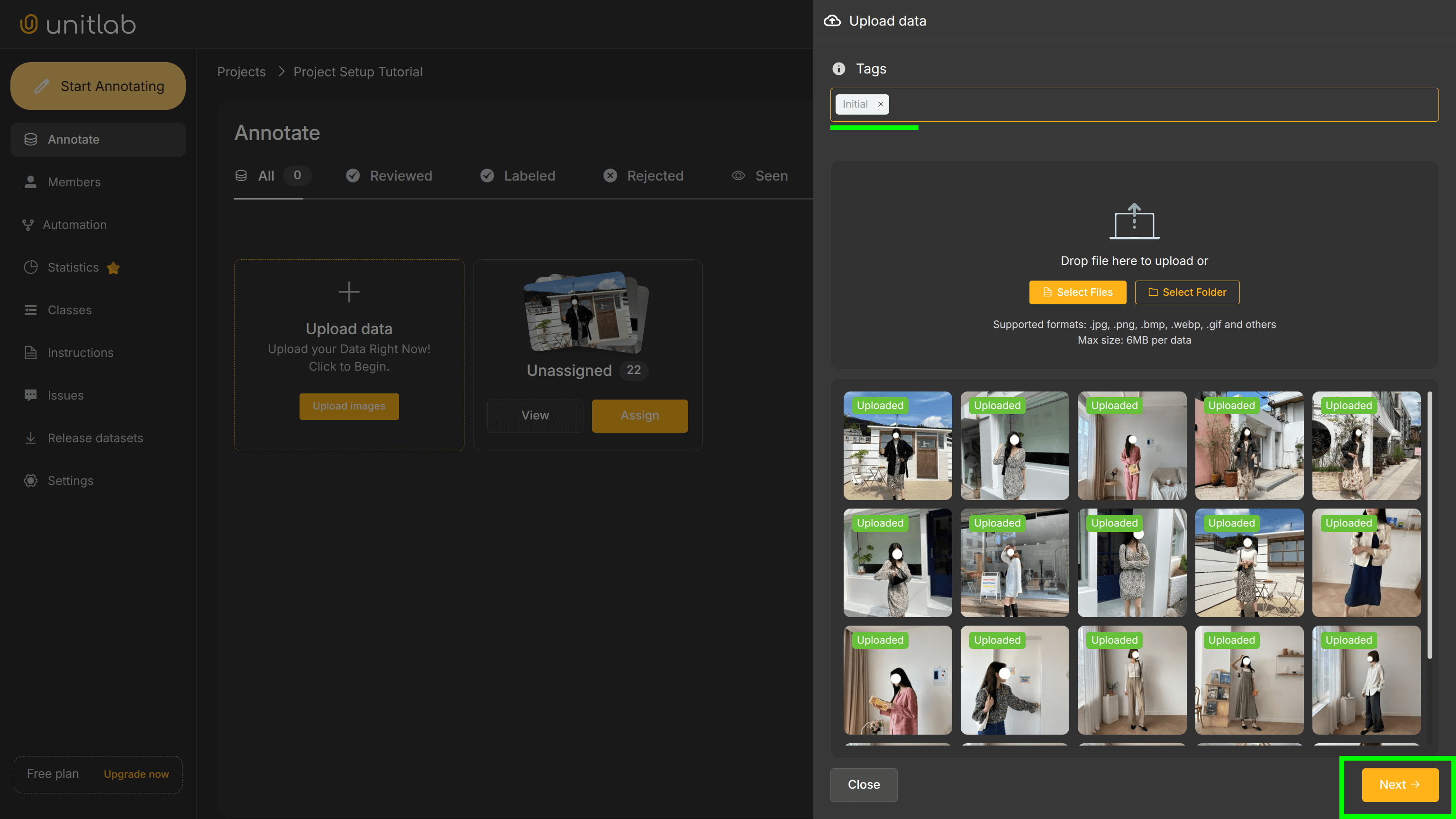
Next, we upload source image data for our project. You can download sample images we will use here. These images are of person and fashion segmentation.
Unitlab AI offers three ways to upload images:
- Web interface: the drag-and-drop functionality for files and folders. Simplest of all.
- Unitlab CLI: the command-line interface to automate operations, including file uploads and downloads.
- Python SDK: a
unitlabPython package to automate operations with Python programs.
For this tutorial, we'll use the first and simplest option: the drag-and-drop. If you have large volumes of data and/or use the platform regularly, we suggest using either the CLI or SDK to automate management operations to save time and increase efficiency.
 Hojiakbar Barotov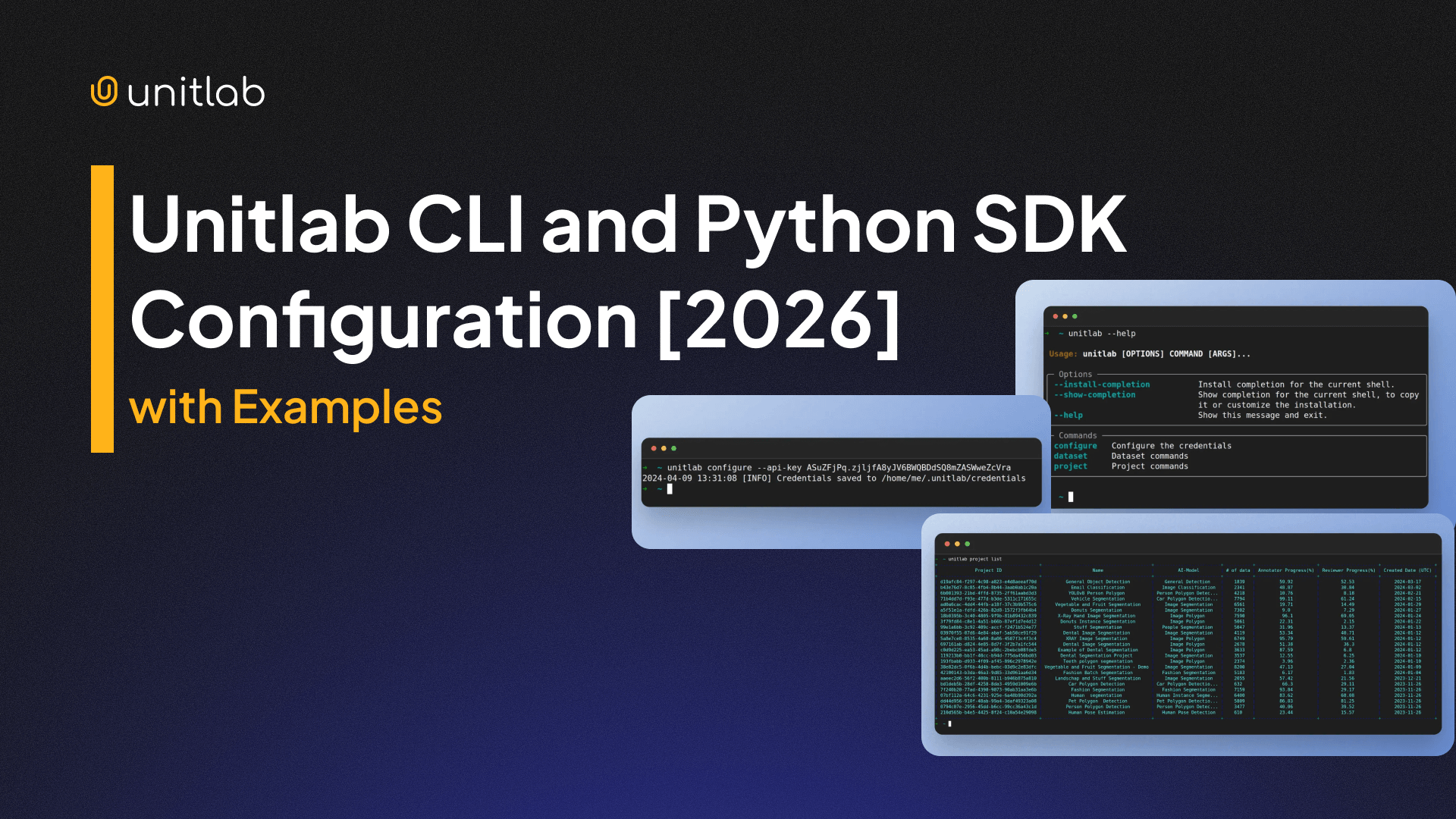
The CLI and Python SDK | Unitlab Annotate
Unitlab Annotate offers a tagging system for file uploads. This helps you differentiate which batch/batches each image belongs to. The batches can be labeled as Initial, Testing#1, Validation#1, New Samples#1, etc. If not provided, the system automatically adds auto-incrementing batches every time you upload new data: Batch1, Batch2, Batch3...
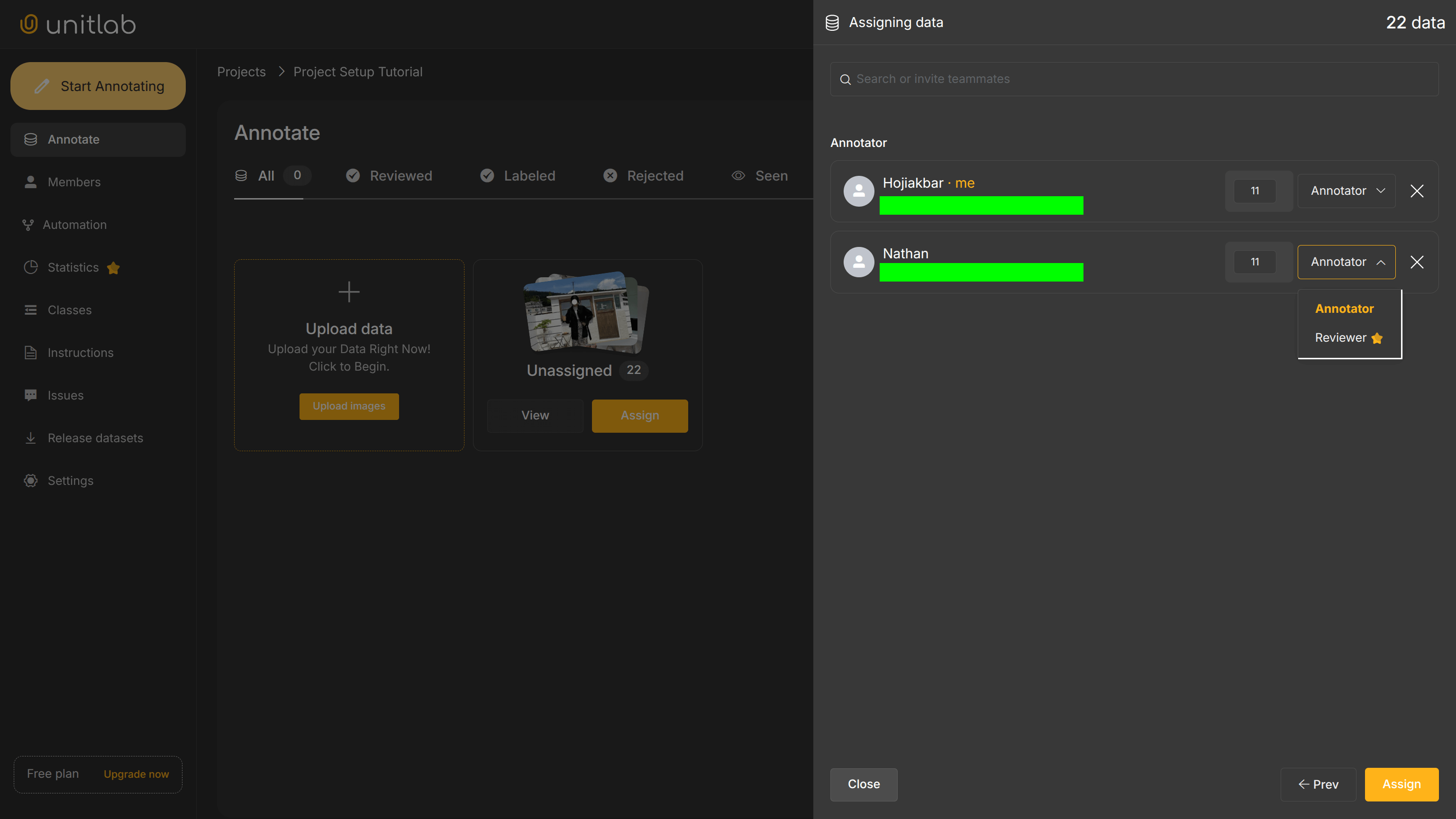
With our data uploaded, we add members to assign them the roles of either Annotator or Reviewer. Note that if you are in the Free or Active plan, the Reviewer role is not available in our pricing model. Under the Free plan, you can have up to 3 annotators. That plan does not include role-based collaboration and the Reviewer role, which can be a difficulty if you want to use the human-in-the-loop approach in data labeling.
When you include more than one data annotator in your project, the workload is distributed equally (in our case, 50%/50% or 11/11 images per annotator). You can edit the number of images to be annotated for each as well.
3. Add Automation and Classes
Unitlab Annotate provides a feature known as Automation Workflow. It is a way to manage AI-assisted annotation models in your projects. AI-powered models can be built-in, foundational models provided by Unitlab AI (such as SAM) or models that you integrate into our platform. In this tutorial, we will implement built-in models in our project.
Go to the Automation pane on the left-hand sidebar and you should see this field:
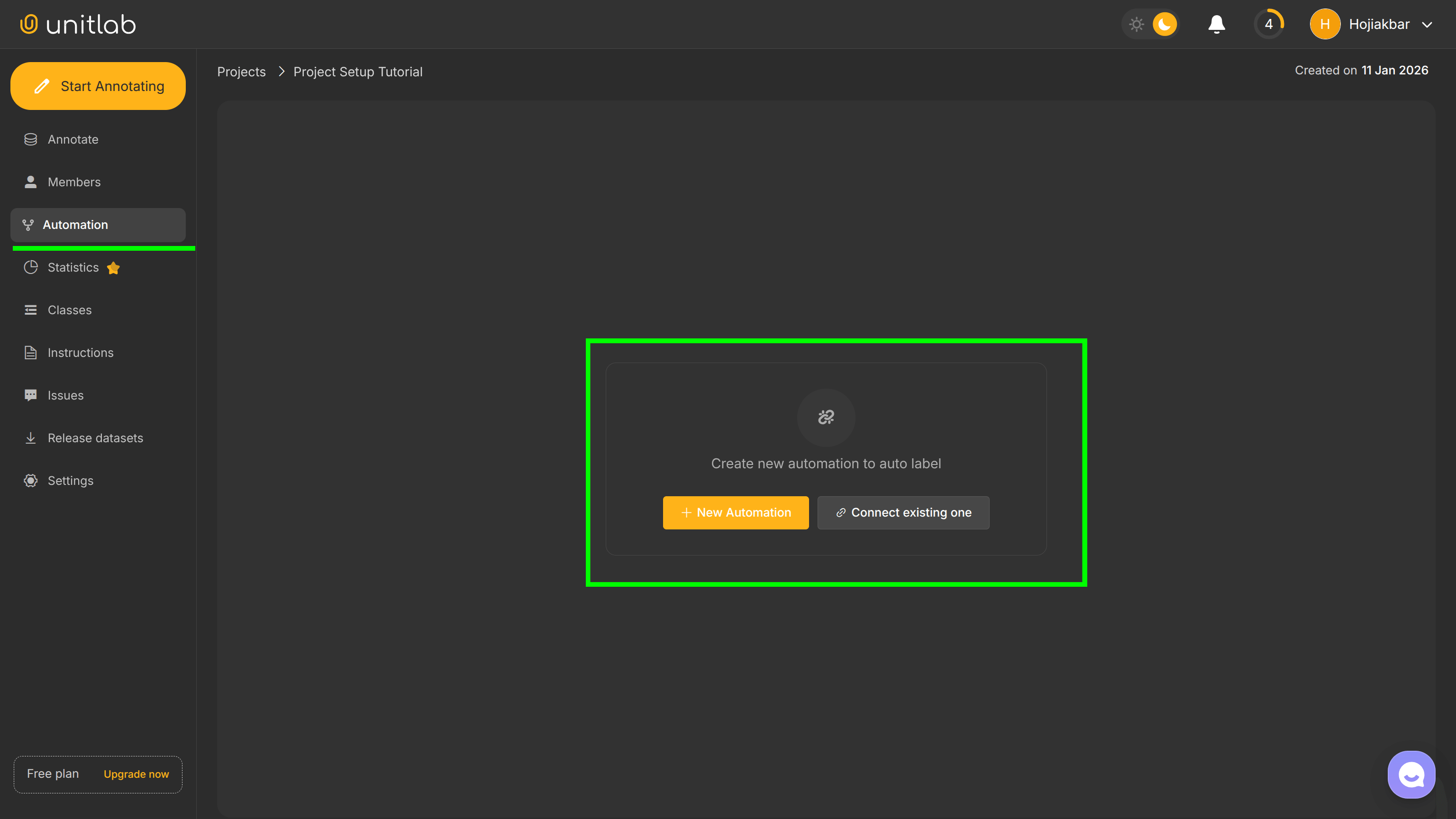
Click on + New Automation to add a new automation and you should see this flow chart:
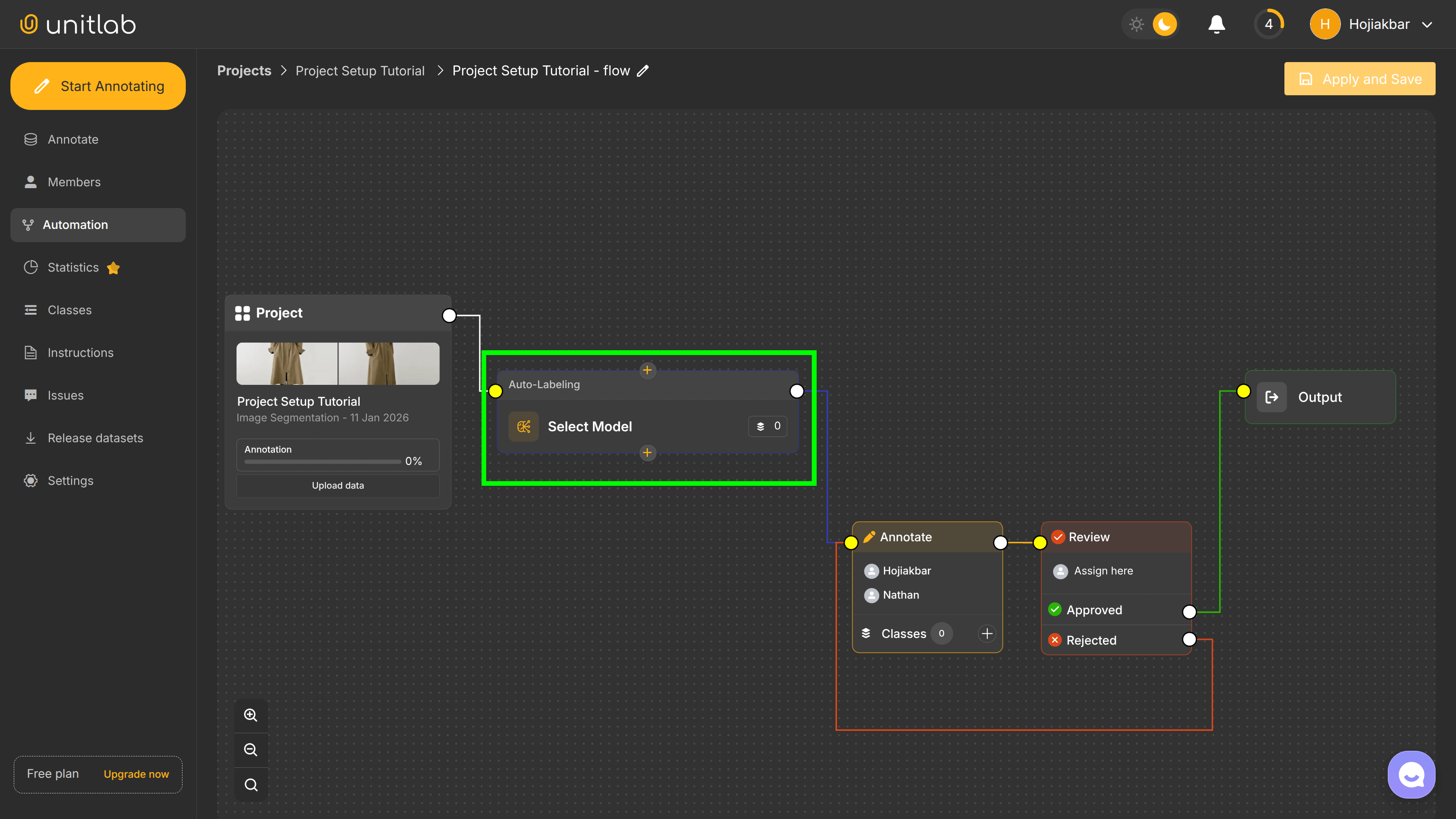
Because we chose Image Semantic Segmentation as our image annotation type, the platform automatically offers foundational models that match it. Namely, Semantic Segmentation and Bounding Boxes. Because we are annotating fashion models, we can use Fashion Segmentation and Person Detection:
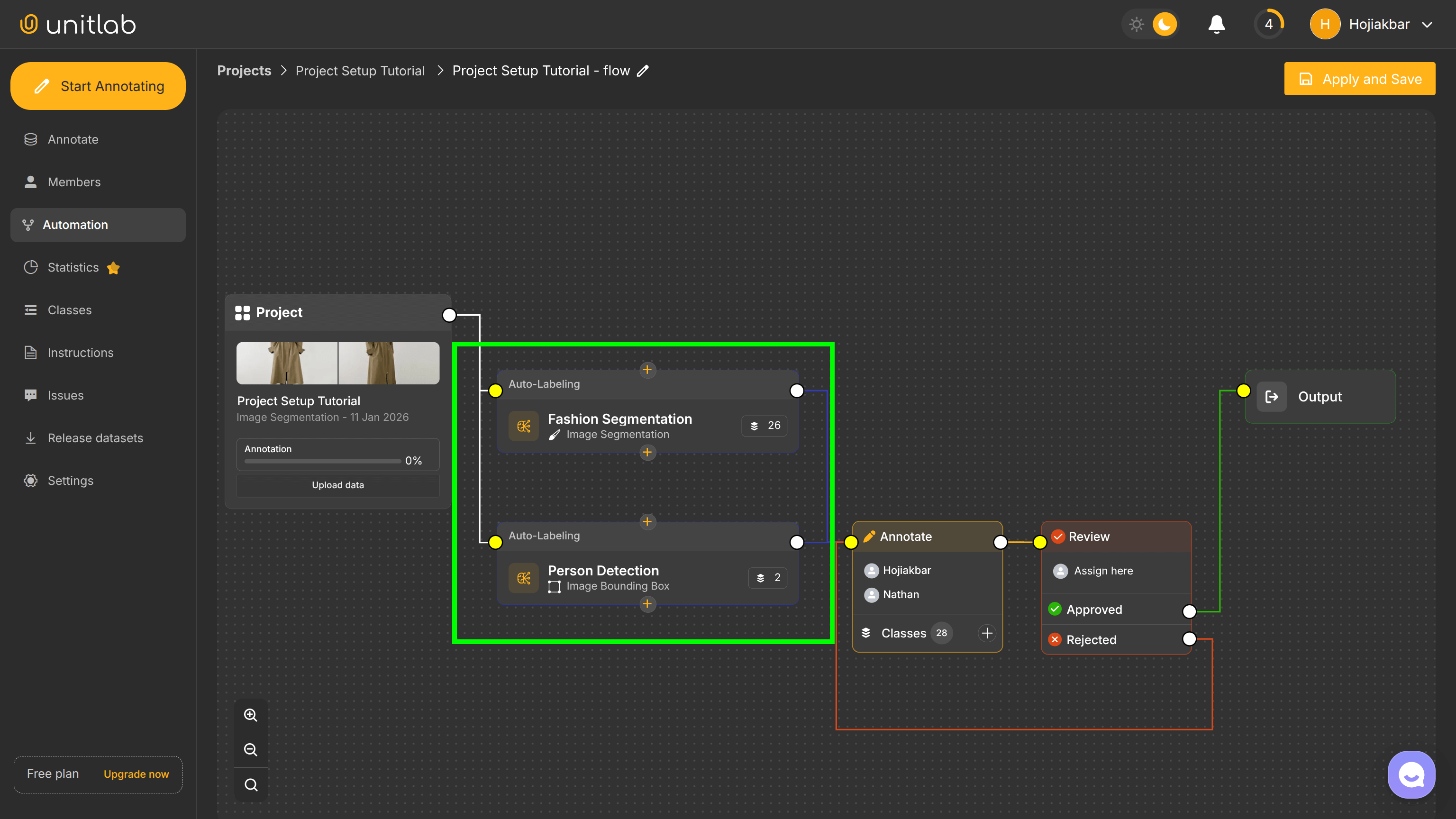
If you need a fine-grained control over foundational models, you can do so by clicking on a foundational model:
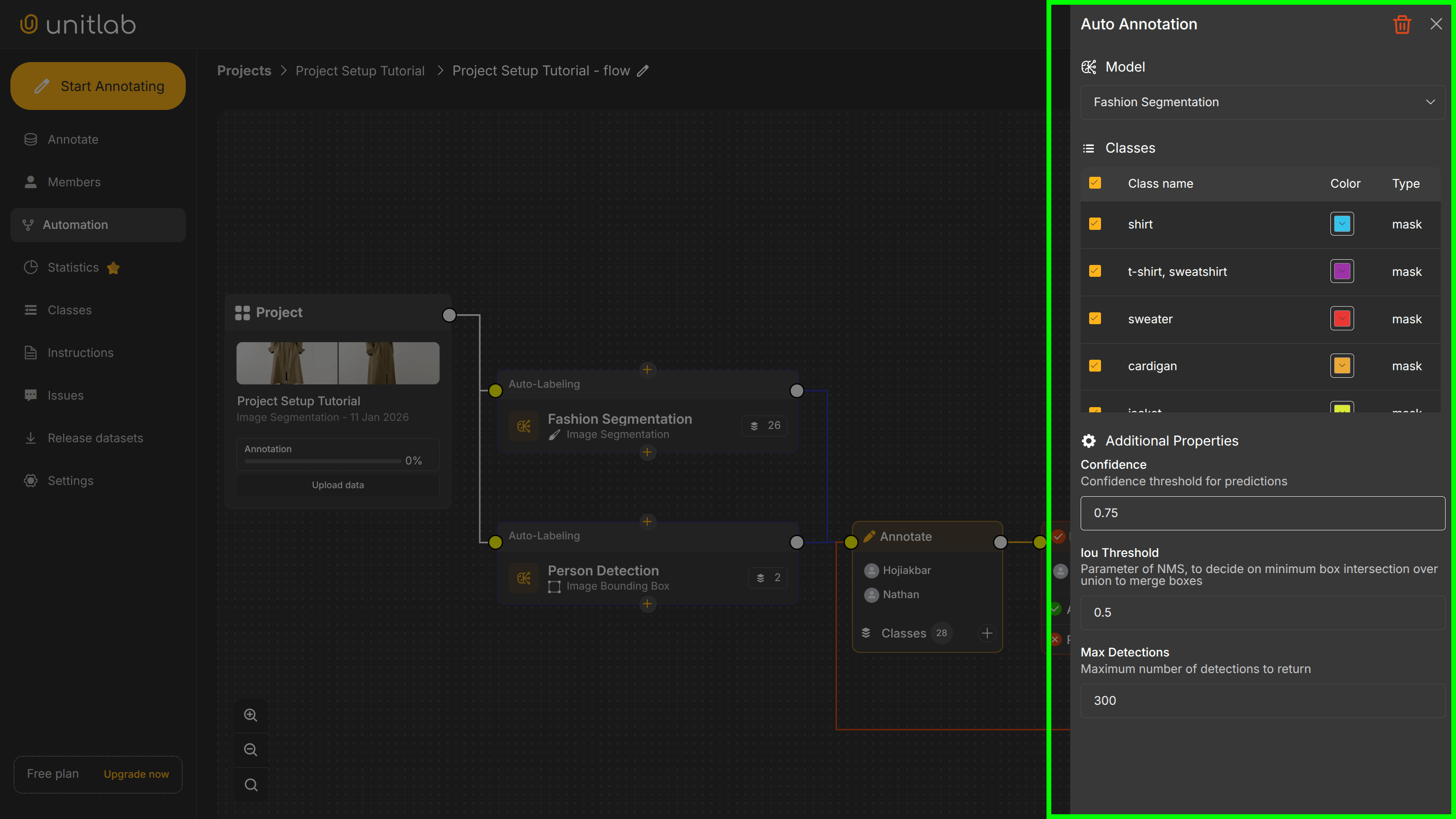
In this configuration pane, you can see default options. Most of the time, you do not need to adjust anything. If you need, you can exclude certain classes and change their colors. Also, you can modify confidence threshold, IoU threshold, and the number of max detections for this Fashion Segmentation model.
Once you are done configuring, click Apply and Save.
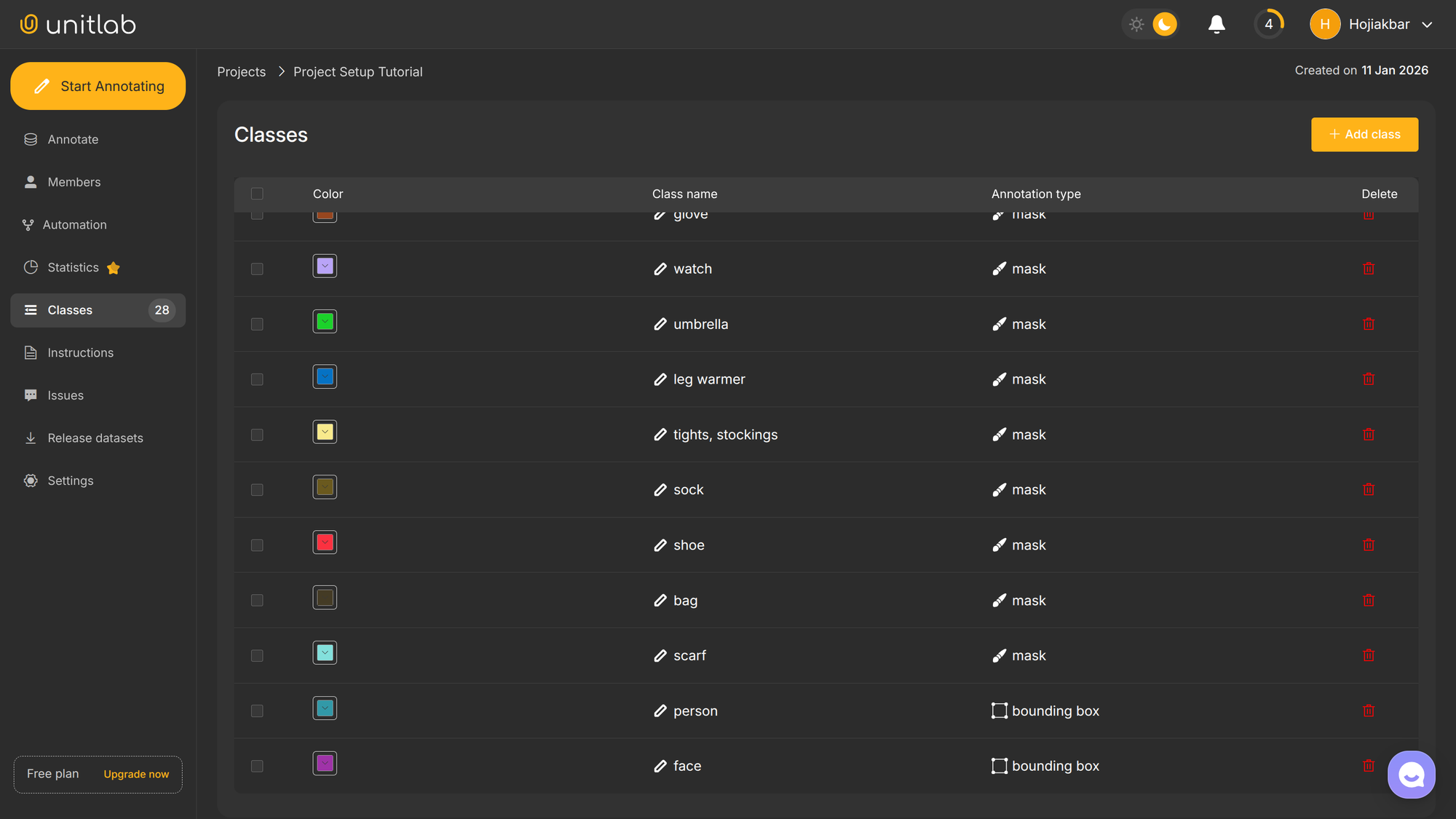
Finally, we can manage annotation classes separately. You may want to include your own classes as well. In this case, go to the Classes pane and you can edit, add, or delete custom classes, names, and colors on top of those that belong to built-in models.
Project Dashboard
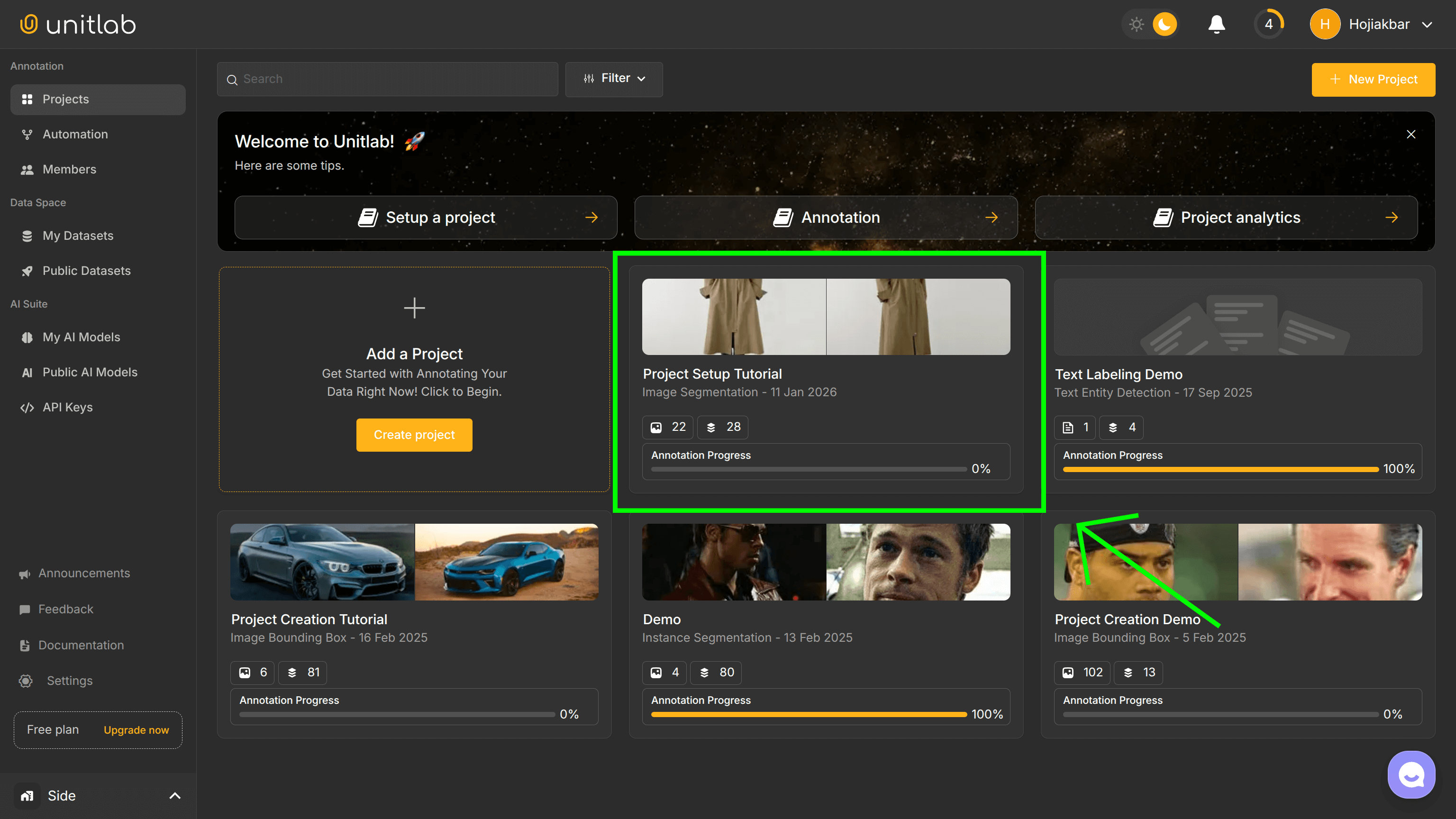
Under five minutes, we can create and configure a data annotation project in Unitlab Annotate. The focus is to streamline the data annotation workflow and produce high-quality datasets; as such, project configuration is as minimal and simple as possible. We can now start annotating our training data for ML models.
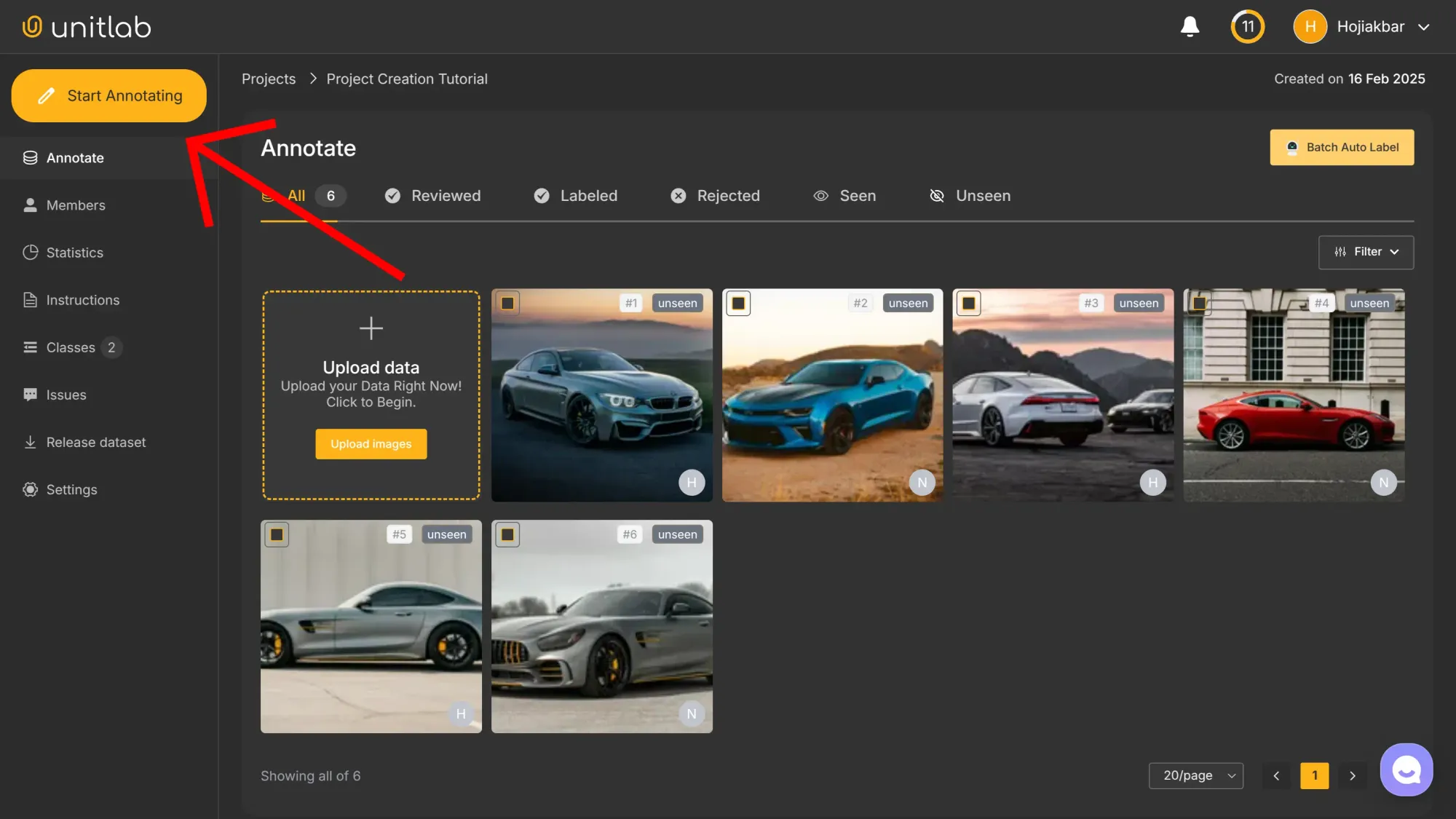
After the project is set up, it will appear on the dashboard. From there, annotators can begin labeling images and monitoring progress on the centralized platform.
Conclusion
Since the focus of Unitlab AI is on 100% automated and accurate data annotation, dataset curation, and model validation, the project configuration process on our platform is quick and intuitive, yet customizable.
Projects can also use various Foundation AI models by Unitlab Annotate or integrate their own models (BYO) models to assist in data annotation. The platform ensures projects are well-organized, version-controlled, and easy to share among team members. With multiple data upload options and the ability to define custom classes, Unitlab Annotate adapts to projects of various sizes and complexities.
![A Guide to Image Annotation Types [2026]](/content/images/size/w360/2026/01/Image-Annotation.png)
![Dataset Management at Unitlab AI [2026]](/content/images/size/w360/2026/01/Dataset-Management.png)