![Dataset Management at Unitlab AI [2026]](/content/images/size/w2000/2026/01/Dataset-Management.png)
Note: This is a simplified, quick version of our project creation docs. For full information, refer to this page:

Dataset Management Docs | Unitlab Annotate
Efficient dataset management is vital for building, training, and validating AI and Machine Learning (ML) models. Datasets in machine learning, essentially, are a collection of labeled data ready for training AI/ML models. Datasets can consist of different types of data, images, videos, text, audio, or a combination of those.
Dataset management refers to the process of creating and managing these source data for training and testing. Because training, testing, and validating AI/ML models is an iterative process, effectively managing different versions of our source data is a fundamental task.
Organizations rely on this process to ensure data quality, compliance, and business value.
In this post, we learn how to release and manage a dataset in Unitlab Annotate.
Dataset Management in Unitlab Annotate
Unitlab Annotate simplifies dataset management with centralized version control, similar to git commits. This allows ML datasets to evolve over time while staying consistent, relevant, and organized. We can revert back to any version if needs be.
ML models are inherently iterative: Data annotators release specific versions for different uses, update them as additional source data are added, and keep track of all changes, ensuring smooth versioning and reproducibility. Our platform also assigns role-based access permissions to datasets to maintain data integrity and safety.
Metadata, attributes, and variables are defined for each file, and files can be stored in various formats, such as CSV, XML, or JSON, to facilitate data analysis and statistical analysis. The structure of datasets, whether in hierarchical formats like JSON, XML, or YAML, supports different analytical needs and use cases.
Dataset release involves creating a new updated version in the iterative pipeline of ML development. As the dataset grows, newer versions can be released to reflect changes and additions. Note that adequate data storage solutions, such as data lakes, are essential as well to handle increasing storage capacity requirements as datasets scale.
Version control ensures that every change is tracked, with options to revert to earlier versions or compare updates. This means no manual dataset naming and management. With Unitlab AI, you no longer need to name dataset files as Dataset_final_V10_THIS_ONE. Everything will be stored and managed on the cloud by the platform.
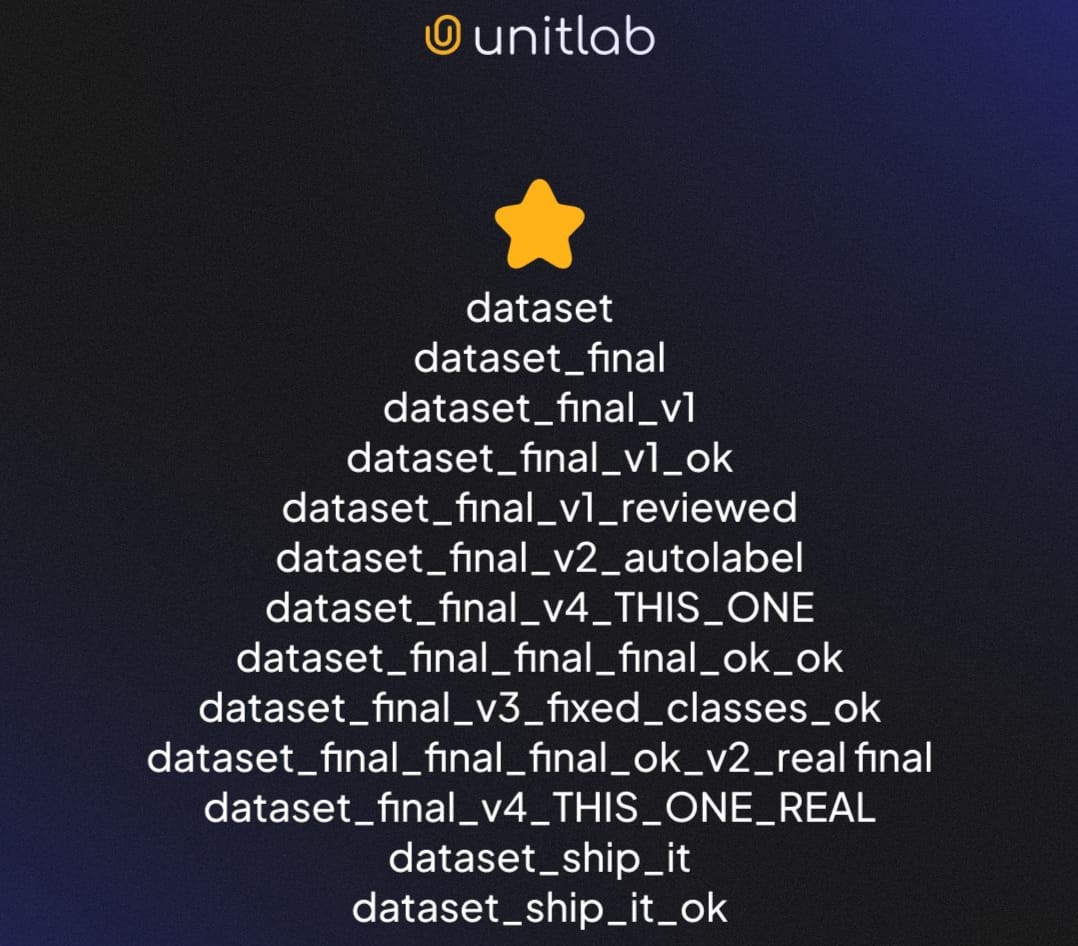
In the second half of the tutorial, we will see how exactly Unitlab AI handles dataset management, release management, and dataset versioning.
Dataset Management
We create a data annotation project, annotate data, and release a dataset.
Project Setup
To release an initial version of our ML dataset, we set up a project within Unitlab Annotate and annotate the source, raw data. The initial data files you upload represent raw data; these are the original, unprocessed images, text, or information that will be transformed into a labeled training set.
For example, you might upload a folder of unlabeled images as your starting point. The annotated images will then form the training datasets used for machine learning models.
In our previous post, we learned how to set up a project at Unitlab Annotate. If you do not have a project, check out our guide and set up a project. We will continue with the project we created in the last post.
 Hojiakbar Barotov
Project Creation at Unitlab Annotate
Data Labeling
To release a dataset, we first label our source data. If an image is not labeled, then it will not be included in the dataset release. The difference between a project and dataset is that the project contains all images, labeled or not, whereas the released dataset contains only the labeled images with specific values assigned during image annotation.
Various types of data can be annotated, including unstructured data such as images, videos, and text documents. For instance, for text-based unstructured data, natural language processing techniques can be used to extract and label relevant information.
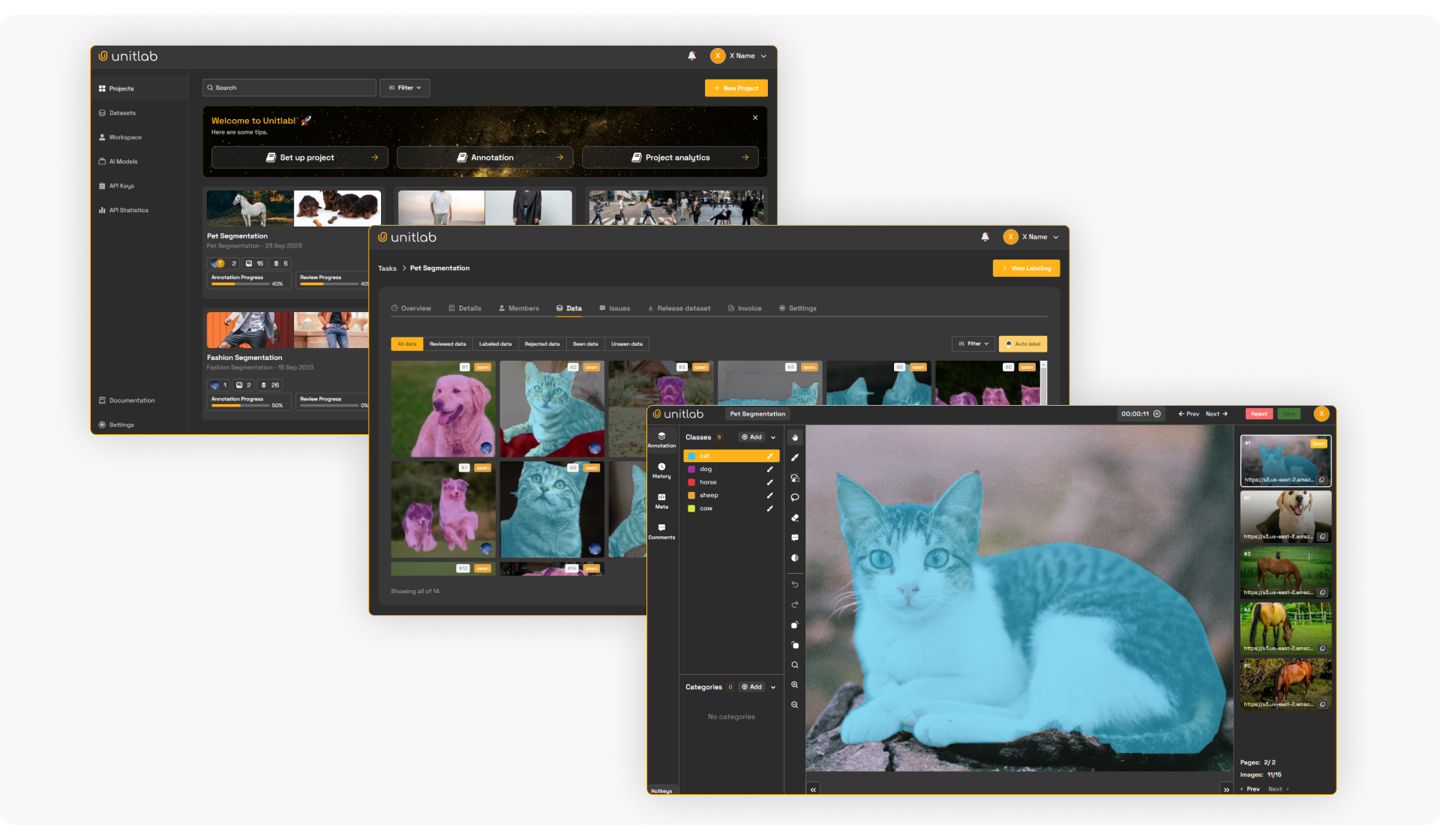
On our platform, various built-in or integrated AI models can be used to automatically annotate source data. Alternatively, data annotators can label images themselves. In our case, we have selected Fashion Segmentation and Person Detection as our AI model to auto-annotate our source images.
Auto-annotation using AI has several benefits: AI-powered models speed up the image labeling process up to 15 times. It also contributes to improved accuracy and model performance by ensuring consistent and reliable annotations. Finally, human annotators can adopt the human-in-the-loop approach to produce high-quality datasets.
In the demo video below, we use Crop Auto-Annotation to annotate our image. You specify the area to label, and the automation workflow currently in use will label that area, fast and accurate:
Crop Auto-Annotation for Data Annotation
This way, you can label images in a fast, efficient way. Annotate a few more images to release our dataset. In my case, I annotated a total of six images to release an initial version of our demo dataset:
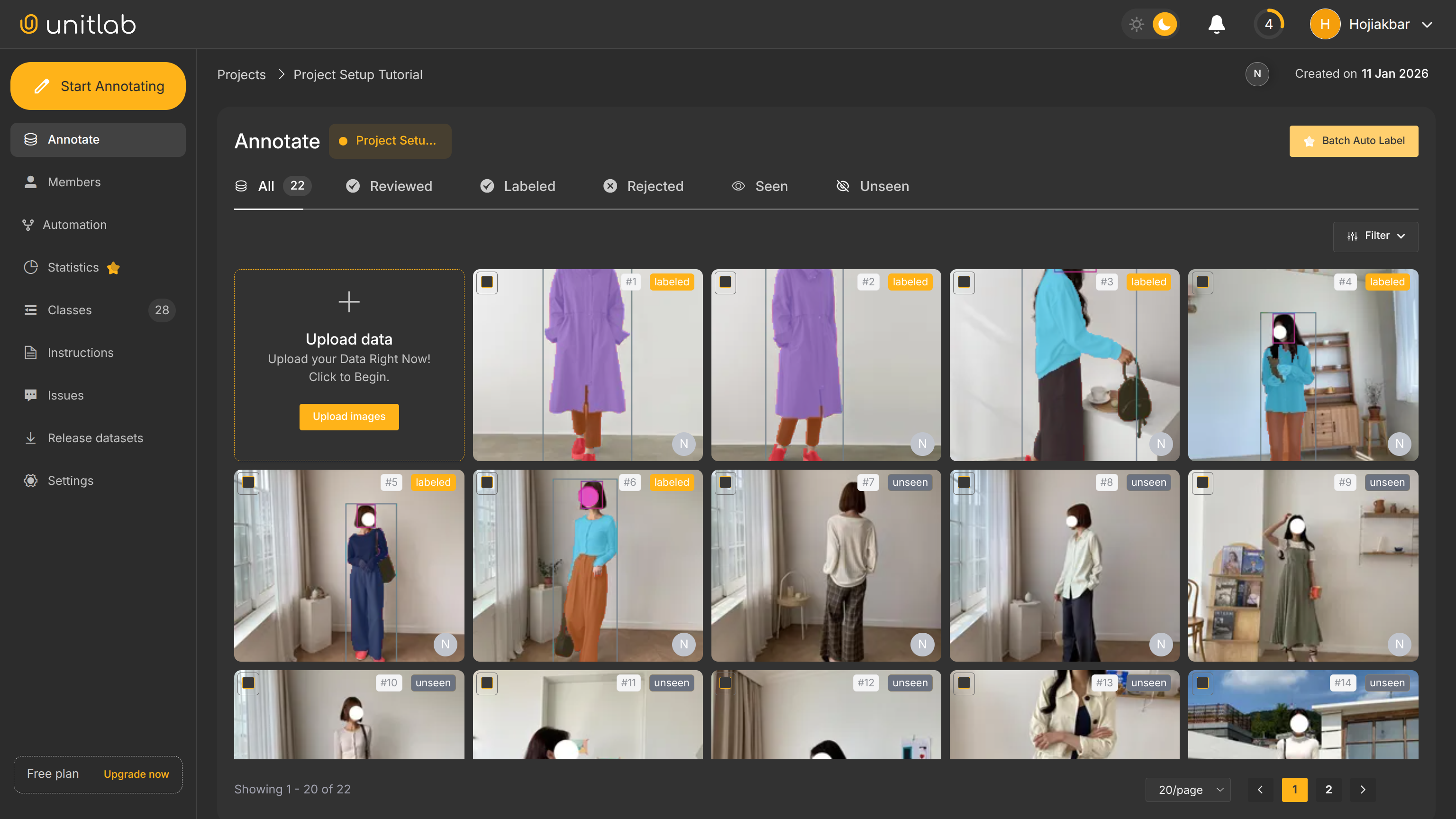
When we release this dataset, only these 6 images are included.
Dataset Release
After annotating our project, we can release a dataset in the dashboard of our project. Because we are releasing the dataset for the first time, we do not have previous versions. The version automatically starts at 0.1. We can now release a dataset, by clicking the + Release Dataset button.
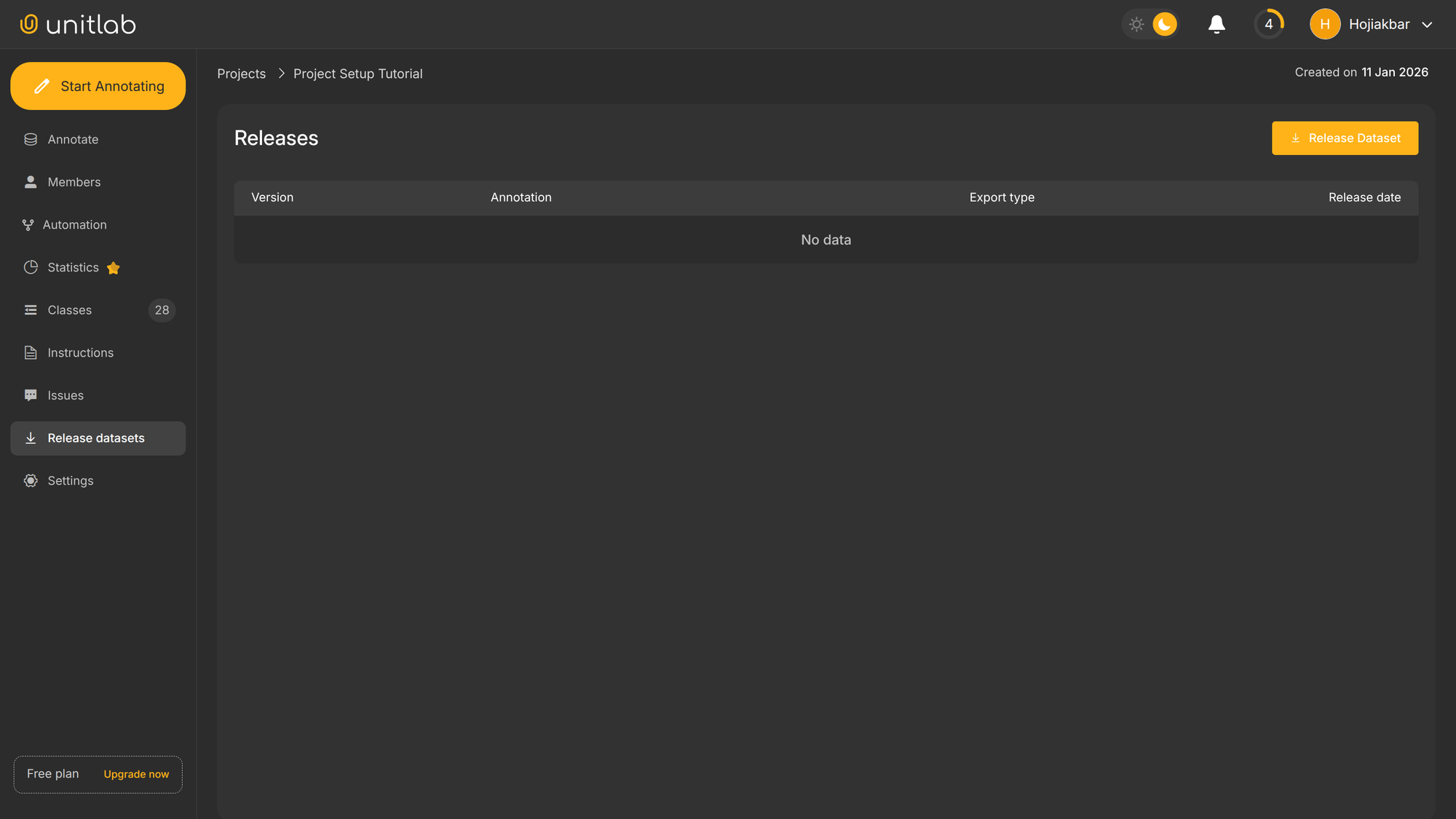
Since we are currently under the Free plan, which is good for hobbyists and students, our released dataset will be public and available through Unitlab Annotate by default. If you want to create a private dataset (which you would want almost always, because your dataset is your strategic asset), you can upgrade to plans Active or above.
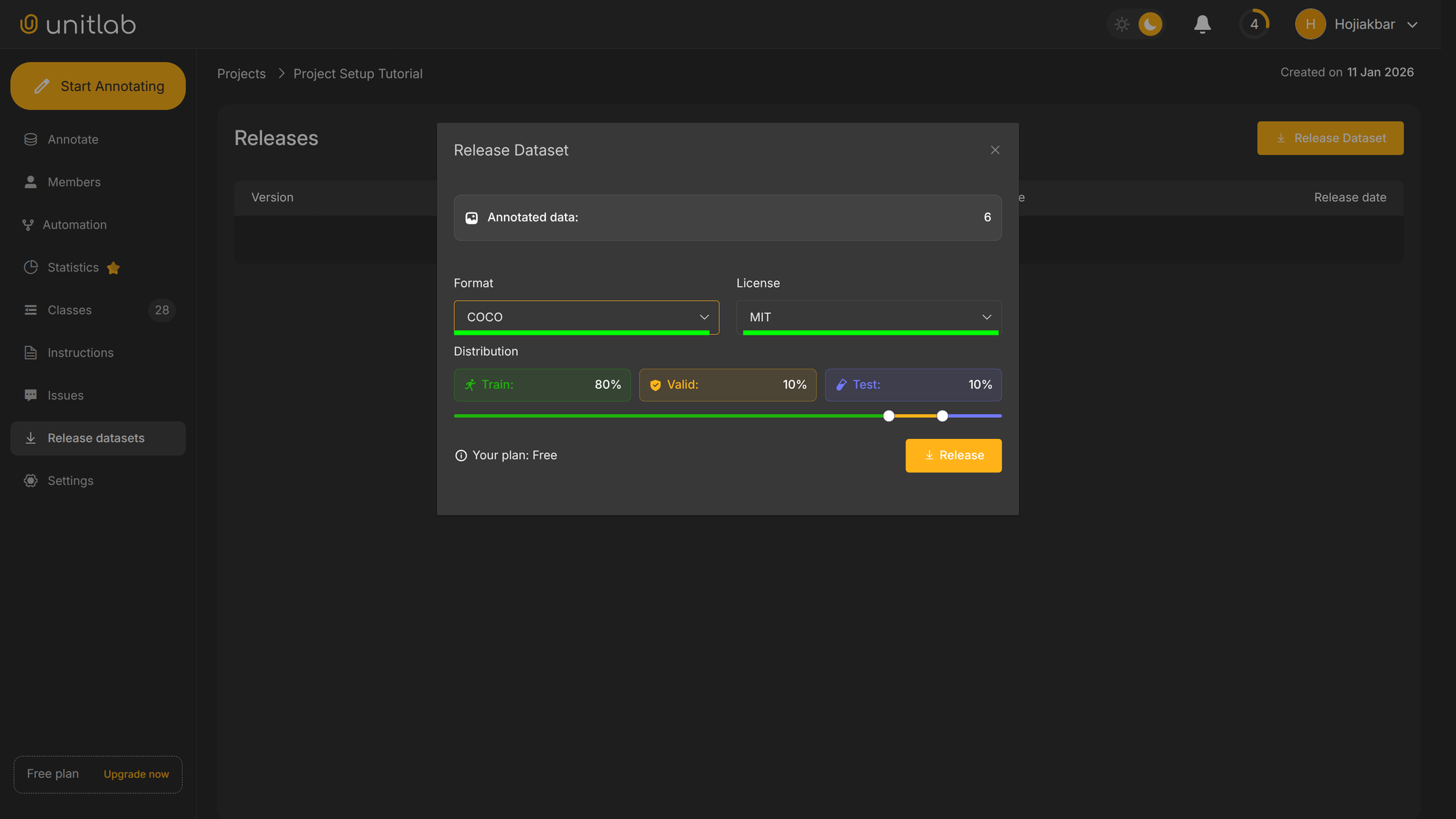
We see that the number of annotated images is 6, which matches our expectations.
We must choose the format for our dataset. We can choose from COCO, YOLOv5 or YOLOv8; other types are coming in the future releases of Unitlab Annotate. We chose the general purpose COCO. However, it is possible to choose other formats depending on the business needs.
We also need to choose an open-source license. An open-source license grants certain permissions to the user that is using a particular piece of software or dataset. In essence, the license dictates what can and cannot be done with the dataset. There are, as of now, four licensing options available at Unitlab Annotate:
- MIT - Permissive, allows commercial use
- CC BY 4.0 - Requires attribution
- Public Domain - No restrictions
- BY-NC-SA 4.0 - Restricts commercial use and requires the same license for derivatives
We chose MIT, an open-source license widely used for open-source projects, but you can select other licenses if you choose to open-source your dataset.
Finally, we specify the dataset distribution. In practice, you divide your ML dataset into training, validation, and testing to train your ML models. The common distribution is 80-10-10; but you can determine it yourself.
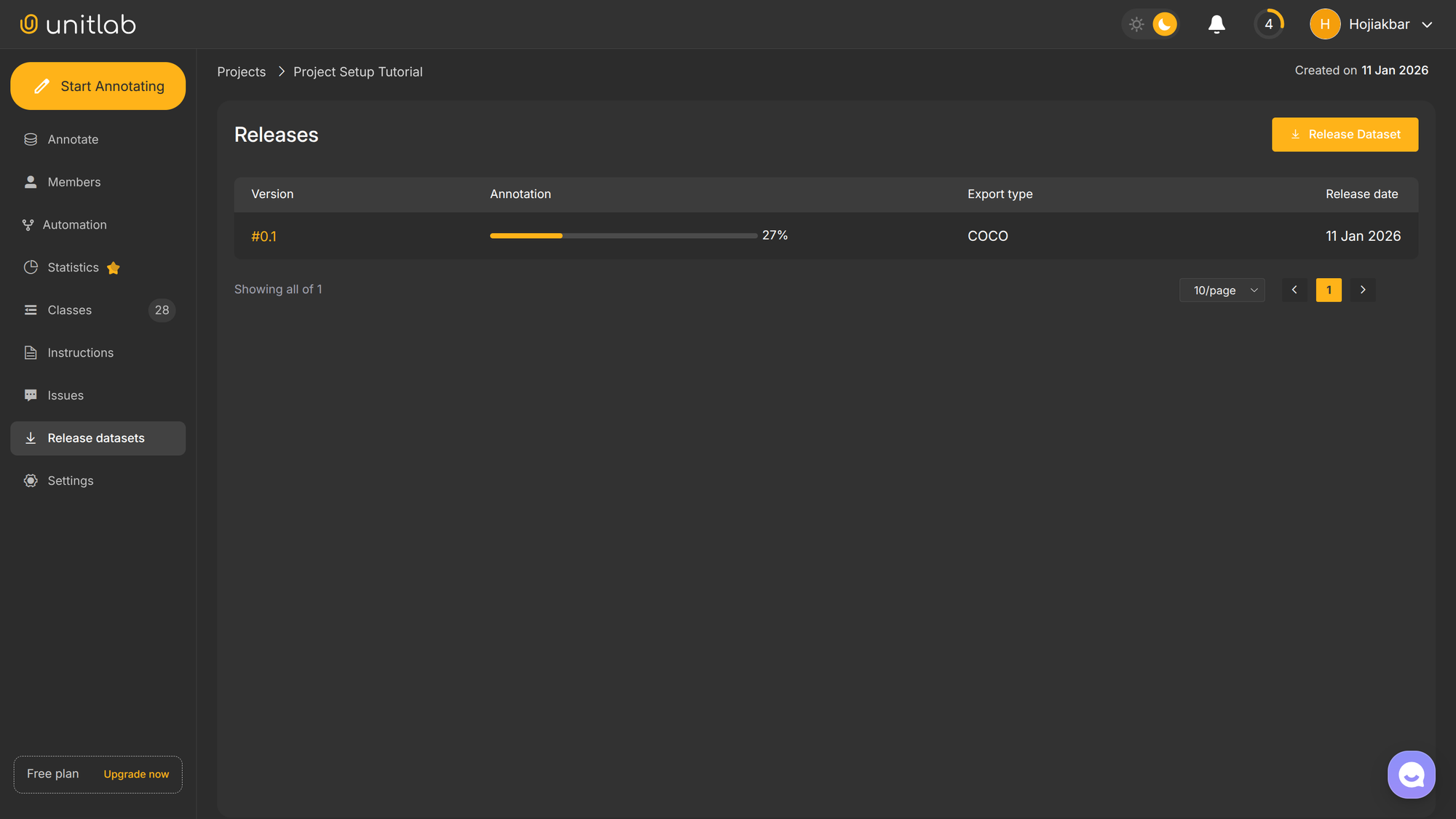
Our dataset by default takes on the name of the project and is accessible on the Dashboard of the Unitlab Annotate. The dashboard also provides search functionality, allowing you to quickly locate specific datasets or data points:
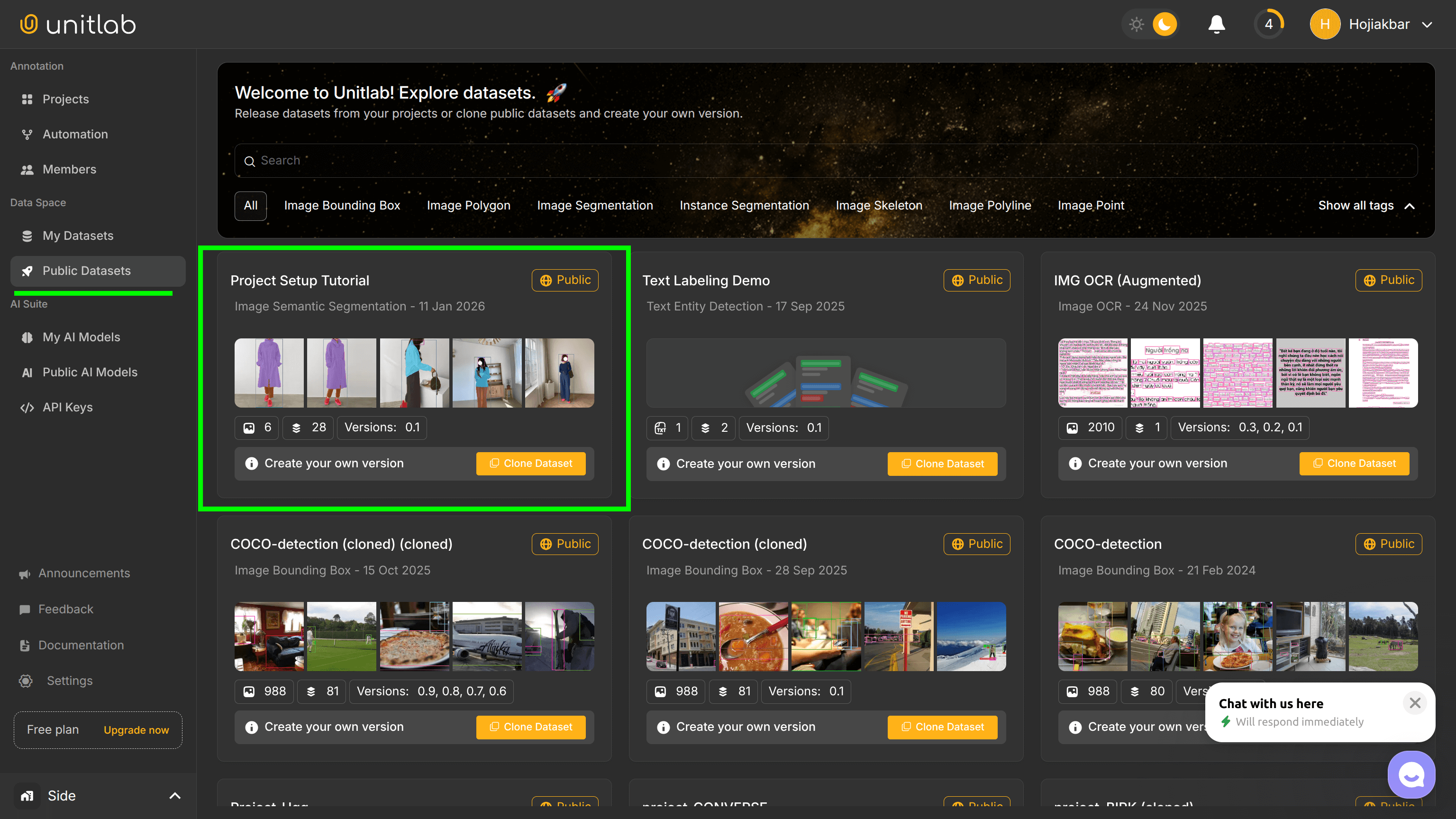
Dataset Management
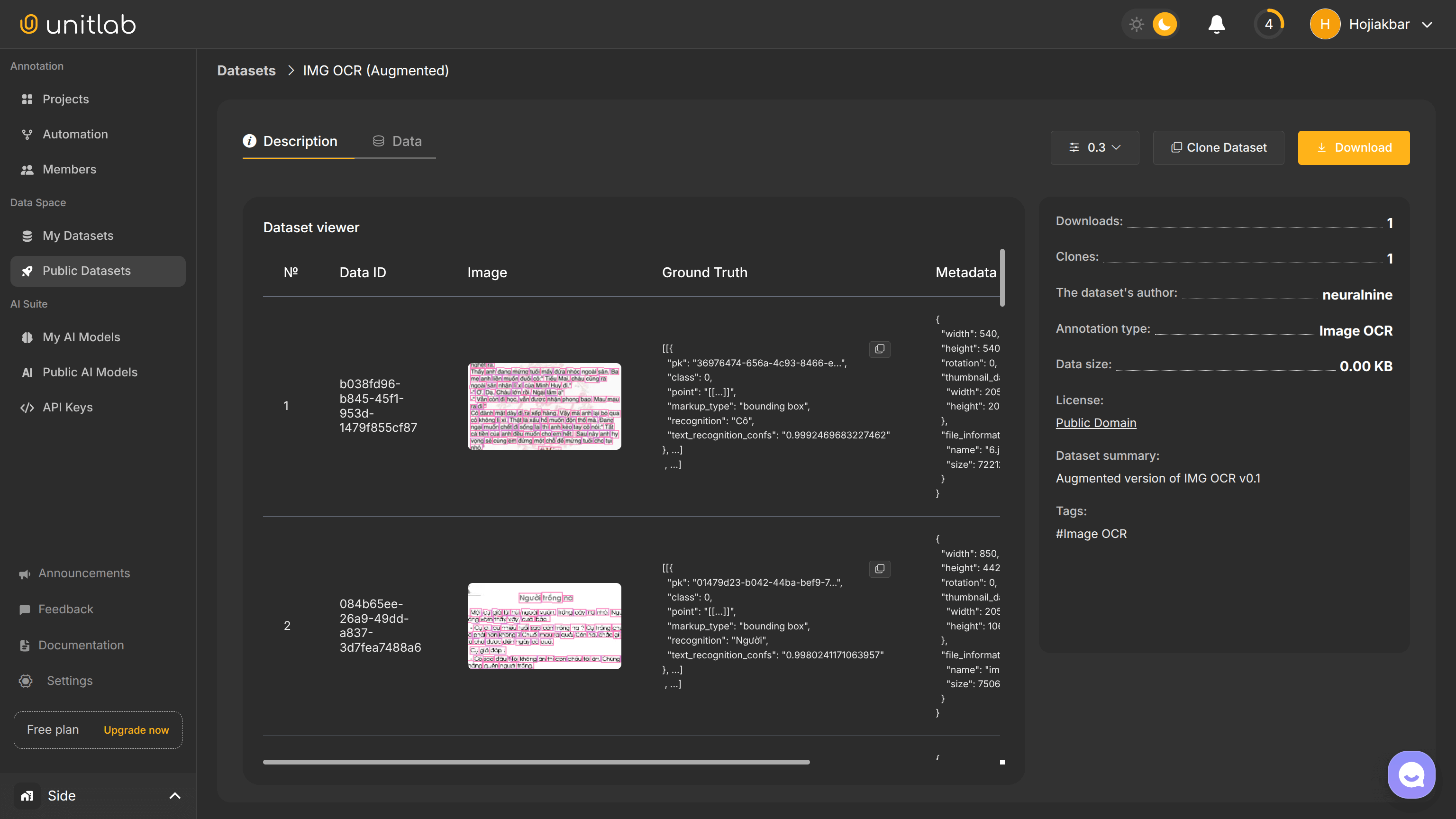
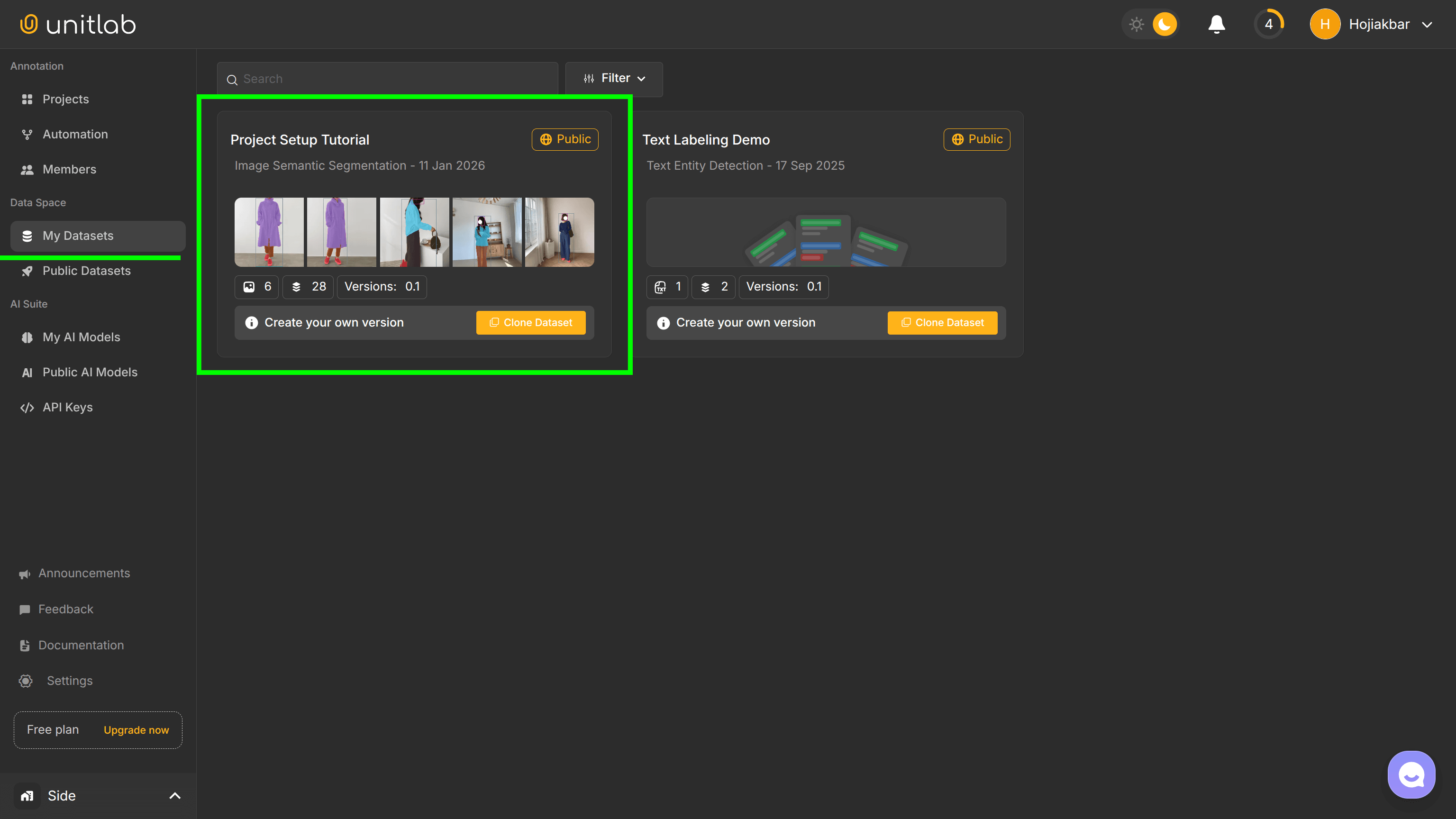
We can now manage our newly released dataset. When you click on the newly created dataset, we can carry out several management actions, such as cloning, augmenting, and downloading the dataset.
First, go to the My Datasets pane on the left and click on your newly released dataset:
Dataset Clone and Version Control
In Unitlab Annotate, users can clone public datasets and start working with the dataset. Our platforms offers numerous public official and user-created datasets. You may clone a dataset for several reasons: testing, experimentation, etc.
You can clone a dataset as follows. First, click Clone Dataset and leave the checkbox on. This clones the exact dataset with annotations:
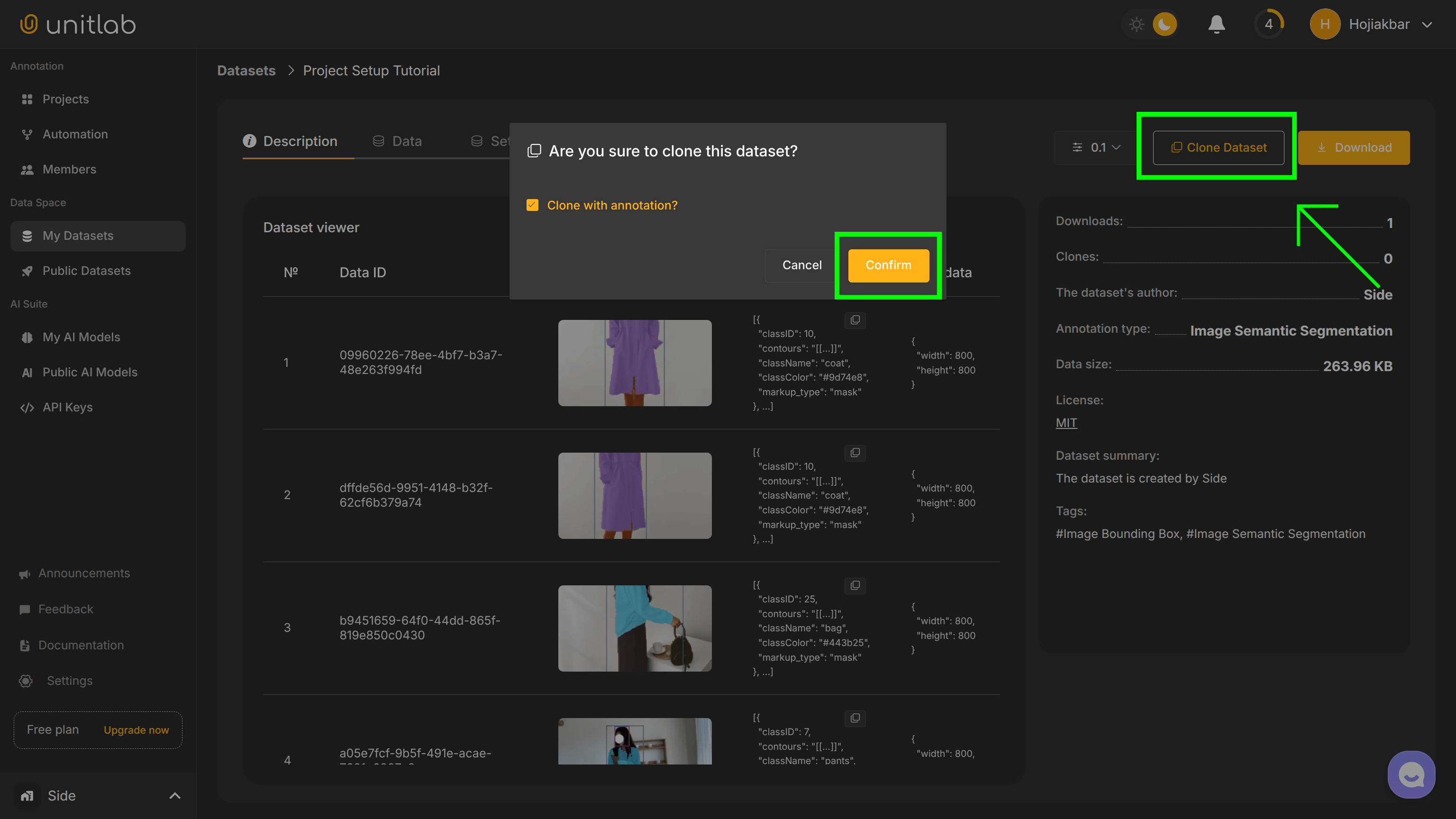
If we clone with the annotations, our project contains all the image annotations in addition to the source images. Otherwise, we only clone the source images. The rest will continue in the same way as creating a project.
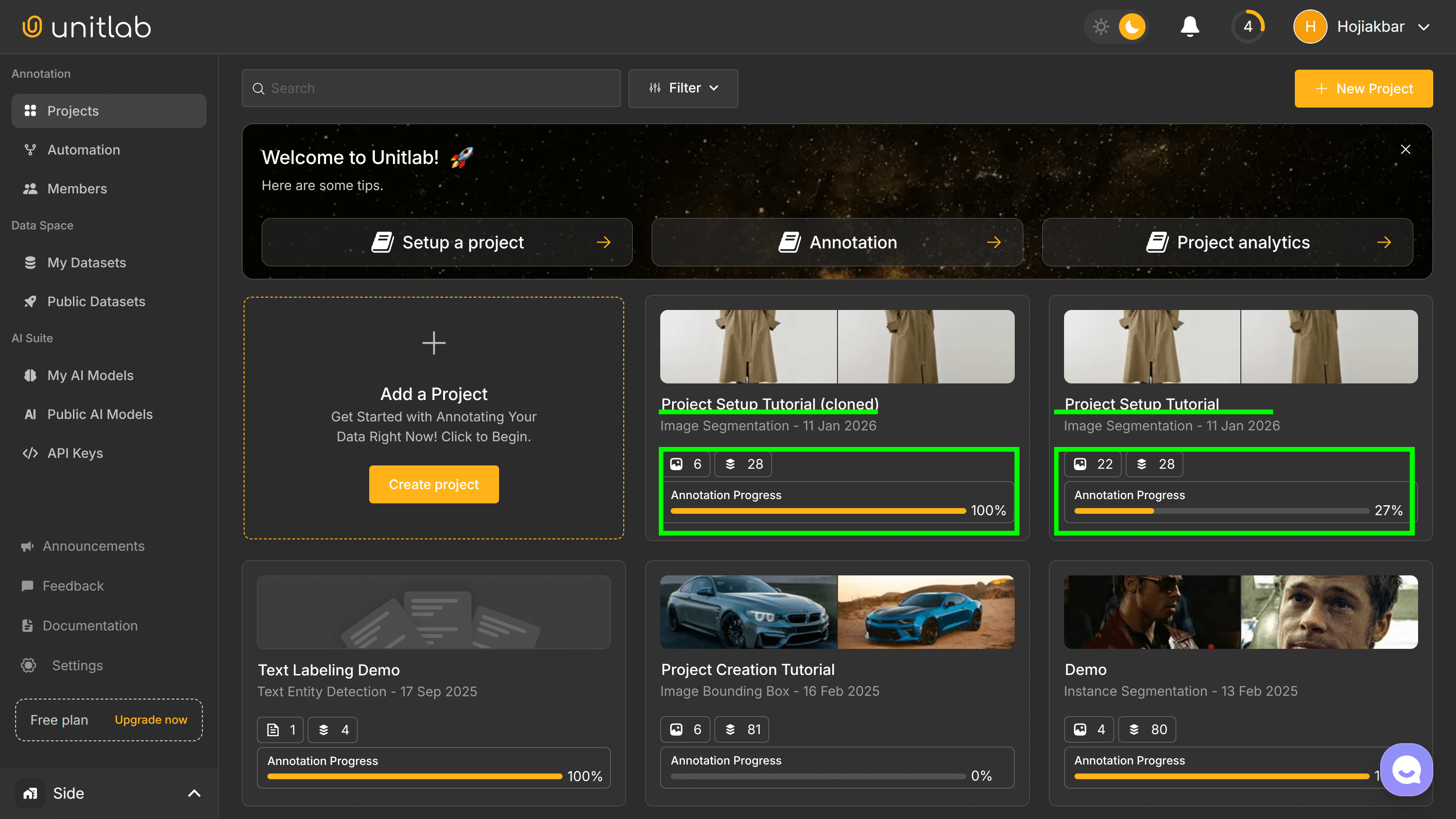
When you finish cloning, you will see the same project with the same name, labeled images, and annotations. Only the members and roles may differ:
Dataset Download
Our public dataset is now released and ready to be used. All Unitlab Annotate users can now clone it and use it for their own computer vision projects if necessary, under the MIT license.
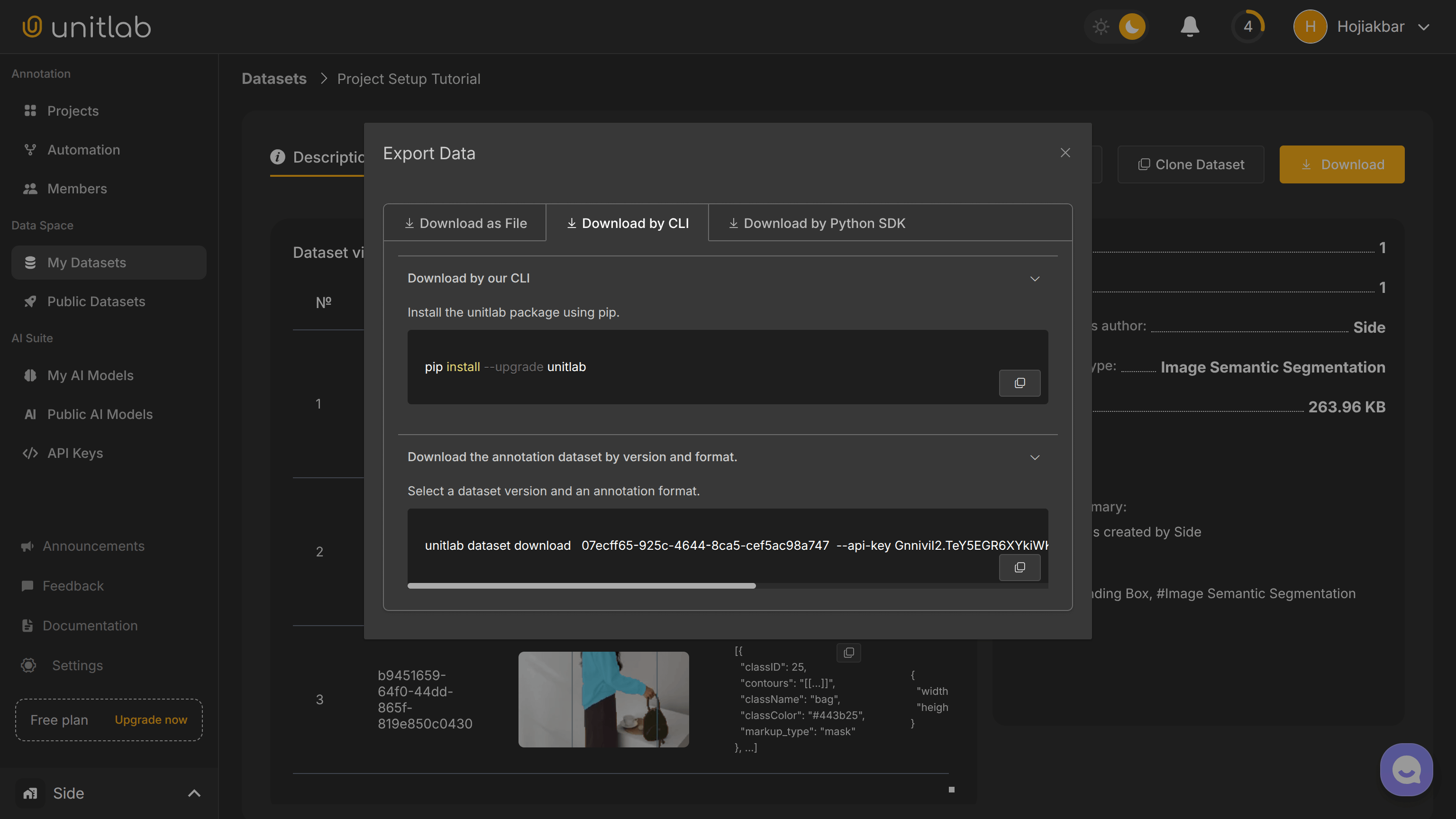
If we have a need to download the source images or data annotations in our labeled dataset to our local storage, Unitlab Annotate enables us to download them in a programmatic (CLI and Python SDK) and non-programmatic (Web browser) way.
If we want to download the source images, we can download the images in a zip format. We can separately download the image annotations in a JSON format.
As the primary use case of annotation is for training and testing ML/AI models, the models expect the data annotations in a standardized format that they can understand.
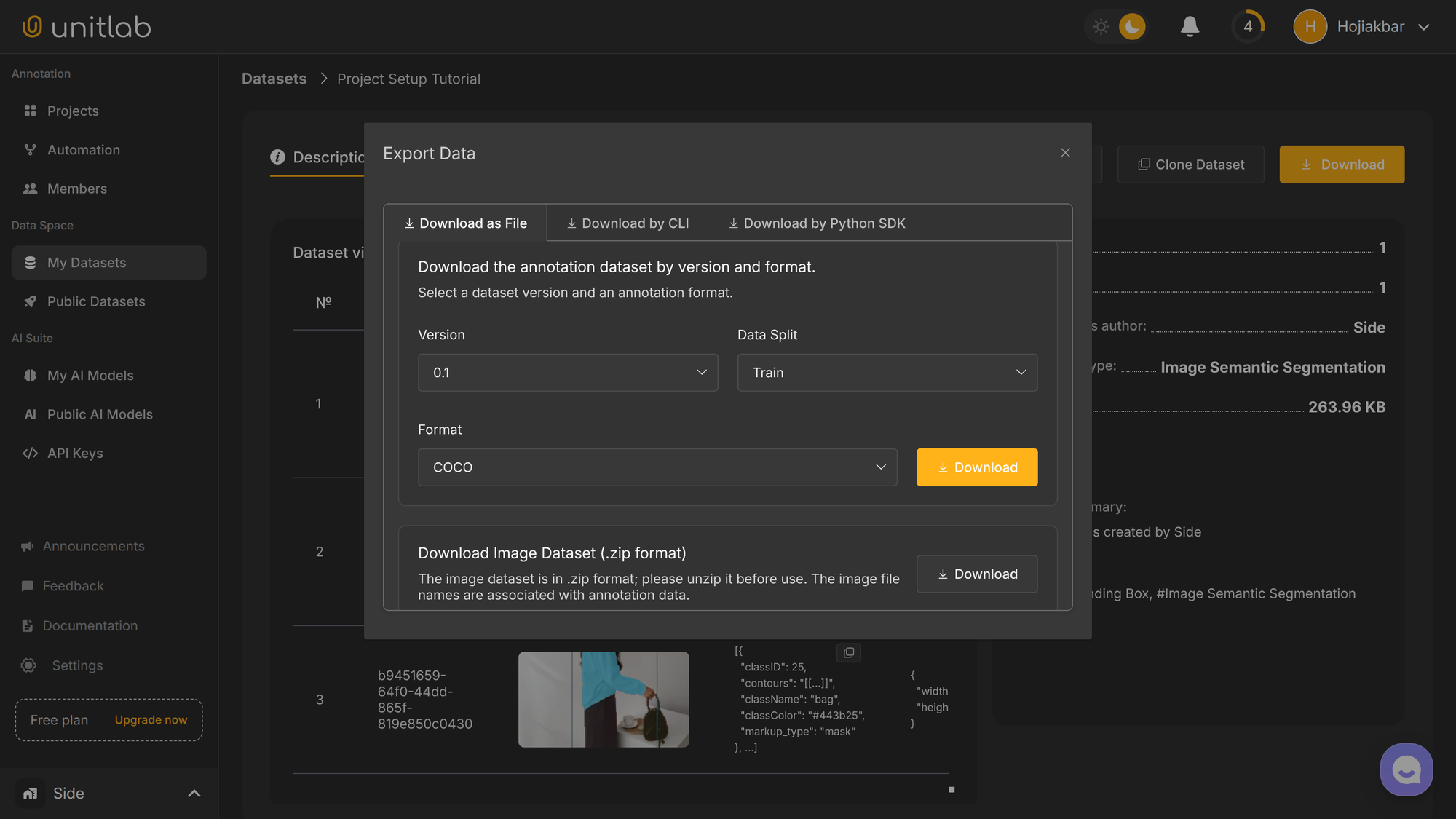
We have three options to download the results:
- Web interface: the standard browser functionality (which we will use).
- Unitlab CLI: the command-line interface.
- Python package: the
unitlabPython package.
 Hojiakbar Barotov
The CLI and Python SDK | Unitlab Annotate
The pop-up itself has also guides for using the CLI and SDK:
Data Augmentation
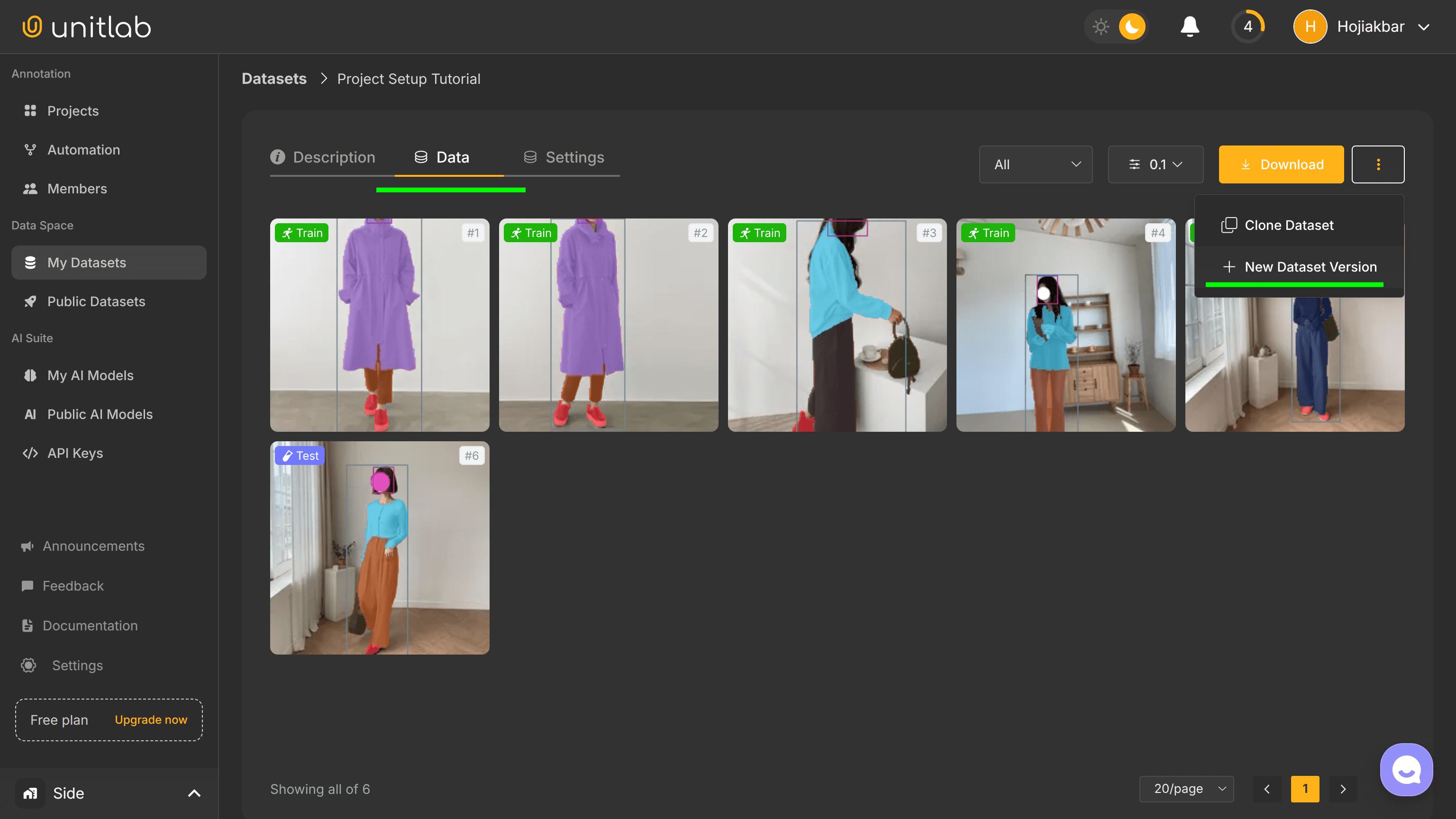
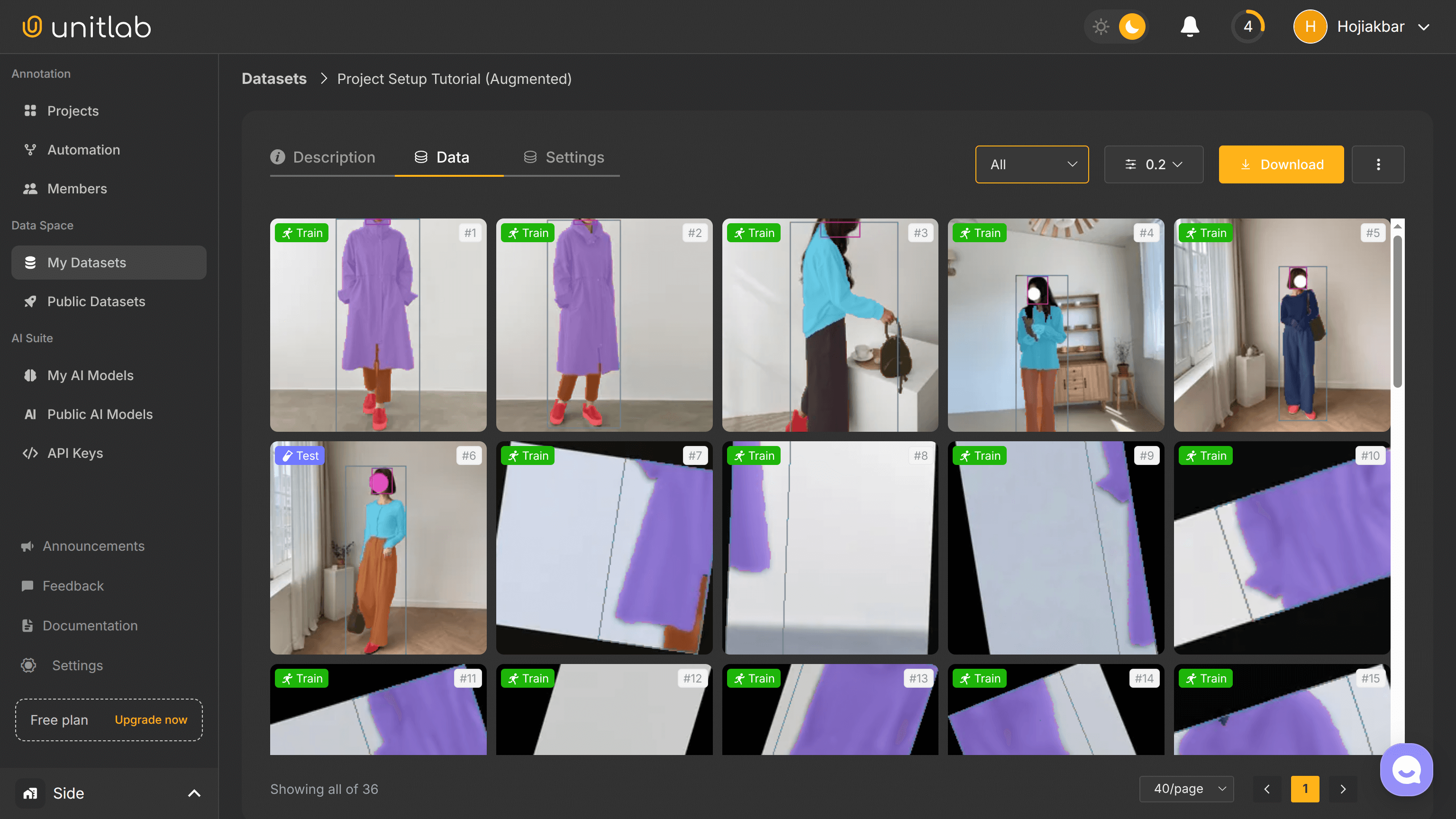
If you go to the Data tab inside your dataset management, you can create a new synthetic version of your dataset by augmenting data. Data augmentation refers to the fact that we can use pre-existing data to create new data samples that can improve model optimization and generalizability. This way, we can create new versions of datasets.
Follow this article for an in-depth guide to data augmentation:
 Asad Iqbal
Data Augmentation | Unitlab Annotate
Now, you can edit different configurations for augmentation, but we will proceed with default values and create 100x augmented images. However, because we are under the free plan, we can create only 5x augmented images:
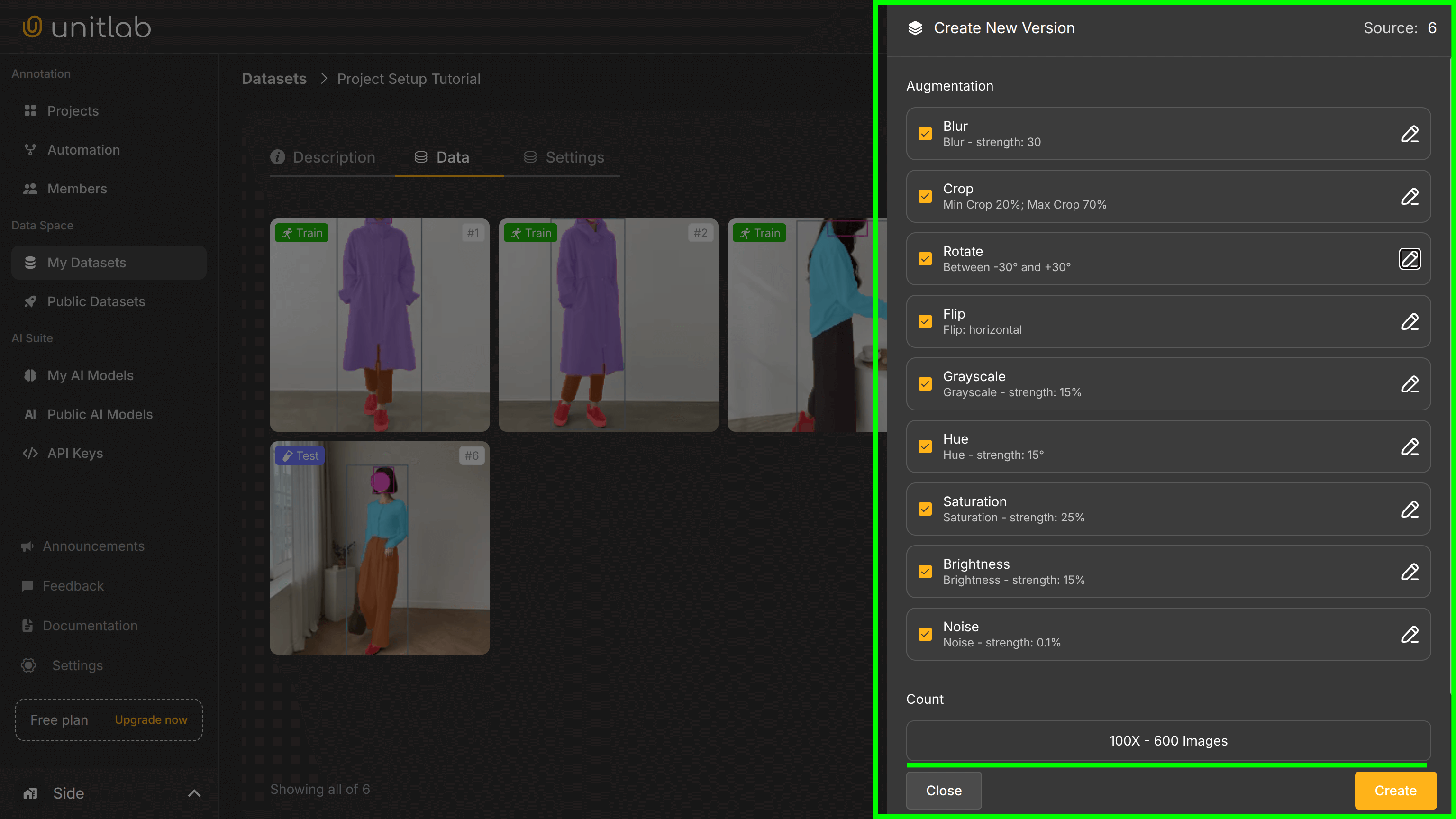
Now, we have 36 images in total in our second version of our dataset, due to data augmentation. Pretty elegant, innit?
Conclusion
Unitlab’s version-controlled dataset management ensures that data remains consistent and accessible throughout the project. Whether the goal is to build an AI/ML model, collaborate with a team, or share work publicly, the platform provides a smooth, reliable way to manage and release datasets.
With options for tracking changes, selecting licenses, cloning, data augmentation, and flexible download methods, Unitlab Annotate makes it easy to create structured, reproducible datasets for any purpose.
By keeping datasets organized and up to date, projects benefit from improved collaboration, reduced errors, and better AI performance.