


![Unitlab CLI and Python SDK Configuration [2026]](/content/images/size/w2000/2026/01/SDK.png)
Note: This is a simplified, quick version of our project creation docs. For full information, refer to this page:

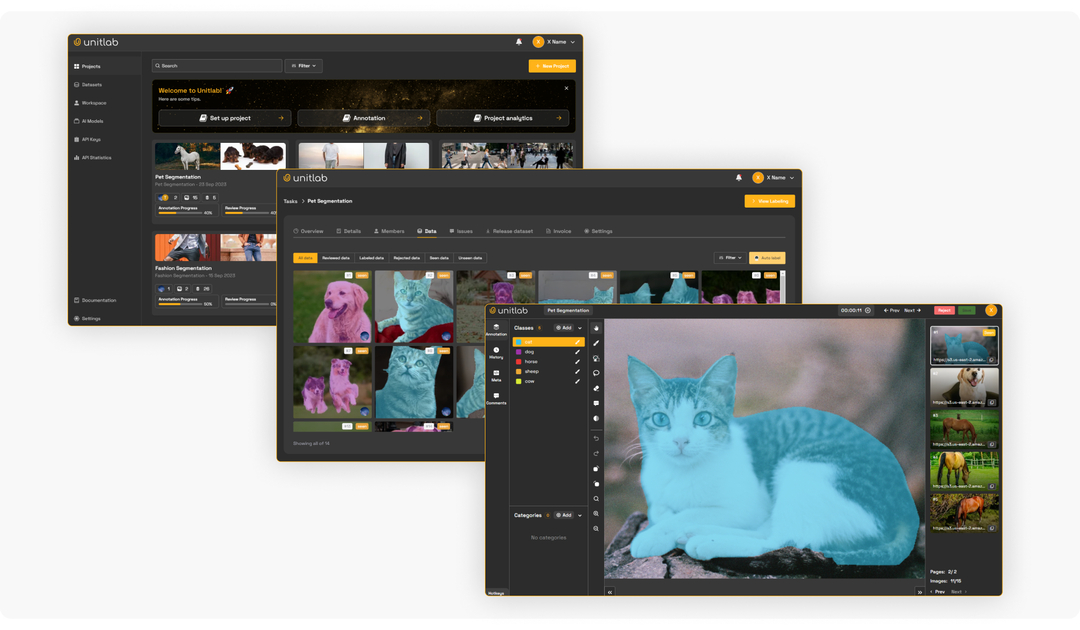
Unitlab CLI & SDK Documentation
Unitlab AI provides programmatic access with Unitlab CLI and Python SDK to its platform through APIs. This feature is a common expectation in professional data annotation projects because running a big enterprise project requires on-going maintenance and automation.
The Unitlab CLI and Python SDK are versatile tools designed to automate managing data annotation workflows by enabling programmatic interaction with Unitlab AI.
| Tool | Nature | Use Case |
|---|---|---|
| Unitlab Python SDK | Python-based third-party package | Automation scripts |
| Unitlab CLI | Command-line interface tool | Quick tasks in CLI |
Unitlab CLI is a powerful, Python-based command-line tool designed to manage your projects and datasets directly from your command line (Bash/Powershell). This tool is designed for completing quick tasks on the terminal: seeing projects, uploading data, and downloading datasets.
Unitlab Python SDK is a third-party Python package that allows you to manage your projects, datasets, and routine operational tasks with Python code. This is a very handy feature because you can write a Python script to automate routine tasks and set up a cron job to automatically run at defined intervals.
No wonder that most professional data labeling projects use these coding tools for management and automation. The usage of CLI and Python SDK frequently come up in accelerating and automating data annotation pipelines, as shown in the post below:
 Hojiakbar Barotov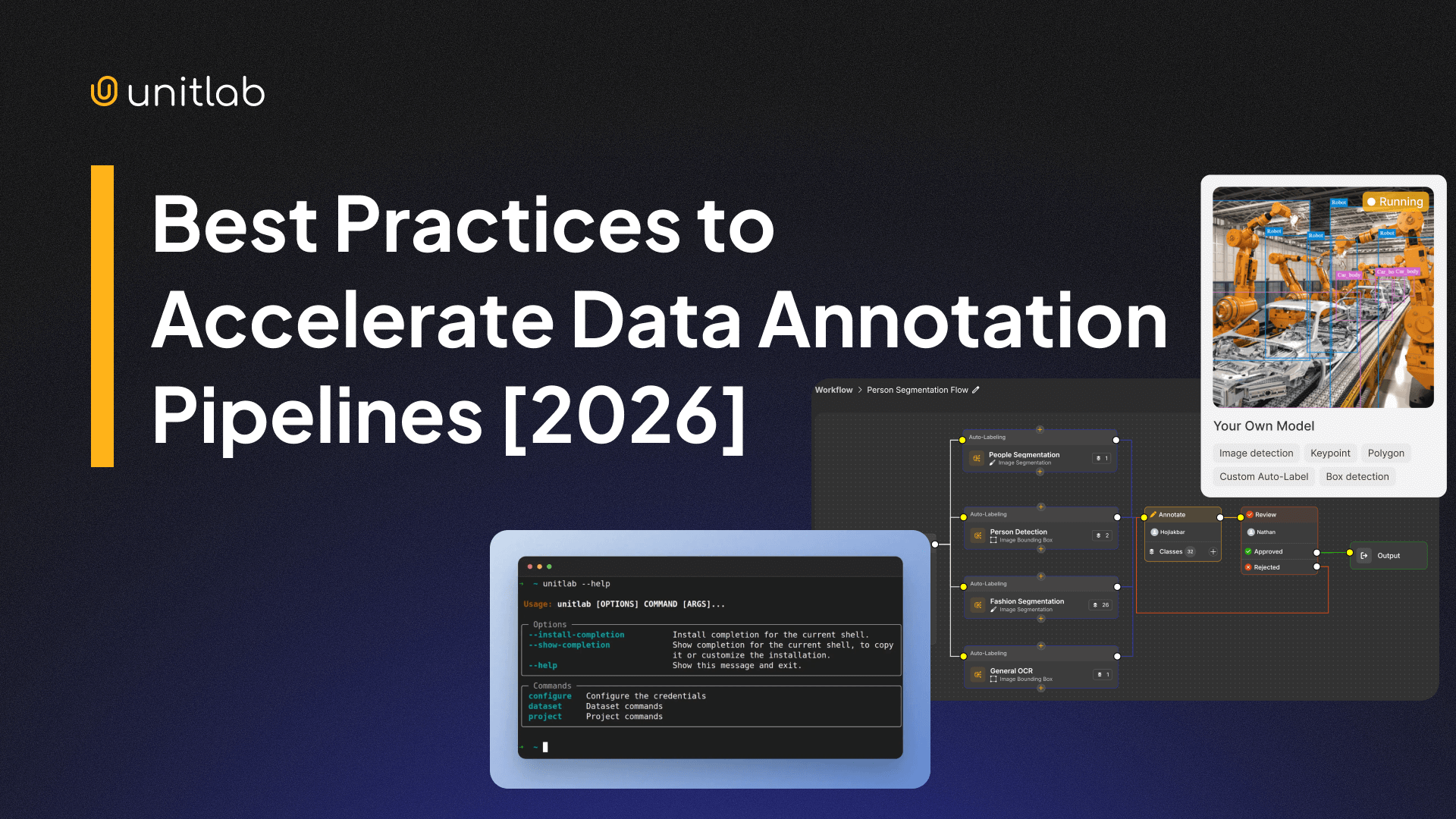
Accelerate Your Image Annotation Workflows | Unitlab Annotate
In this guide, we'll cover the installation, configuration, and usage of both the Unitlab CLI and Python SDK.
Install & Configure
To use the CLI and SDK, ensure you have the following:
- Python 3: Install from the official Python website.
- Pip: Check installation instructions here.
- Active Unitlab Account: Sign up at Unitlab AI.
Install
First, assuming you have Python3 installed, create a virtual environment and install the unitlab package from PyPI:
# Windows
$ python -m venv .venv
$ .venv\Scripts\Activate.ps1
$ pip install --upgrade unitlab
$ unitlab --help

# MacOS/Linux
$ python3 -m venv .venv
$ source .venv/bin/activate
$ pip install --upgrade unitlab
$ unitlab --help
If the package is successfully installed, you will see this output:
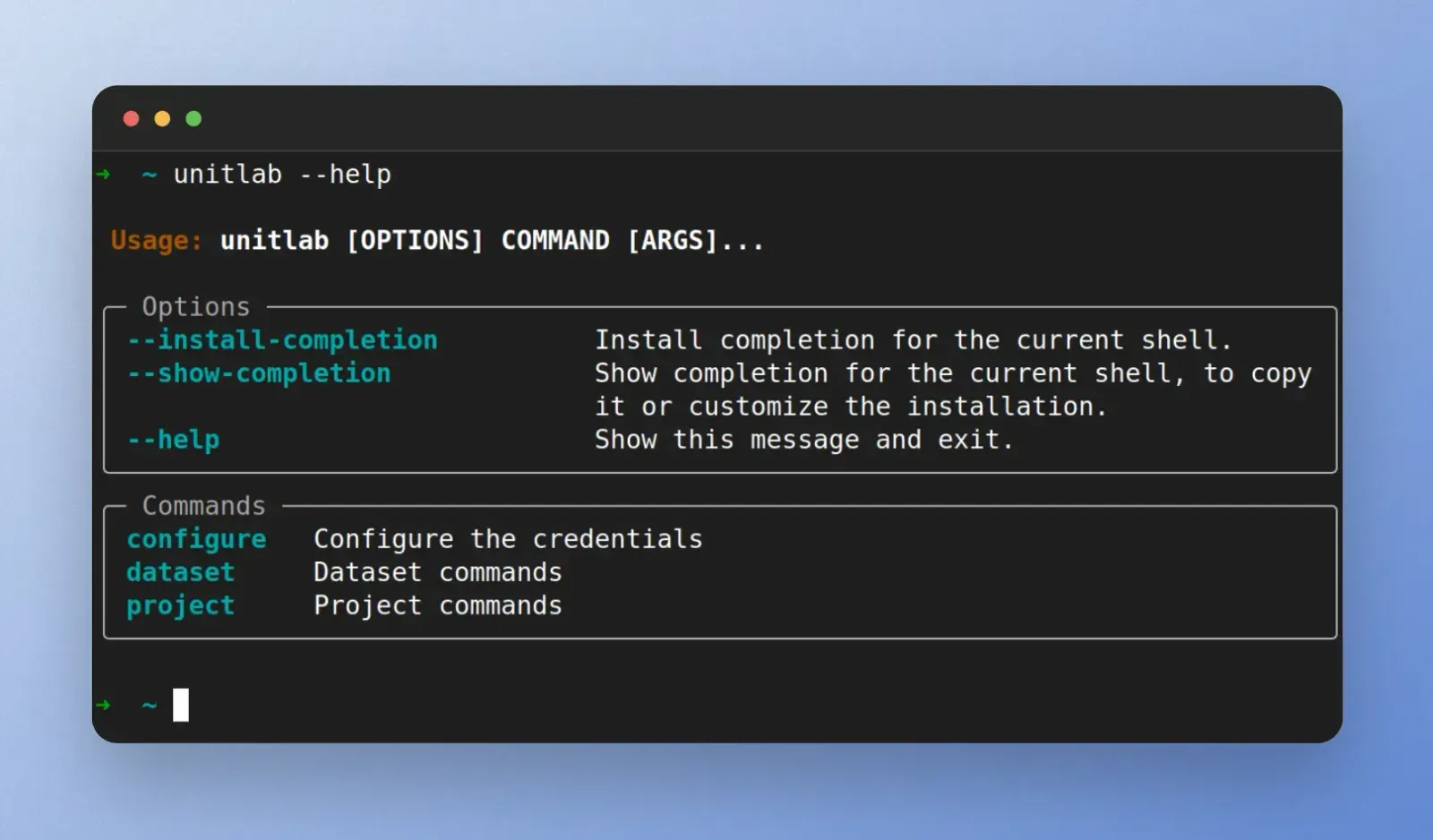
Congratulations, you have successfully configured Unitlab CLI. Now, let's set up our API key to access our workspace at Unitlab AI.
API Key Configuration
At Unitlab AI, a workspace instance is a top-level, standalone project that contains projects, datasets, members, billing, and API keys.
To interact with our platform programmatically, you need an Unitlab API key. Retrieve your API key from API Keys in your Unitlab dashboard or from Settings > API Keys:
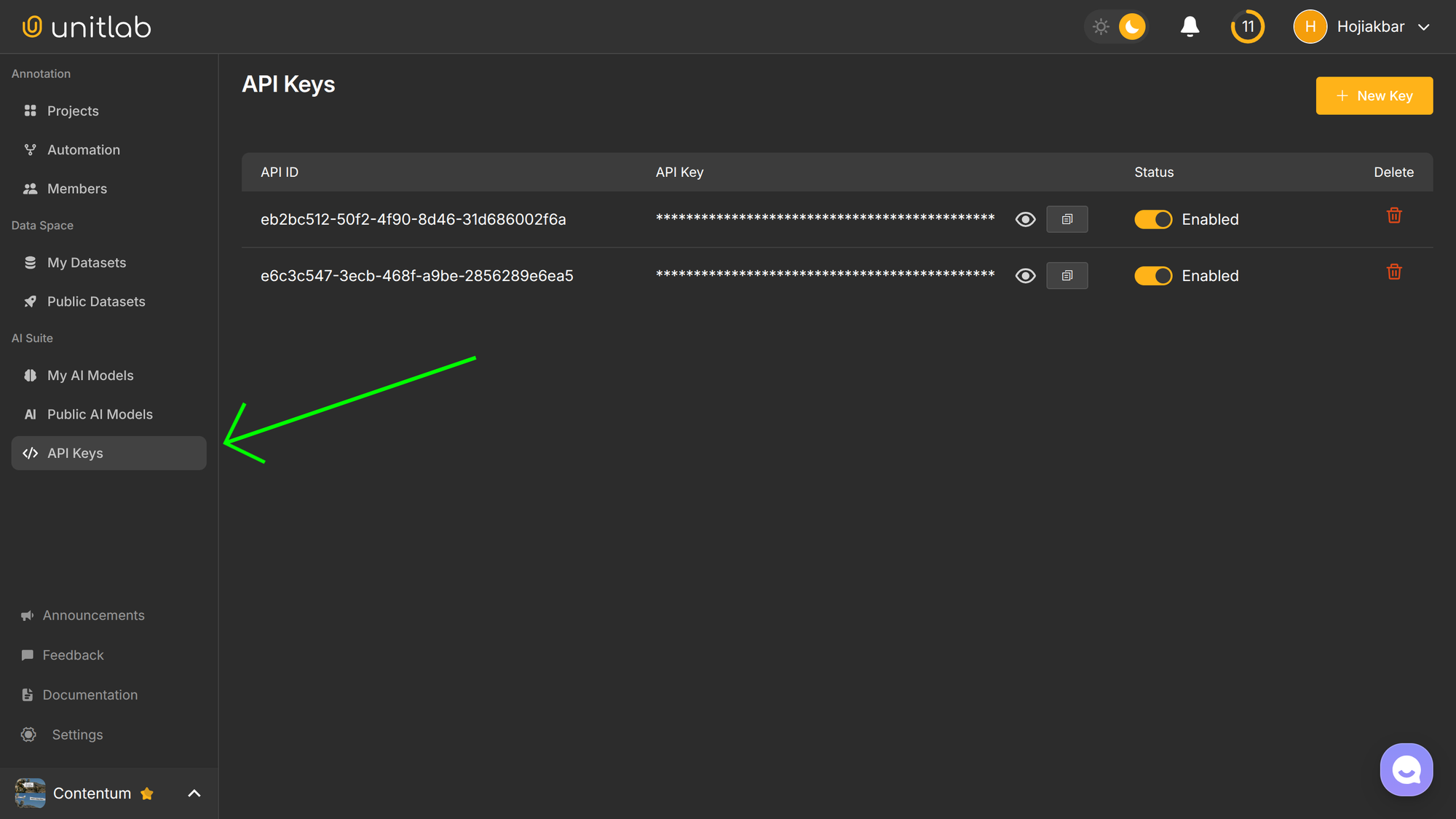
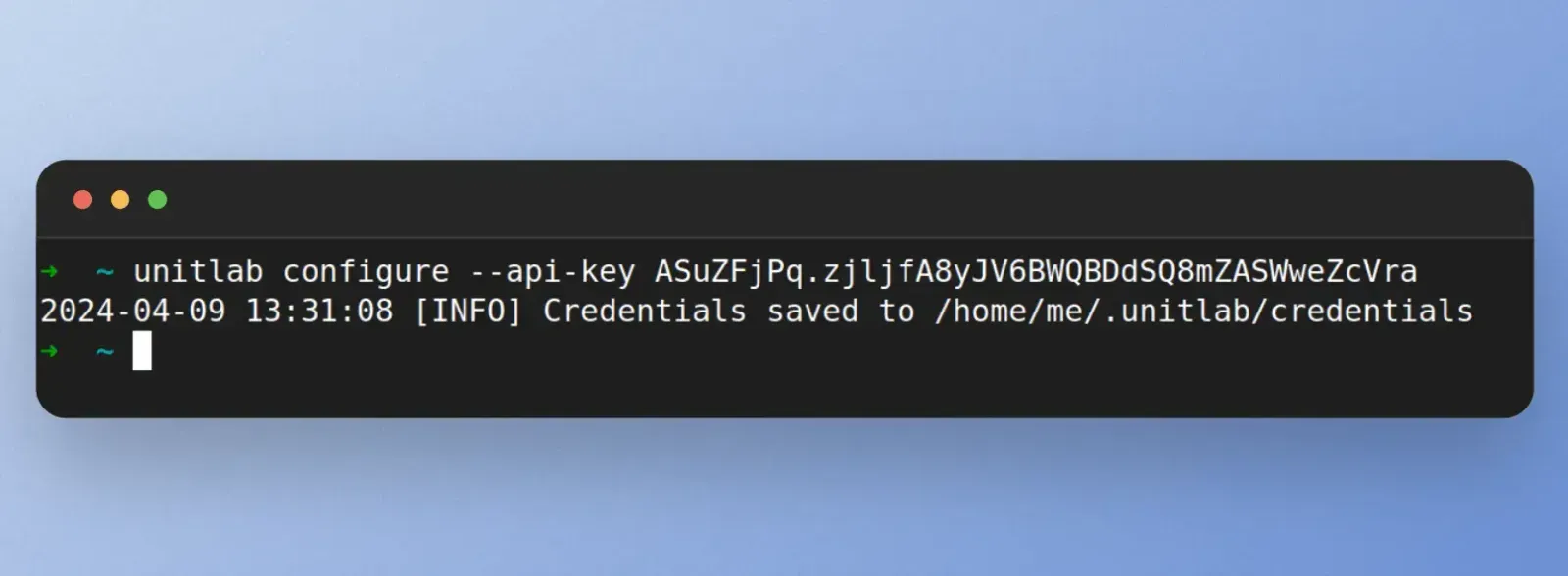
Configure the API key in your terminal:
$ unitlab configure --api-key YOUR_API_KEYThis saves the key in ~/.unitlab/credentials for future use. You can override it with the --api-key flag if needed.
Unitlab CLI Commands
Project list
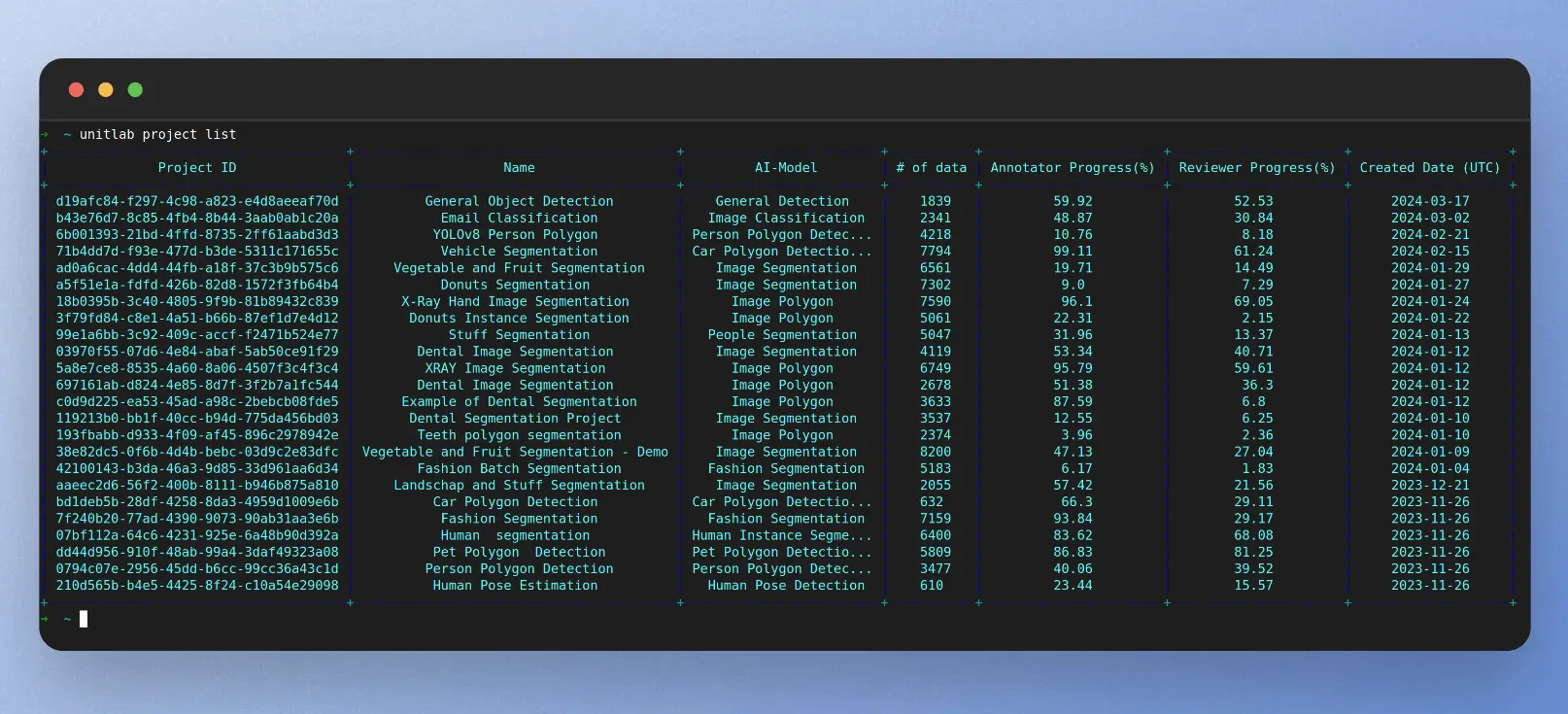
To retrieve a list of current your current projects, execute:
$ unitlab project listThis command shows the essential information about your projects: Project ID, Name, Number of data, Annotation Progress, Review Progress, and Created Date of each project in your workspace.
Project Detail
To get details of an individual data annotation project in your workspace, run this command:
unitlab project detail PROJECT_ID
This will output the details of an individual project in your workspace.
Project Members
To get details of the members in your project, execute this command:
$ unitlab project members PROJECT_ID
This will return Member ID, Member Email, Position, Progress (%), Average Time, Overall Time of each member present in your particular data labeling project.
Upload data to your project
Instead of manually clicking and uploading data to your project through the GUI in the web platform, you can programmatically upload a data folder with just one command in the terminal.
Run this command to upload the folder to your project, where PROJECT_ID is the project you want to add data, and DIRECTORY_PATH is the absolute or relative path to your source data.
$ unitlab project upload PROJECT_ID --directory DIRECTORY_PATH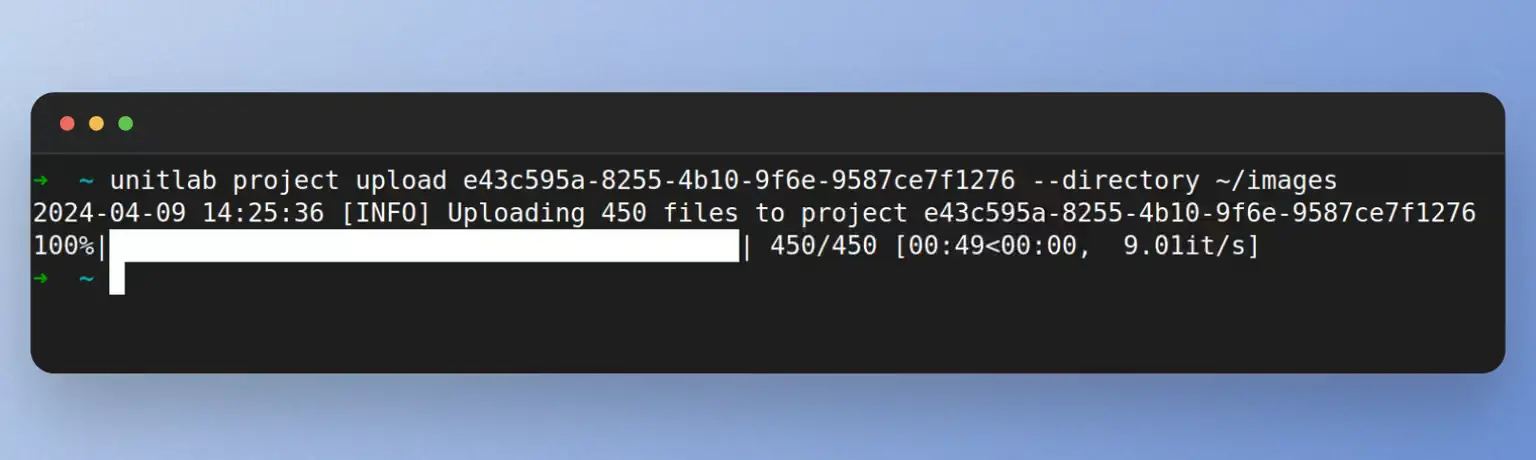
Dataset list
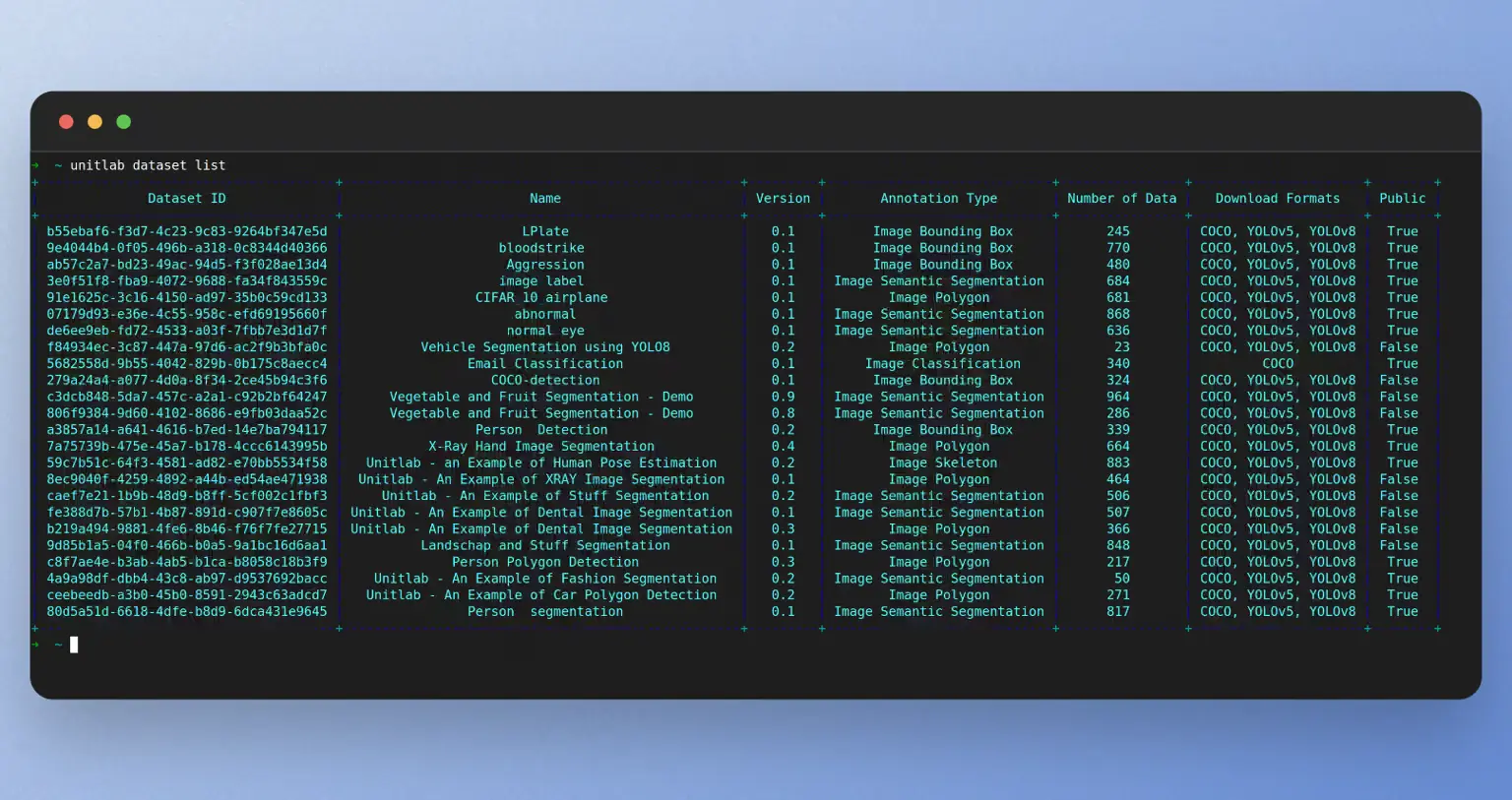
To see the list of available public datasets on Unitlab AI and your own private ones, run this command:
$ unitlab dataset list
This command shows the essential information about each dataset:
- Dataset ID: the unique ID of the dataset
- Name: the name of the dataset
- Version: the version of the dataset
- Annotation Type: the annotation type of the dataset (image bounding box, named entity recognition, DICOM, etc)
- Number of data: the number of data points in the dataset
- Download formats: the download formats of the dataset, such as COCO
- Public: is the dataset public or your private dataset?
Download dataset
You can download the annotations of your dataset to your local computer by using this command:
$ unitlab dataset download DATASET_ID --download-type annotation --export-type ANNOTATION_TYPE

If you want to download the source images, you can use this command:
$ unitlab dataset download DATASET_ID --download-type filesIt will download raw data files in the current directory.
Unitlab Python SDK
This third-party Python package by Unitlab AI provides the same functionality as Unitlab CLI, but through Python. You can write scripts to automate some maintenance tasks, usually through a cron job.
Initialize the SDK
Once you install unitlab in your current environment, initialize it:
from unitlab import UnitlabClient

# You can find your API key at https://app.unitlab.ai/Unitlab/api-keys
api_key = "YOUR_API_KEY_HERE"
client = UnitlabClient(api_key)
Remember to keep your API key to Unitlab secret! Once someone outside your team acquires access to your API key, they acquire access to your projects, datasets, and annotations as well.
You can use a popular Python environments package, environs. As a best practice, you are advised to rotate your API keys frequently, usually once in every 90 days.
Key Methods
The Unitlab SDK offers a range of functions to help with routine operations and automated scripts. Below are some frequently used methods:
projects                    Get a list of projects.
project                     Get project information.
project_members             Get project's members.
project_upload_data         Upload data samples to a project.
datasets                    Get a list of available datasets.
dataset_upload              Create a dataset with your own annotations.
dataset_download            Download the dataset's annotation.
dataset_update              Add more data to an existing dataset.
dataset_download_files      Download raw dataset files
These methods are accessible through your initialized object; in our case it is the client variable.
Examples
These are some of the common examples of Unitlab Python SDK.
Retrieve Project List
from unitlab import UnitlabClient

api_key = "YOUR_API_KEY_HERE"

client = UnitlabClient(api_key)
client.projects()
This command will return a list of all your projects, including the pk (Project ID), , annotator progress, created, creator, name, number_of_data, and reviewer progress:
[
    {
        'pk': 'a3243f7f-db16-4c3c-b424-96d596a9573a',
        'annotator_progress': 100.0,
        'created': '2026-01-18T06:26:21.520485+05:00',
        'creator': 'YOUR_EMAIL_ADDRESS',
        'name': 'NER Project',
        'number_of_data': 9,
        'reviewer_progress': 0
    },
    {
        'pk': '9fe12cb9-59ce-41f6-8b3d-f3b0a4393888',
        'annotator_progress': 100.0,
        'created': '2026-01-14T11:42:00.547018+05:00',
        'creator': 'YOUR_EMAIL_ADDRESS',
        'name': 'Project Setup Tutorial (Augmented)  (cloned)',
        'number_of_data': 36,
        'reviewer_progress': 0
    },
    {
        'pk': '7c0075f5-15ad-4acf-8146-04194563f738',
        'annotator_progress': 0,
        'created': '2026-01-06T20:30:57.801871+05:00',
        'creator': 'YOUR_EMAIL_ADDRESS',
        'name': 'Test',
        'number_of_data': 3,
        'reviewer_progress': 0
    },
]
Add Data Samples to a Project
To upload more data to your existing project, provide the project ID (pk) and the path to your directory containing the data samples and run the following code. Use this to add new samples to your .
from unitlab import UnitlabClient

api_key = "YOUR_API_KEY_HERE"
project_id = "YOUR_PROJECT_ID"
directory = "PATH_TO_DATA_SAMPLES"

client = UnitlabClient(api_key)
client.project_upload_data(project_id=project_id, directory=directory)
List Available Datasets
This code snippet will return all public datasets, both official and user-generated, available in Unitlab Annotate.
from unitlab import UnitlabClient

api_key = "YOUR_API_KEY_HERE"

client = UnitlabClient(api_key=api_key)
client.datasets()
This code will return the pk (Dataset ID), name, version, annotation_type, download_formats of the dataset available at Unitlab Annotate.
[
    {
        "pk": "62ec02b2-98ea-4a28-87b5-cb401e2bc831",
        "name": "CArscr",
        "version": "0.8",
        "annotation_type": "Image Polygon",
        "number_of_data": 39,
        "download_formats": "COCO, YOLOv5, YOLOv8",
    	"is_public": True
    },
    {
        "pk": "0e54980c-4d8c-403b-b0bc-ff71908fc323",
        "name": "Person and Face Detection",
        "version": "0.4",
        "annotation_type": "Image Bounding Box",
        "number_of_data": 7,
        "download_formats": "COCO, YOLOv5, YOLOv8",
		"is_public": True
    },
    {
        "pk": "4ae4652d-5fbf-4af3-8106-9a5a025e50ed",
        "name": "Limonmanzana",
        "version": "0.1",
        "annotation_type": "Image Semantic Segmentation",
        "number_of_data": 20,
        "download_formats": "COCO, YOLOv5, YOLOv8",
		"is_public": True
    },
    {
        "pk": "a7d5574d-115a-46f7-a117-be5e944dfd70",
        "name": "Segmentacao_FoFo",
        "version": "0.1",
        "annotation_type": "Image Semantic Segmentatio",
        "number_of_data": 58,
        "download_formats": "COCO, YOLOv5, YOLOv8",
		"is_public": True
    },
	...
]Download dataset annotations
You can easily fetch annotated data in JSON. Retrieve your dataset ID and execute the dataset_download method to download the annotated results.
from unitlab import UnitlabClient

api_key = "YOUR_API_KEY_HERE"
dataset_id = "YOUR_DATASET_ID"

client = UnitlabClient(api_key)
client.dataset_download(dataset_id=dataset_id)
Download raw dataset files
By contrast, download the original files for dataset version control and model training below:
from unitlab import UnitlabClient

api_key = "YOUR_API_KEY_HERE"
dataset_id = "YOUR_DATASET_ID"

client = UnitlabClient(api_key)
client.dataset_download_files(dataset_id=dataset_id)
This will create a folder named dataset-files-{dataset_id} in your current working directory.
Conclusion
The Unitlab CLI and Python SDK offer a set of functions to communicate with Unitlab AI through API, to execute tasks programmatically.
While the Unitlab CLI is ideal for quick tasks and scripts, the Unitlab Python SDK simplifies building an automated pipeline for easire dataset management and routine operational tasks with the help of a cron job.
For example, to address common manual problems, such as getting project details and members, fetching the latest version of the dataset, and uploading additional data for annotation into Unitlab AI can be easily automated with little scripts.
![Invoice OCR Annotation with Unitlab AI [2026]](/content/images/size/w360/2026/01/Invoice.png)